 Help
A residential line is a home phone service: one phone line for a household, delivered over their internet connection. It replaces the old copper landline. The customer plugs a phone into their own device, a router with a phone port or an ATA (analogue telephone adapter), and the device signs in to the line with a SIP username and password.
It suits a home or a very small office with one line. For a business PBX with several lines, use a SIP trunk instead.
What every line includes
| Feature | What it does |
|---|---|
| Two calls at once | Room for a second call alongside the first, for call waiting or to transfer a call. |
| Calls within Australia | Local, national and mobile numbers, and 13 and 1300 numbers. Emergency 000 and 1800 free-call always work. |
| Voicemail | One mailbox per line, off until you turn it on. Messages can be emailed, with the recording attached. |
| Call forwarding | Sends every call to another number. |
| Do Not Disturb | Stops the phone ringing. |
| Reject anonymous calls | Turns away callers who hide their number. |
| Call waiting | Off until you turn it on. Lets a second call come in during a call. In the hour after the line calls 000, the emergency service’s call back always comes in, even with call waiting off. |
| 000 location | The line’s IPND address is given to emergency services on a 000 call. |
You turn the features on and off on the line’s page. See Call Settings and Voicemail below. A line needs a number before it can take calls.
Order a line
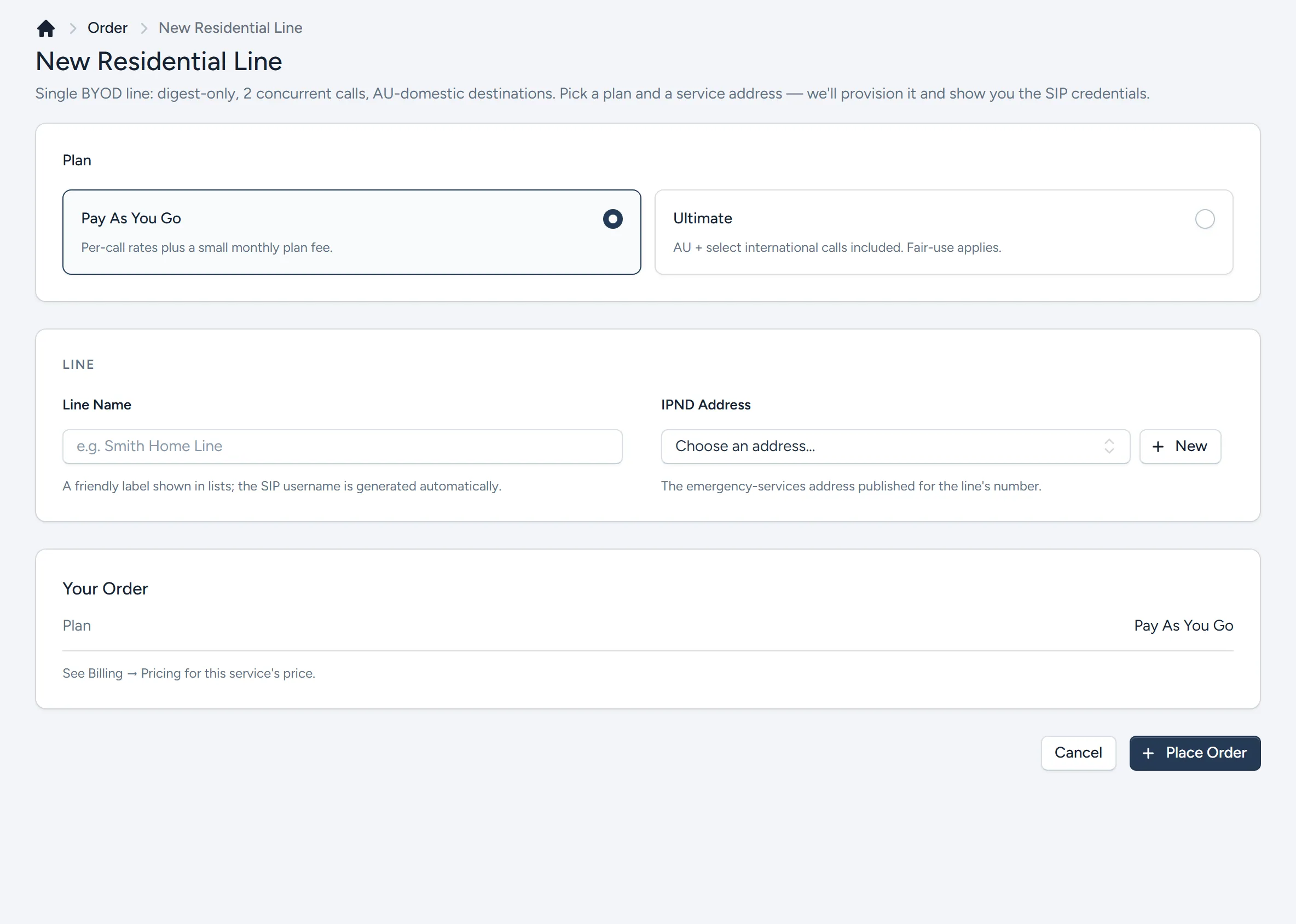
- Go to Services, then Residential Lines, and choose New Residential Line. You can also go to Order, then Residential Line.
- A partner login picks the client it is for under Provision for.
- Pick a Plan:
- Pay As You Go: calls charged per call, with a small monthly plan fee.
- Ultimate: Australian and some international calls included, under a fair-use policy.
- Give it a Line Name if you like. It is how the line shows in your lists.
- Pick the IPND Address: the address emergency services are given on a 000 call. If it isn’t listed, choose New beside it, or New IPND Address when you have none. The IPND address form opens. Create and Return to Order brings you back with the new address picked and your plan and line name kept.
- Check Your Order: the plan and, if your login sees billing, its monthly and setup price excluding GST. The phone number is priced when you order it.
- Choose Place Order.
The line’s page opens with its SIP credentials. Enter them in the customer’s device. Then order a number or port theirs in and send it to the line. A line without a number can’t take calls.
When the number reaches the line, it becomes the line’s caller ID: the number people see when the line calls them. You don’t need to set it, and it is set even before the number’s IPND address is in place, so the line can always call 000. If that number later leaves the line, ported away or moved, the caller ID moves to the number the line has now.
Your lines
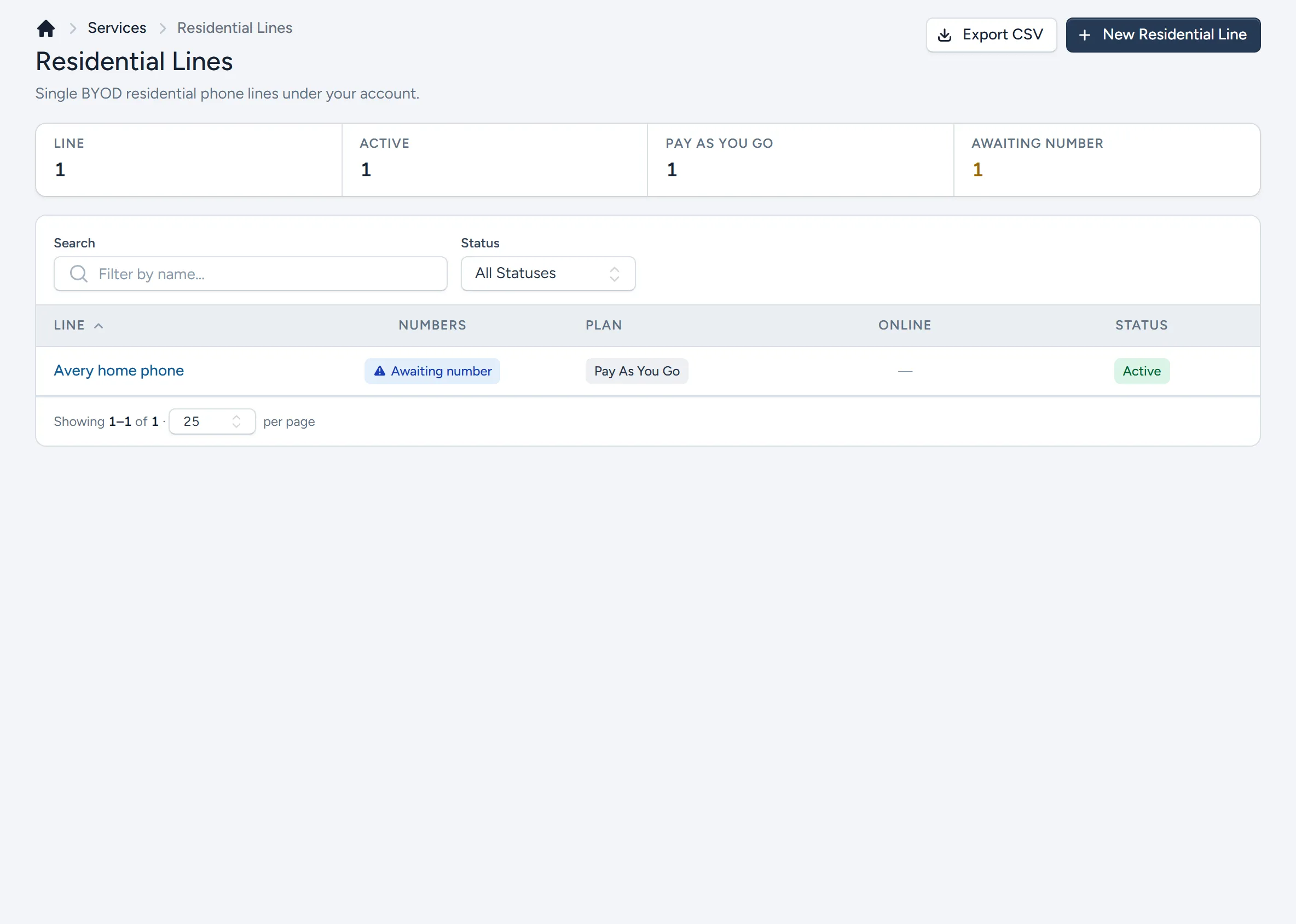
Residential Lines, under Services, lists each Line with its Numbers, Plan, whether it is Online, and its Status. Search it, or filter by Status. Export CSV downloads the list.
Above the list, a summary counts your lines by status and plan. Awaiting Number counts lines with no number yet. They can’t take calls until you send one to them. A line whose numbers are all routed somewhere else shows None routed to this line under its Numbers. It is billed for them, but no call reaches it.
A line’s page is like a trunk’s: its SIP credentials, the Registrations tab, Suspend and Cancel. It has no plan card, retail customer, IP authentication, source IP lists or call limit, which a line doesn’t use. It adds:
- Change Plan, which moves the line between plans while it is active.
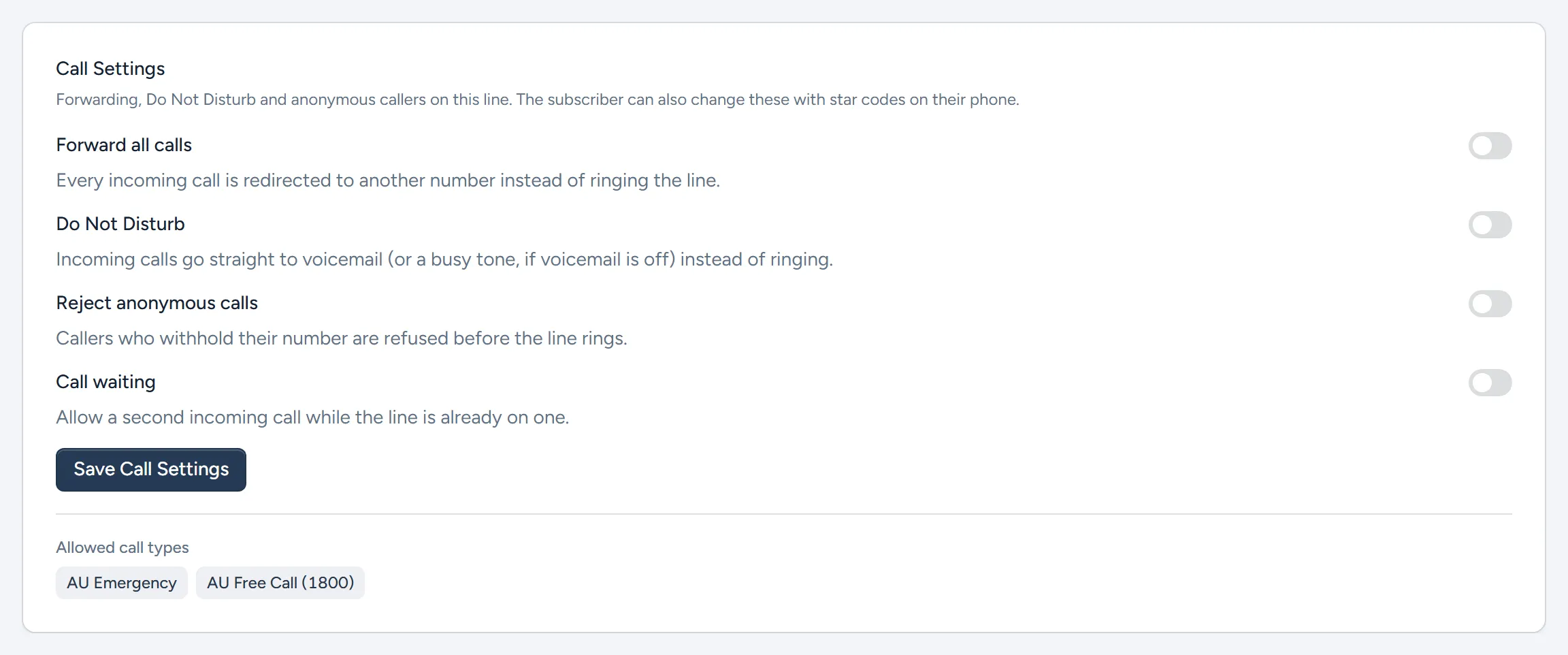
- Call Settings, for the phone at the premises. Choose Save Call Settings
when you are done:
- Forward all calls, to the number under Forward to. Enter digits only, such
as
0355500000. Calls can’t be forwarded to 000, 112 or 106 in any form. The portal, the API and the*72code on the phone all refuse it, with “Calls can’t be diverted to an emergency number (000, 112 or 106).” - Do Not Disturb.
- Reject anonymous calls, for callers who hide their number.
- Call waiting.
- Forward all calls, to the number under Forward to. Enter digits only, such
as
- Voicemail. Turn it on. To have each message emailed, enter an address under Email new messages to. Leave it blank to keep messages on the line only. Tick to attach the recording, and to delete the message once emailed. Choose Save.
You can also do all of this with the API.
Residential Lines lists, orders and changes the plan of a line, and sets its
call settings and voicemail. A call record or number names the line by its
username, with trunkType: residentialLine.
A Res Line always has a number
A line needs a number that rings it, or it can’t take calls. So a change that would take away a line’s last number asks you first what happens to the line. Those changes are routing its last number somewhere else, Return to Block when the block’s route doesn’t ring the line, and releasing the number. Routing is done on the number’s page, or with Re-route on several. Nothing is saved until you choose, for each line:
| Option | What happens |
|---|---|
| Give it a new number | A new number like the one leaving is ordered for the line, at the same IPND address. It is billed like any other number. |
| Move another of your numbers to it | Choose one of your other active numbers. It moves to the line, is routed to it and billed on it. |
| Suspend the line | It stops making and taking calls, and keeps billing, until you resume it and give it a number. |
| Cancel the line | It is cancelled for good and its billing stops. A number routed to another of your trunks or lines moves onto that trunk or line. A line still in contract is cancelled from its own page, where the early termination charge is shown, so choose another option here. |
Then choose Confirm and Save, or Don’t Change to leave everything as it was. The change and your choice are made together.
When you choose Give it a new number, the line has no number for the moment it takes to set the new one up. The new number becomes the line’s default caller ID when it arrives, unless you have set another.
A line’s first number rings the line. When you order a number for a line that has none ringing it, Send Calls To must be the line. Forwarding it or sending it to a SIP address is refused. Once the line has a number, a further one can be forwarded or sent to a SIP address.
A line’s number can still be ported away to another provider. A port-out is never refused. If it is the line’s only number, we contact you to ask which of the four you want.
A suspended line
A suspended line can’t make or receive calls. Calls to its number are turned away before they ring: the caller hears that the number can’t be reached, and the line’s call forwarding, Do Not Disturb and voicemail are not used. It can always call 000. If it has called 000, 112 or 106 in the last hour, calls to it are put through, so the emergency service can call back. Those calls ring the line even if forwarding or Do Not Disturb is on.
If something is wrong
| What happens | What to check |
|---|---|
| The device won’t register. | Check the username and password on the line’s page, and that the device is online. The line’s Online status shows whether we can see it. |
| No incoming calls. | Check the line has a number, under My Numbers, and that the number’s Routed To is the line. |
For anything else, log a Technical ticket. See What to include.