 Help
Every data order starts with a site qualification, or SQ: what the address can have, on which network, and over what. It tells you which network serves the premises, NBN or Opticomm. It tells you the technology, such as FTTP, FTTC, FTTN, HFC or fixed wireless, and what you can order on it.
To order you need permission to manage services, and your account must be set up for data. Otherwise you’ll see “Data services and bundles are not enabled for your account. Please contact your account manager.”
Search for the address
-
Go to Services, then Data Services, and choose Check Availability. You can also start from Order, then Data Service. A partner login has no Order page and starts from Services, then New Data Service.
-
Start typing the street address and pick it from the suggestions. If you have the premises’ location ID, paste it instead. The ID is
LOCfollowed by 12 digits for NBN, orOPCfor Opticomm. A complete ID goes straight to the result.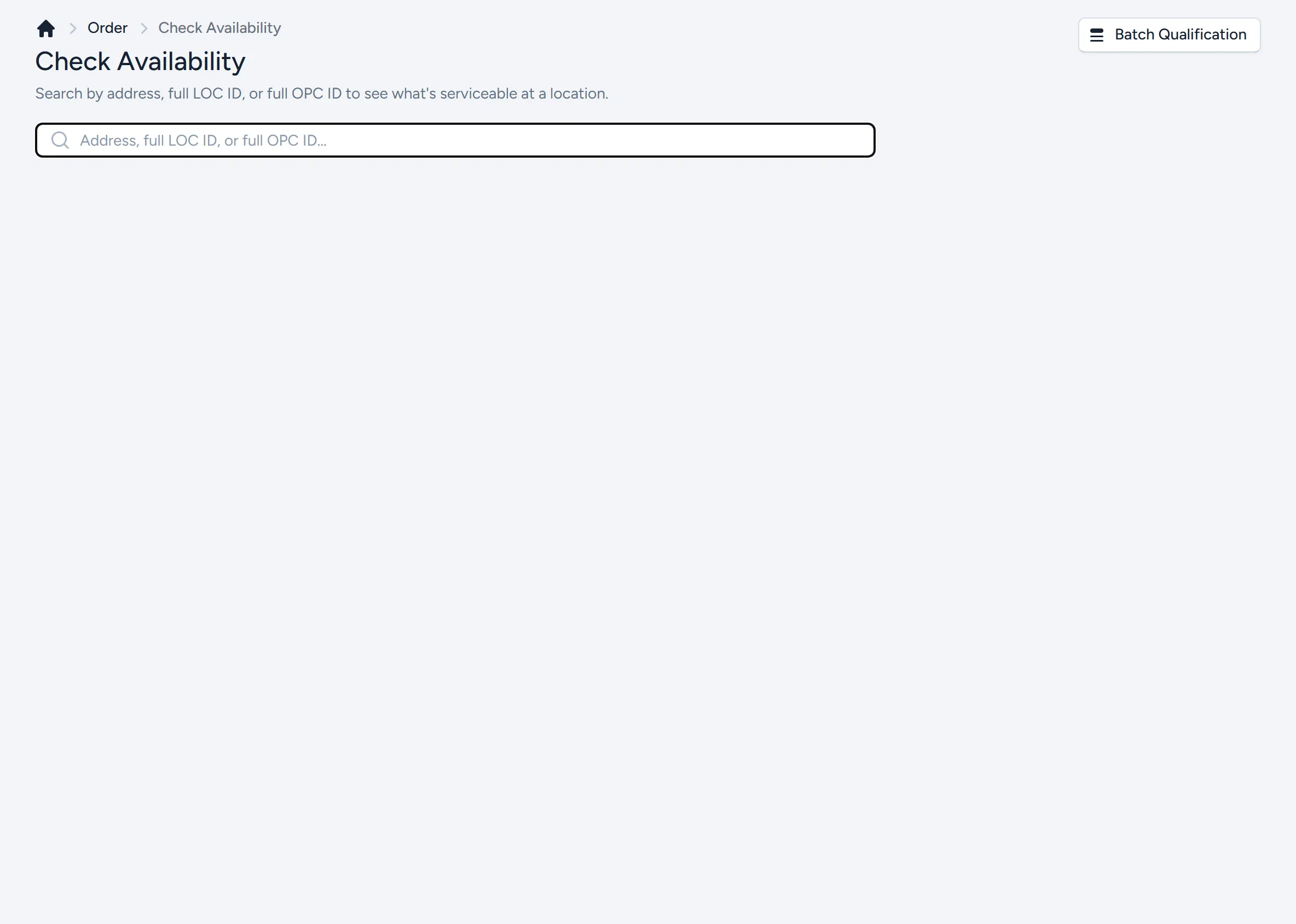
Check Availability -
If NBN lists several premises at the street address, such as units or shops, the page asks you to pick the right one.
Read the result
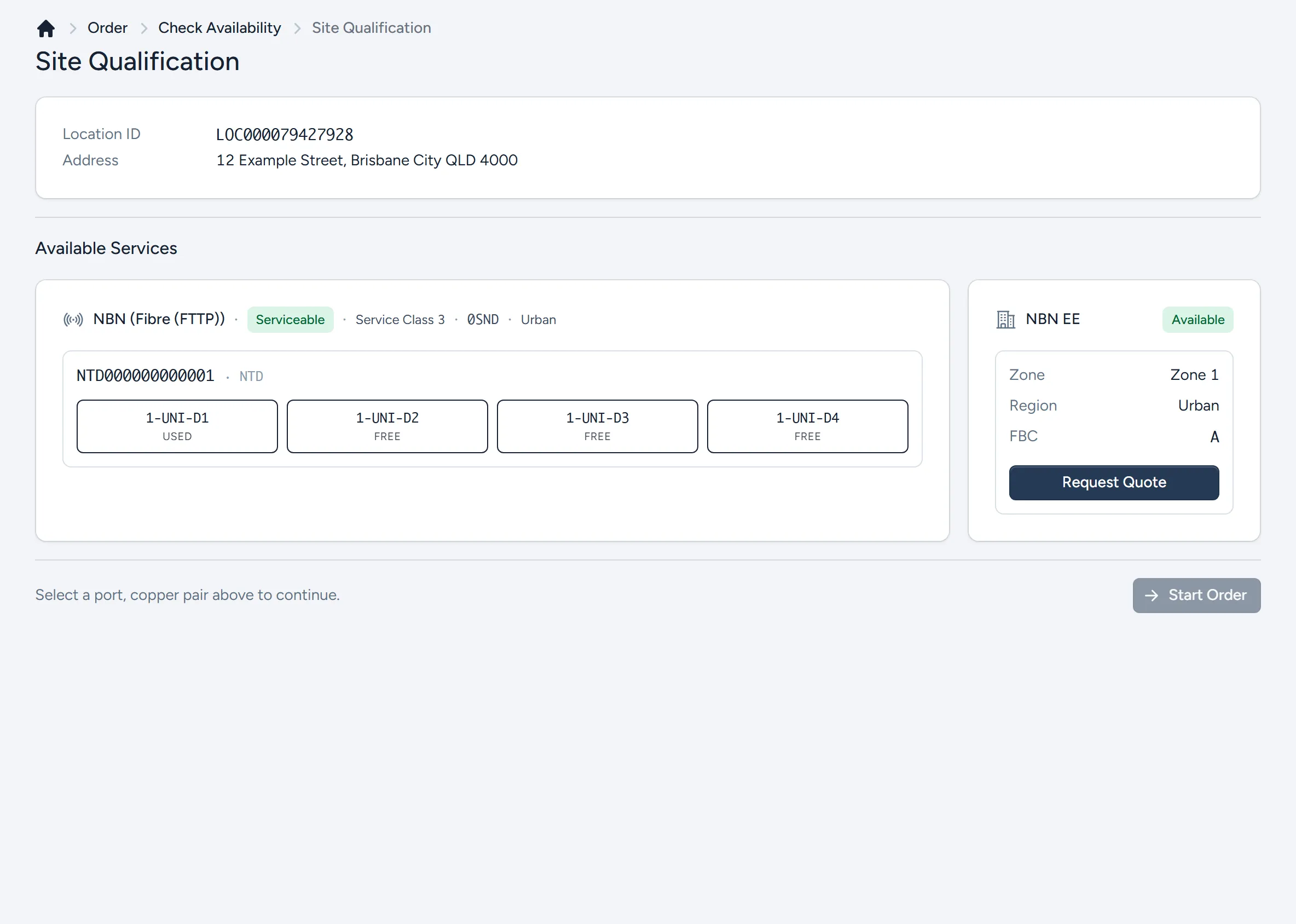
Site Qualification shows the Location ID and address, then a card for each way the premises can be served under Available Services.
- The heading names the network and technology, such as NBN (FTTP).
- Serviceable, Partial or Not available says whether you can order on it.
- Where the premises has more than one access, one is marked Primary Access and older ones Legacy Technology.
- A charge that applies to the order, such as a new-development charge, is shown on the card before you order.
An NBN premises on fibre (FTTP), where Enterprise Ethernet is also on offer:
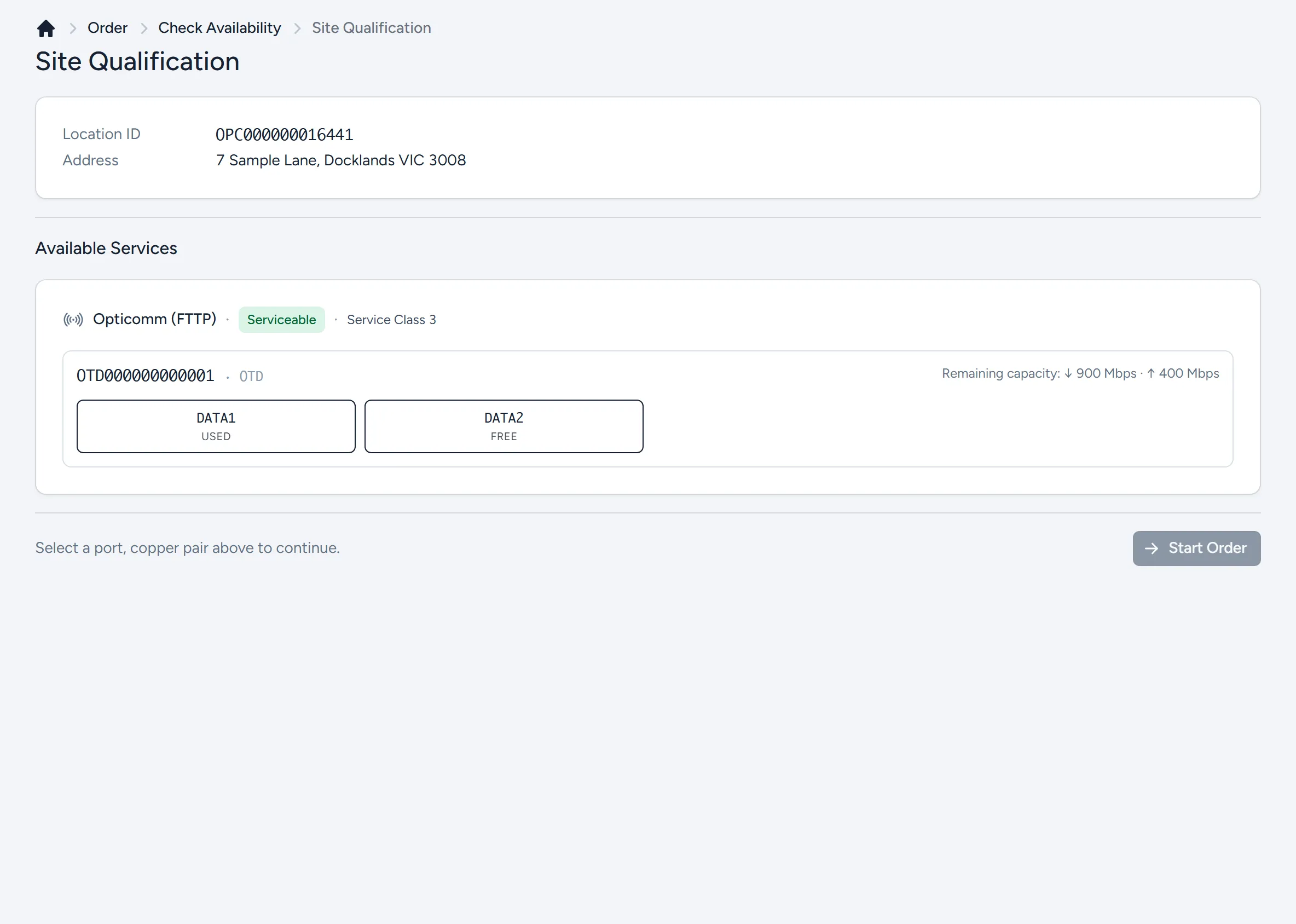
An Opticomm premises. Opticomm’s ID starts OPC, and its device is an OTD
rather than NBN’s NTD:
Then choose what to order on:
| Option | When you see it |
|---|---|
| A port on the network device | FTTP, HFC and fixed wireless: pick a free port. Its remaining capacity is shown. |
| Copper Pairs | FTTN and FTTB: each pair is Free, In use, or needs an Install fee. |
| Pending Install | No device at the premises yet. The network installs one. |
| Technician Activation Required | A technician has to attend to connect the service. |
| Additional Line | Every port or pair is in use: a technician visit and an installation charge apply. |
| Fibre Uplift (FTTP) | The premises can be upgraded to fibre. A 12-month term applies. The final speed is confirmed at order. |
Where the premises can have Enterprise Ethernet, its card shows the EE Zone, Region and FBC, the fibre build category. Request Quote asks for the cost of building fibre to it, and View Quote opens the quote once it is priced. See Enterprise Ethernet quotes.
Take over an existing service
A port or pair marked In use with Service Active On This Access has a live service from another provider. You can transfer it to you instead of connecting a new one, with no outage beyond the switch-over.
On the NBN:
- Select the in-use port or pair.
- Enter the Customer Authority Date: when your end user authorised the transfer. It can’t be in the future and must be within the last 45 days. Leave it blank for yesterday. See Customer Authority for what the authority must record.
- Enter the Existing Service AVC ID and choose Validate AVC. The ID
starts
AVC, and the end user’s current provider can give it to them. - When it shows Validated, carry on.
When there is no AVC to give
Sometimes your end user has moved in and the AVC of the service still on the line can’t be got: the previous occupant’s provider won’t give it. Order a Connect Outstanding with a proof of occupancy instead:
- Select the in-use NBN port or pair.
- Under Or: Proof of Occupancy, choose a lease, utility bill or similar showing your end user lives or trades there, and choose Upload. It must be a PDF, JPEG or PNG of 10 MB or less.
- When it shows Added, carry on. Use the AVC instead goes back to the AVC.
The document is kept with the order as its evidence, and is used for that one order only. For another order, upload it again. The service on the line is cancelled by its provider before yours connects, which takes longer than a transfer.
On Opticomm:
- Select the in-use port.
- Enter the Customer Authority Date: when your end user authorised the transfer. It is required, can’t be in the future and must be within the last 45 days. See Customer Authority. There is no AVC to validate.
An in-use port or pair is only ever ordered as a transfer. Where the premises offers no transfer, the order is refused. Pick a free port or a new install.
Start the order
Choose Start Order. This creates a draft order and opens it. Its reference
starts PND. Nothing has gone to the carrier yet. See
Ordering a data service.
To order several premises together, add each to a bundle, or qualify them all in a batch and add its rows to a bundle at once. See Bundles and draft orders.
If Existing order in progress shows on the card, someone already has an order open on that premises. Check with your end user before placing another.
If something is wrong
| The page says | What to do |
|---|---|
| “No matching addresses found.” | Try fewer words: the street number and name. Or use the location ID from the end user’s current bill. |
| “No NBN service available at this address.” | The address isn’t on the NBN yet, or is served by another network. Check whether Opticomm serves it. |
| “NBN lookup failed — try again in a moment.” or “Site qualification temporarily unavailable” | The carrier’s system didn’t answer. Try again in a few minutes. Check network status if it keeps happening. |
| “Validate the existing AVC, or upload a proof of occupancy, before placing the order.” | A transfer needs a validated AVC first, or a Connect Outstanding needs its document. See When there is no AVC to give. |
| “The proof of occupancy must be a PDF, JPEG or PNG.” or “…must be 10 MB or smaller.” | Upload it in one of those formats, or a smaller copy. |
| “That proof of occupancy is not one of yours that is still unused.” | Another order has used it already. Upload it again. |
| “AVC verification failed.” | The AVC ID doesn’t match a service on that port. Check it with the end user’s current provider. |
| “Enter the customer authority date before placing the transfer.” | An Opticomm transfer needs the date your end user authorised it. |
| “This one is in use, and the premises offers no service transfer.” | The carrier won’t transfer the service on that port or pair. Pick a free one, or a new install. |
To qualify many addresses at once, see Batch qualification.