 Help
Notifications, under Company Settings, sets who hears from us, and when. Changing it needs permission to manage services, which Owners and Admins have.
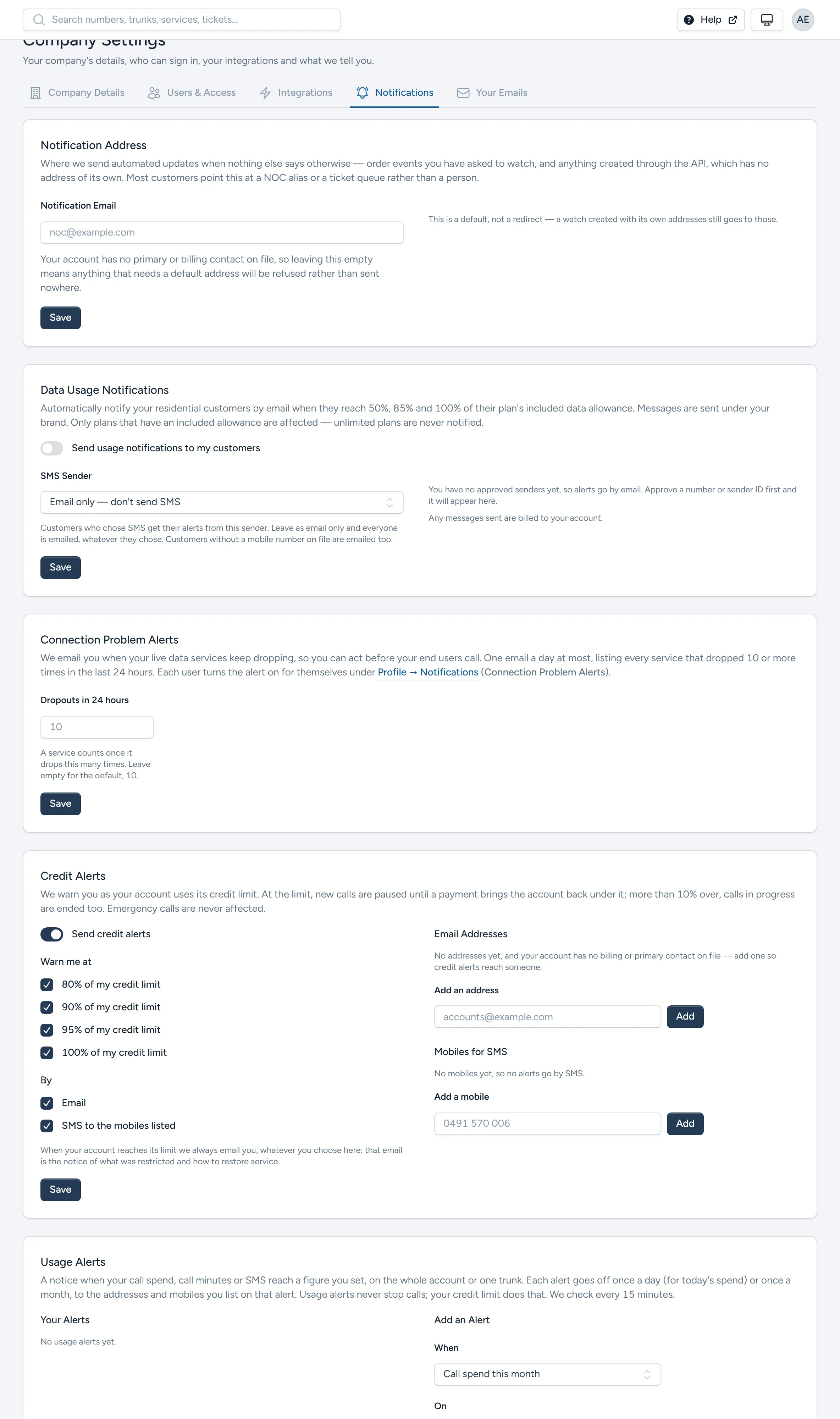
Notification address
Notification Email is where we send notices about your account and services.
Leave it empty to use your primary contact. A shared mailbox, such as
noc@yourcompany.com.au, is better than one person’s address.
If you have told us you are experiencing family or domestic violence and gave us a safe email or number, every notice about your account goes only there: outage and maintenance notices, bills and reminders, credit and usage alerts, ticket and porting emails, and the emails your users would get. Your other contacts and users are not sent them. If you asked us to contact you only another way, we do not email or text them at all. Our team contacts you the way you agreed. Ask our team to change it at any time.
Data usage notifications
To email your residential end users when they reach 50%, 85% and 100% of their plan’s data allowance, turn on Send usage notifications to my customers.
SMS Sender also sends them a text, from the sender you pick, or choose “Email only — don’t send SMS”. Texts are billed to your account like any other SMS.
Both settings can also be read and changed through the API, with
GET and PATCH /account/notification-settings. The scopes are
account:read and account:update.
Connection problem alerts
A connection problem alert emails you when your live data services keep dropping, so you can act before your end users call. It lists every service that dropped at least the number you set in the last 24 hours, worst first. That is the same count as Connection Problems, and the alert links to that page.
- Under Connection Problem Alerts, enter the Dropouts in 24 hours at which a service counts, from 1 to 500, and choose Save. Leave it empty for the default, 10.
- Each user who wants the alert turns on Connection Problem Alerts under Data Services in their own notification preferences. It is off until they do, and a partner login isn’t offered it.
You get one alert a day at most, and none on a day no service reaches the number. Services the carrier’s own RADIUS authenticates aren’t counted.
Credit alerts
Your account has a credit limit. A credit alert warns you before you reach it.
- Turn on Send credit alerts.
- Under Warn me at, tick one or more levels: 80%, 90%, 95% or 100% of your credit limit.
- Under By, tick Email, SMS to the mobiles listed, or both, and choose Save.
- Add who gets them. Under Email Addresses, enter one in Add an address and choose Add. Under Mobiles for SMS, do the same with Add a mobile. Each list takes up to ten. Each person is added straight away: there is no separate save. Remove takes one off, after asking.
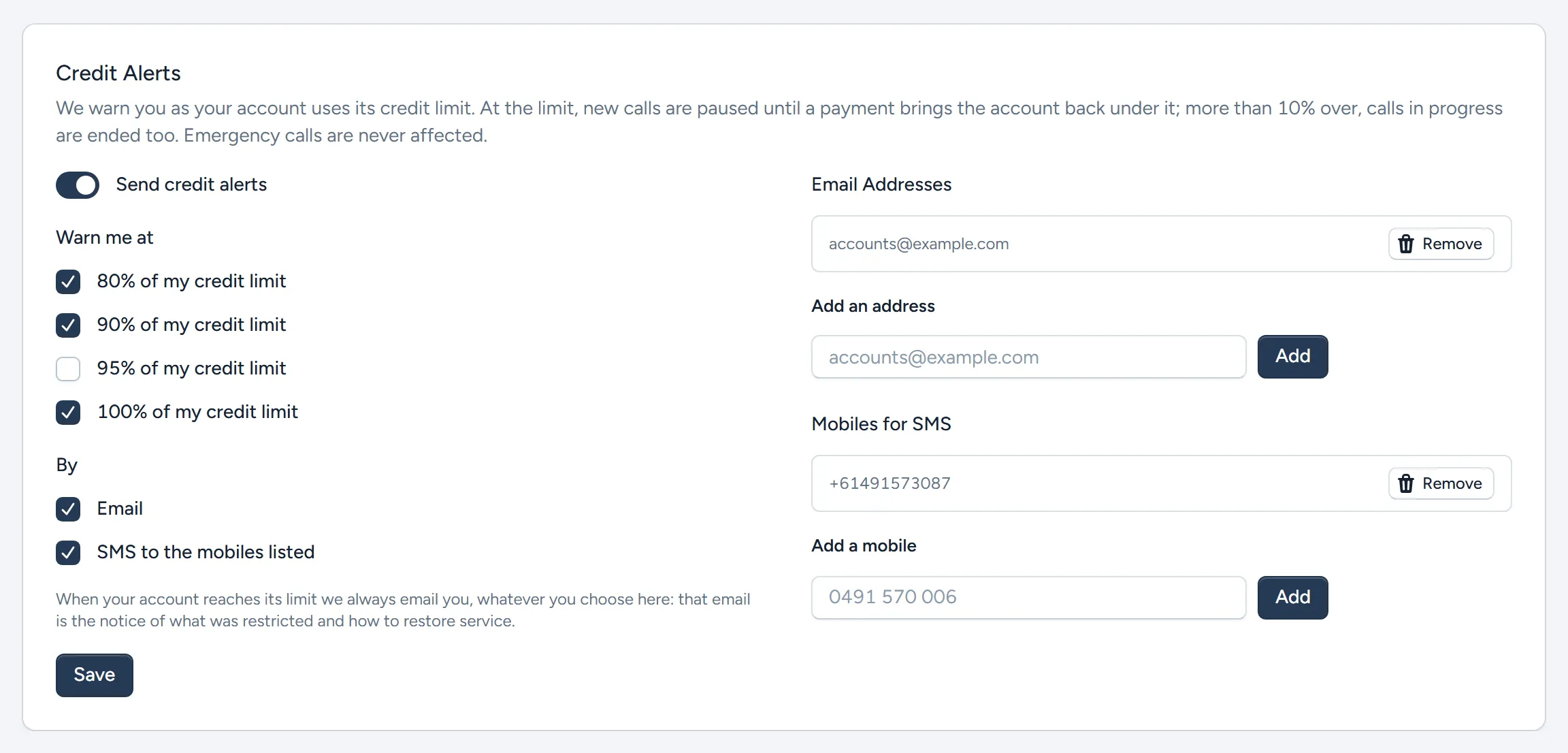
Without permission to manage services, you see the settings but can’t change them.
What happens at the limit:
- At your credit limit, new calls are paused until a payment brings the account back under it.
- More than 10% over, calls in progress end too.
- Emergency calls to 000 are never affected.
To get back under the limit, pay an invoice or use Top Up Credit on the dashboard. To change the limit itself, contact our billing team.
Usage alerts
A usage alert tells you when your usage reaches a figure you set, whatever your credit limit. Each one watches one of:
- Call spend today, in dollars without GST.
- Call spend this month, in dollars without GST.
- Call minutes this month, counting answered calls.
- SMS sent this month, counting each part of a long message.
To add one, go to Add an Alert under Usage Alerts:
- Under When, choose what to watch.
- For a call alert, under On, choose The whole account or one trunk. An SMS alert always covers the whole account.
- Enter the figure in Reaches, such as
50.00for $50 or1000for 1,000 minutes. - Under By, tick Email, SMS to the mobiles listed, or both. Tick neither for an alert that sends only the webhook event.
- Under Email addresses and Mobiles for SMS, enter who this alert goes to, separated by commas, and choose Add. Email needs at least one address and SMS at least one mobile. If one is ticked with nobody for it, the alert is not added and the form says which.
Each alert has its own list of addresses and mobiles, up to 10 of each, and goes only to the people on it. It does not go to the people under Credit alerts, or to your billing contact. An alert with nobody on its list sends only the webhook event. The last address of an alert sent by email, or the last mobile of one sent by SMS, can’t be taken off it.
Each alert goes off once: once that day for today’s spend, once that month for the others. If you change what an alert watches, its trunk or its figure after it has gone off, it can go off again in the same day or month when the new figure is reached. Changing only who it goes to, or how, does not.
We check every 15 minutes, so a notice can come up to 15 minutes after the figure is reached. Days and months follow Brisbane time, as your bill does.
Your Alerts lists them, with who each goes to and when it was last sent. The switch beside one turns it off and on, and Remove deletes it, after asking. Recipients opens the alert’s list to add an address or a mobile. The cross on a name takes that person off the alert, after asking. You can have up to 25 alerts.
A usage alert is a notice only. It never stops calls. Your credit limit is what does that.
Your systems can manage usage alerts and their recipients through the API at
/account/usage-alerts, under the same rules. Each alert that goes off also
sends the usageAlert.triggered webhook event.
Changing an alert’s metric between spend and minutes or SMS there needs a new
figure in the new unit, so $50 never becomes 5,000 minutes.
Unusual calling activity
We watch every account’s outbound calls for the signs of toll fraud. If your account spends a lot on calls in a short time, we pause new outbound calls on the whole account straight away, as a precaution. We may also pause them when the calls follow a pattern fraud does: an unusually wide range of destinations in a short time, or a burst of calls to destinations the account has never called before. Either way we email the addresses under Credit alerts, or your billing contact if there are none. The email says what we saw.
While calls are paused:
- New outbound calls on every trunk are refused with
403 Account temporarily suspended, and a residential line hears an announcement instead. - Calls to 000 and to 1800 numbers still connect.
- Inbound calls, calls already in progress and your other services carry on.
The pause stays until we lift it. If the calls were expected, such as a campaign, a new customer or a dialler, contact support and we review it and lift the pause.