Ordering a data service
Every NBN or Opticomm order starts with a site qualification: what the address can have, and on what network.
1. Qualify the address
Section titled “1. Qualify the address”Go to Services → Data → Site Qualification and search for the address,
or paste its location ID (LOC… for nbn, OPC… for Opticomm). The result
shows Available Services: the network, the technology, the speeds the
address can take, and any existing NTD ports or copper lines.
Pick what you want to order. Where the address has an NTD, choose a free port. If the NTD is full you can ask for an additional install. To take over a service already at the address, enter its AVC ID so it can be checked first.
2. Fill in the order
Section titled “2. Fill in the order”The order opens as a draft. Under Order Details, set:
- Bandwidth Profile: the speed tier.
- Session Protocol: how the router at the premises starts its session. IPoE needs no credentials and is the only choice today.
- NNI and Inner VLAN (C-Tag), if you hand off on your own interconnect.
- End User: the end user the service is for. It puts the service in their portal and on their bills. You can also assign it later.
- Customer Reference: your own reference, shown in lists and search.
- Notification Emails: who is emailed as the order moves along.
Tick to confirm the end user has given informed consent for the order.
3. Review and submit
Section titled “3. Review and submit”Review Order shows exactly what goes to the carrier. Submit it now, or schedule the submission for a later date and time. A scheduled order can be moved or unscheduled until it goes.
A draft is saved as you go and stays under Services → Data in the pending orders, so you can come back to it. Discard a draft you no longer need.
4. Follow it through
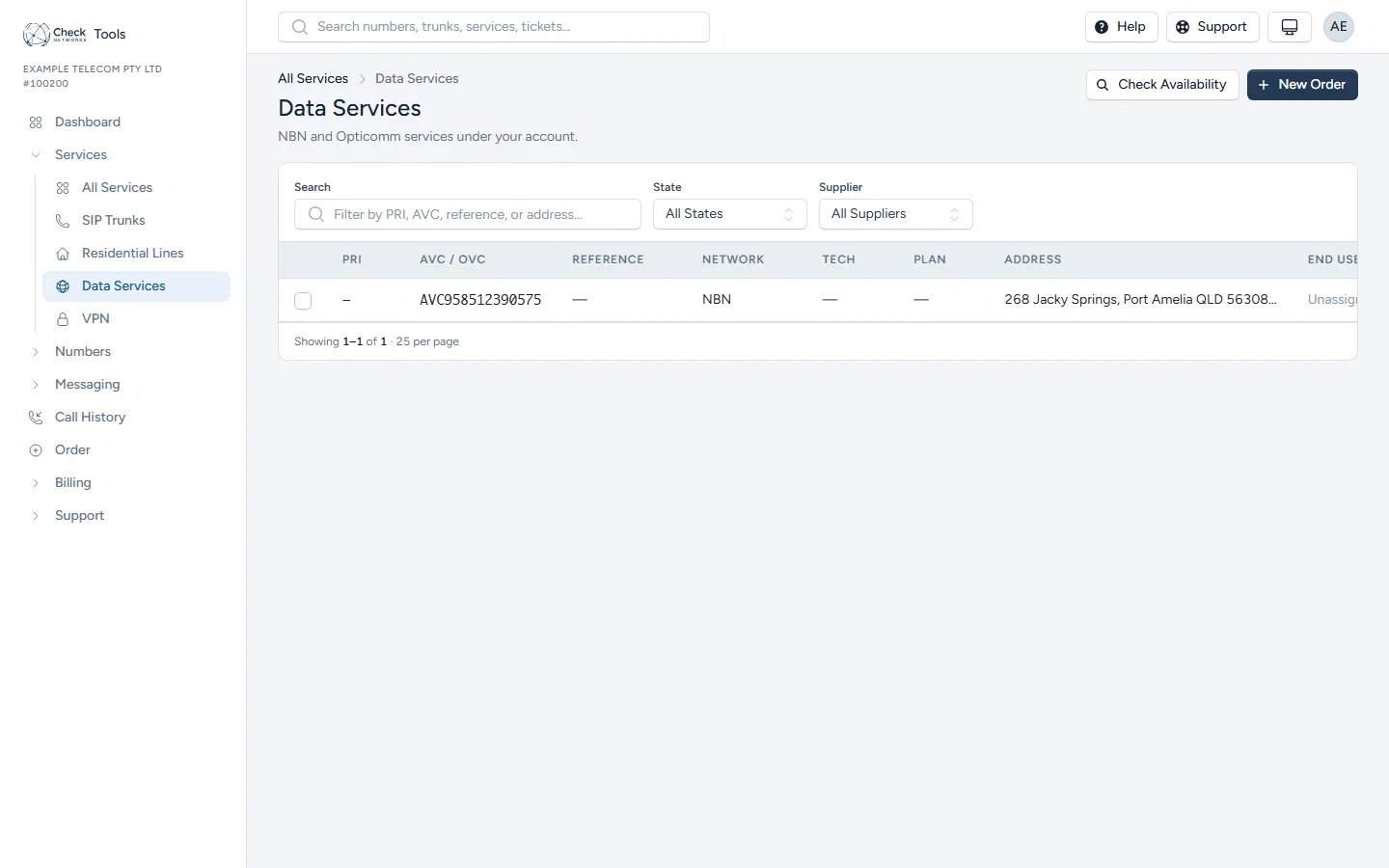
Section titled “4. Follow it through”Live services and open orders are listed under Services → Data Services.
The order page’s Timeline shows each step, with the carrier’s own messages. Choose Watch to have updates emailed to anyone you like.
- An appointment is needed: when nbn needs a technician, the order asks you to book one. Orders waiting on you are listed under Needs Attention on your dashboard.
- Not accepted: if the carrier rejects the order, the page says why. Fix the cause and place a new order.
- Complete: the service appears under Services → Data, with its health, usage and diagnostics.
The API does all of this too, under /data/orders. See
The Check Networks API.