 Help
You get one invoice a month, issued on the 1st. It covers the coming month’s recurring charges for your services, in advance, plus the calls, data and SMS you used in the month just ended. A service added or changed part-way through a month is pro-rated. All prices on the portal exclude GST. The invoice shows the GST and the total.
Your month runs on your account’s time zone, from midnight on the 1st to midnight on the next 1st there. A call at 11:30 pm on the last day is on that month’s invoice. It is Brisbane time until you set another. An Owner or Admin sets it under Time Zone in Company details. A change of zone applies from your next invoice. The month already under way finishes on the zone it started in, and no call is billed twice or missed. Each invoice names the zone it was cut in, and its dates and calls are shown in that zone, on the PDF and in the portal.
You need the Billing permission to see invoices. Owners and Admins have it, and so does the Billing role. See Users and roles.
Each invoice, and each billing email about it, goes to your billing contact. Those emails are receipts, reminders, statements, and card and payment notices. If you have told us you are experiencing family or domestic violence and asked for your bills a particular way, they follow that instead: only to the safe email you gave us, by post to the safe address, or not sent at all, with your invoices still here in the portal. Ask our team to change it at any time.
Find an invoice
-
Go to Billing, then Invoices. The list shows every issued invoice, newest first, with the amount still due and its status.
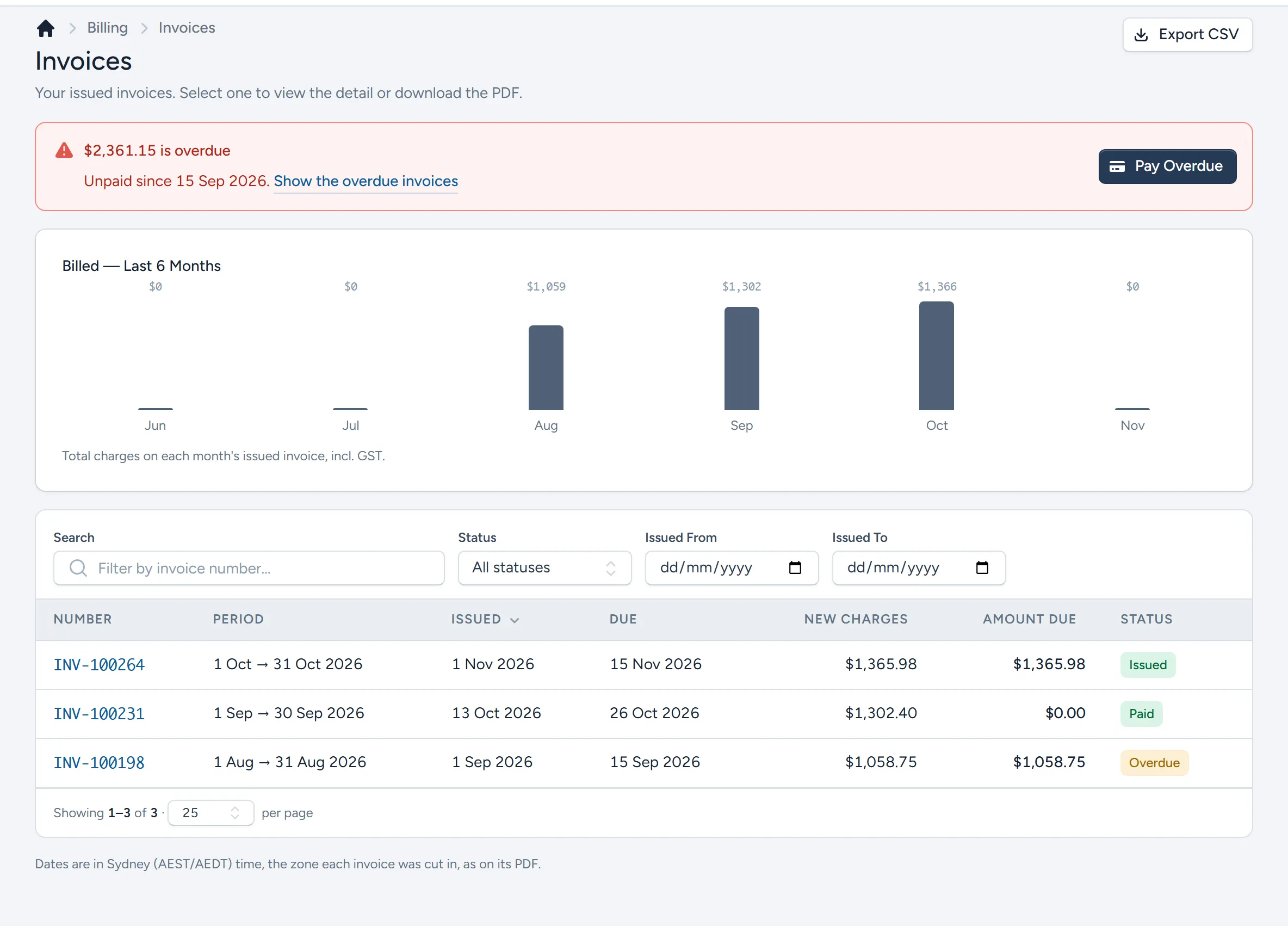
The Invoices list, with one invoice overdue -
To narrow the list, type an invoice number in the search box, pick a Status, or set Issued From and Issued To. Export CSV downloads what the list is showing, with each date as the invoice itself shows it.
-
Select an invoice to open it.
| Status | What it means |
|---|---|
| Issued | Sent to you and not yet fully paid. It is due on the date shown. |
| Overdue | Past its due date with an amount still owing. |
| Paid | Settled in full. |
| Void | Cancelled by our billing team. Nothing is owed on it. |
If anything is overdue, a banner at the top of the list shows the total and when it became unpaid. Show the overdue invoices filters the list to them. Pay Overdue, on the right of the banner, pays them in one go by card. Its dialog shows the amount overdue. A payment is applied to your oldest invoices first.
Above the list, Billed — Last 6 Months charts what each of your last six invoices came to.
Read an invoice
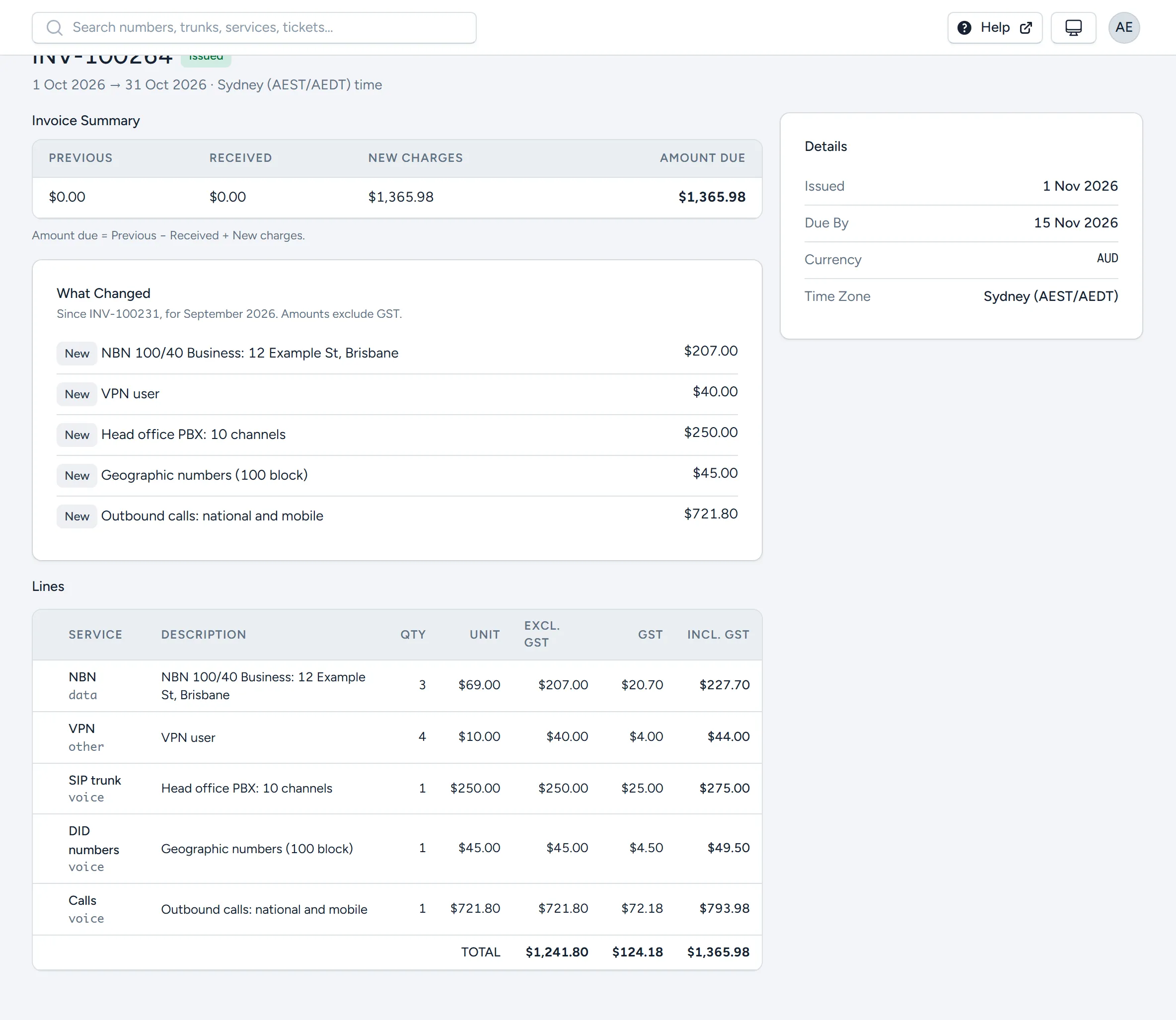
The invoice page starts with the Invoice Summary: the previous balance, payments received, new charges and the amount due. Beside it, Details shows when it was Issued, when it is Due By, its Currency, and the Time Zone its dates and calls are in. Below them:
- What Changed: why this invoice differs from your last one. It lists New and Ended services, a Price Change, usage Up or Down by more than 25%, usage with No Usage This Month where your last invoice had some, and One-Off charges such as a setup fee. A usage change links to the calls in Call History, or to Usage for the month. Your first invoice has none, nor does one where nothing changed.
- Lines: every charge, with the quantity, unit price, and the amount excluding GST, the GST and the total. A call charge reads “N calls — select to view”. Select it to list the calls behind it.
- By End User: the same charges grouped by the end user each service is assigned to, for billing your own customers.
- Payments Applied to This Invoice and Credit Notes Against This Invoice: what has already reduced the amount due.
Download PDF gives you the invoice as it was issued, for your records or your accounts team. Each charge’s GST on it is the GST that charge was billed at.
An invoice can have charges at different GST rates, such as a GST-free charge or a correction billed at its original invoice’s rate. Each line of the Service Summary then names its rate, and GST by Rate below it lists each rate with the amount charged at it, its GST and the total. A Service Summary too long for one page continues on the next, with the total, and GST by Rate, after its last lines. Each inbound number’s GST is at the rate its calls were billed at.
If you set invoice groups, the PDF adds Charges by Invoice Group: each group’s lines with its PO number, cost centre and subtotal, then Other.
Pay an invoice
How you pay is set under Payment methods:
- Direct debit: nothing to do. The amount due is drawn on the due date, and the invoice shows Direct debit in progress and then Paid by direct debit.
- BPAY or EFT: pay from your bank using your account number as the reference. The biller code and bank details are under Billing, then Payment Methods, and on the PDF.
- Card: choose Pay Now on the invoice, enter the Amount (AUD), and choose
Pay Now again. Type the amount in dollars and up to two cents, such as
150or149.95, with no$or comma. It charges your saved card. If you have more than one, it charges your default card. Pay Now shows only once a card is saved under Payment methods and something is still owing.
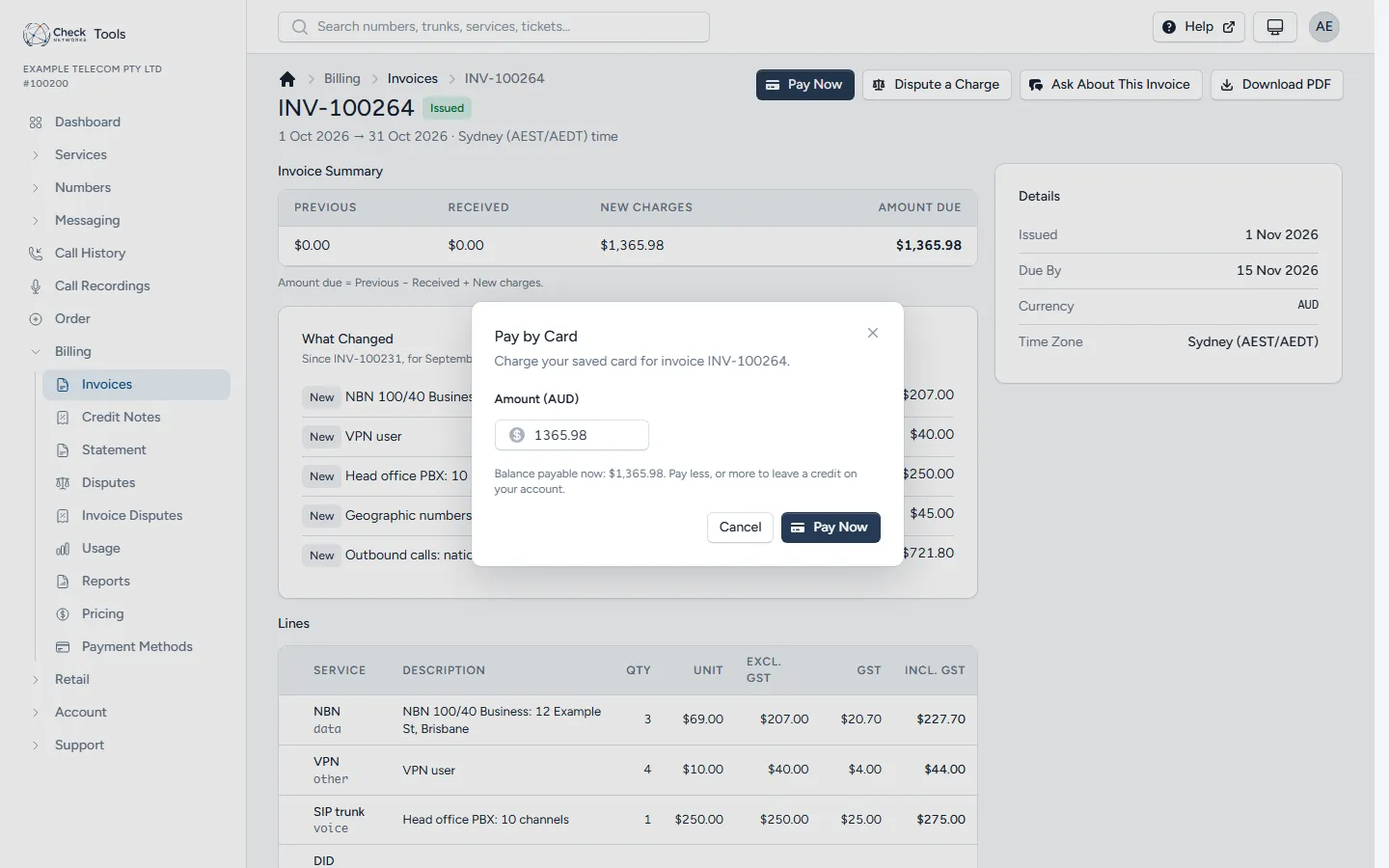
Card details go straight to our payment provider, Square. They never touch the portal. A card payment takes a moment to clear, and the invoice updates once it has.
What happens next
A payment shows on the invoice under Payments Applied to This Invoice, and the status changes to Paid once nothing is owing. Receipt beside a payment opens our receipt for it as a PDF. The receipt shows the amount, the date we received it, how it was paid and the invoices it was applied to.
If you pay more than is due, the list shows “You’re $X in credit”. The credit comes off your next invoice automatically. Contact support if you would rather have it refunded.
Dispute a charge
You can dispute a charge until the end of the 60th calendar day after the invoice is issued. The day it is issued is day 0, and the window closes at midnight, on the invoice’s own calendar.
- Open the invoice and choose Dispute a Charge.
- Pick the charge, or leave it on the whole invoice.
- Enter the Disputed amount, including GST. It can’t be more than the charge, or more than is still owed on the invoice.
- Say why, and choose Raise Dispute.
We email you to confirm, and a support ticket is opened so we can talk it through. While the dispute is open, the disputed amount is not taken by automatic payment and is left out of payment reminders. The rest of the invoice is still due on its due date.
Our billing team then decides it and emails you the outcome: a credit note for all or part of the amount, no change, or the charge stands. The invoice itself is never edited. Your disputes are listed under Billing, then Invoice Disputes, each with the amount held, its status, our decision note and the credit note.
If Dispute a Charge is missing, the line under the buttons says why: the dispute window has closed, or everything still owed on the invoice is already under dispute. You can still raise a support ticket about the invoice.
If something is wrong
| What you see | What to do |
|---|---|
| A charge looks wrong. | See Dispute a charge. If you only have a question, choose Ask About This Invoice. It opens a Billing ticket with the invoice already attached. |
| “Pay Now takes a card — add one under Payment Methods.” | You have no card saved, so add one first. A direct debit account doesn’t need Pay Now. It is collected on the due date. |
| “That is more than can be paid online at once.” | A single card payment has a limit, which the message shows. Pay the rest by EFT, or contact billing. |
| “A payment for this invoice is already in progress.” | A card payment or direct debit is still clearing. Wait for it before paying again. |
| You can’t see Billing in the sidebar. | Your user doesn’t have the Billing permission. Ask an Owner or Admin on your account. |