Logging a support ticket
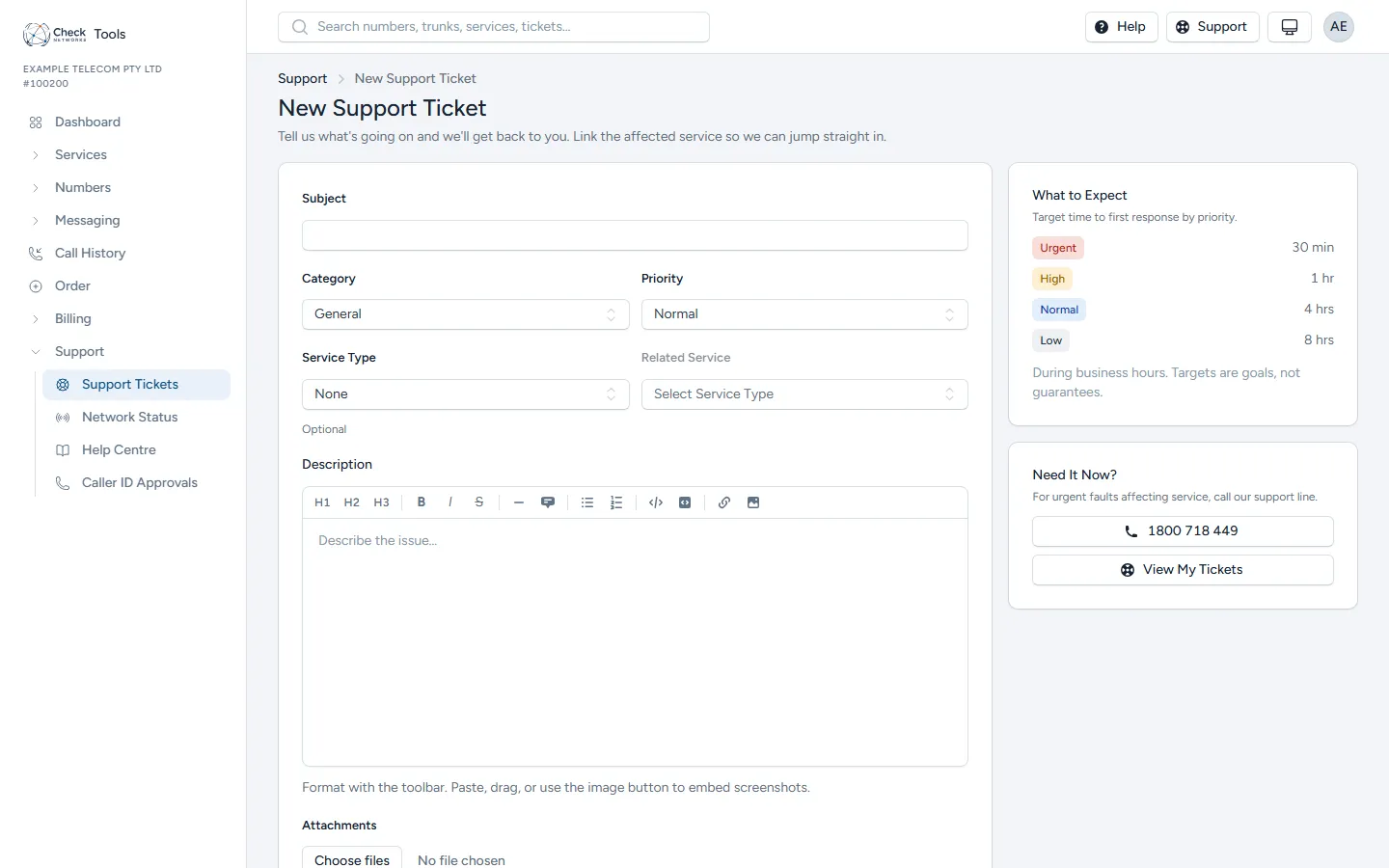
Go to Support → New Ticket (or the Support link in the header from any page).
As you choose a category and write the subject, These May Help beside the form suggests articles from this help site that cover it. They open in a new tab, so nothing you’ve typed is lost if you come back to raise the ticket after all.
What you’ll be asked for
Section titled “What you’ll be asked for”- Subject — a short, specific summary. “One-way audio on trunk ACME-01 since 14:20” gets triaged faster than “voice issue”.
- Category — Billing, Technical, Provisioning, Security Incident, Remote Hands, General, Scam Traceback, or Scam or Spoofed Number. This drives routing, so pick the closest match; see What to Include Per Ticket Type for what each category actually covers and, for the technical/voice categories, what to check yourself first.
- Priority — Low, Normal, High or Urgent. Reserve High/Urgent for things actually affecting live traffic or customers; it sets our response-time target, shown under What to Expect beside the form. For an urgent fault, call the support line shown there as well.
- Description — the details. The more specific, the fewer round-trips: what you expected, what actually happened, when it started, and anything you’ve already tried. You can paste images directly into the description (they’re attached automatically).
- Service Type and Related Service (optional) — choose the kind of service, then the one on your account the ticket is about. Linking the right service means we’re looking at the right config from the start; skipping it is the single most common cause of a ticket bouncing back with a clarifying question.
- Attachments — up to 10 files. For technical tickets, this is where packet captures, screenshots of error states, or call detail exports belong.
After you raise it
Section titled “After you raise it”-
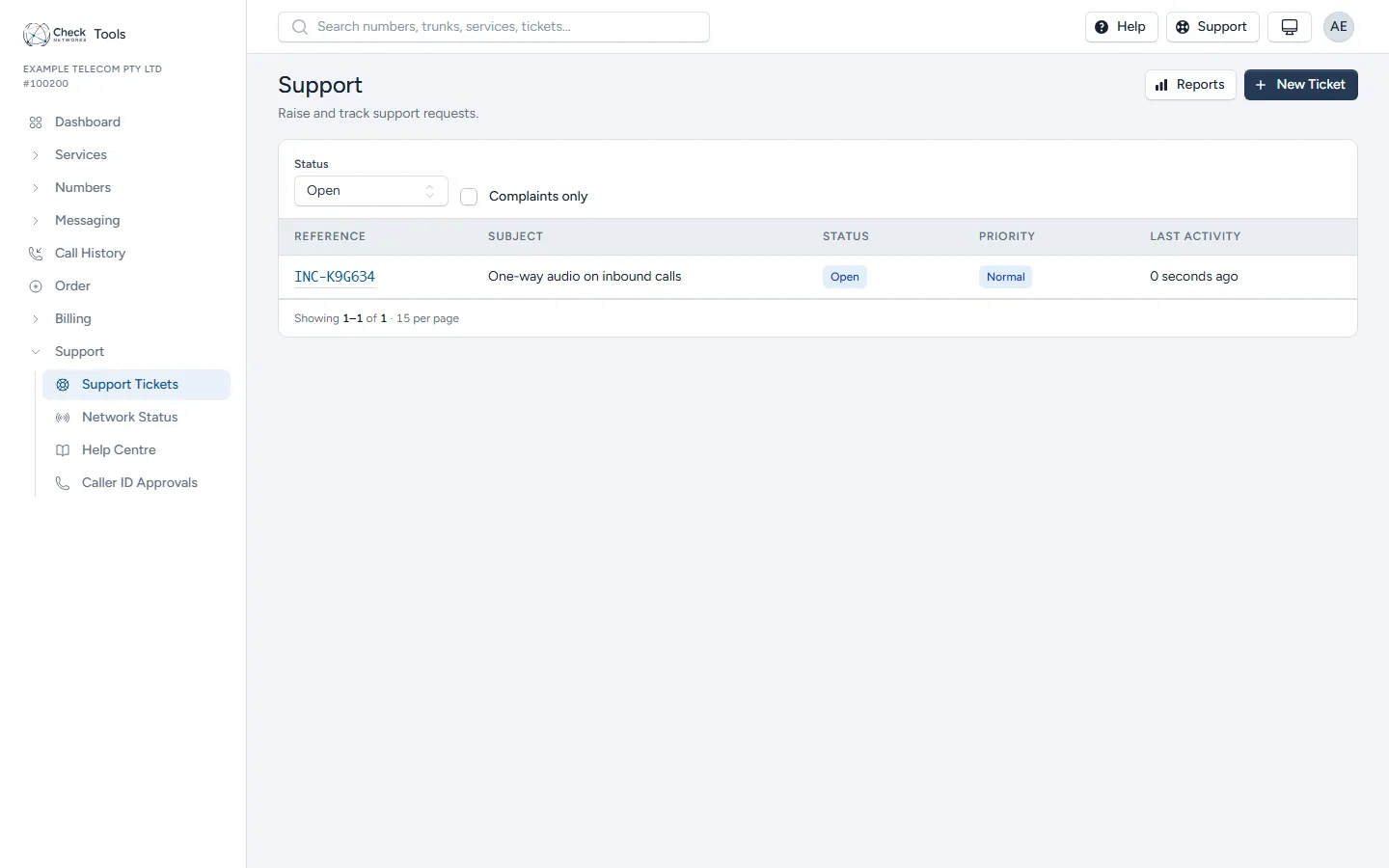
The ticket gets a reference number and shows up under Support → Support Tickets, where you can track status and reply.
-
Replies from us appear in the ticket thread in real time — no need to refresh.
-
Support → Reports gives you an account-level view of ticket volume and response-time compliance if you need it for your own reporting.
A note on complaints
Section titled “A note on complaints”If a ticket is raised as a formal complaint on behalf of one of your retail end users, and it touches a safety or family-violence sensitivity, some detail may be withheld from your account view by design — this is a regulatory protection for the individual, not a bug in the portal.