 Help
Batch qualification checks many premises at once. Upload a CSV of addresses or location IDs and review every result together. It is useful for quoting a multi-site customer.
Prepare the file
One premises per row, with a header row. Up to 2,000 rows, 10 MB, as .csv or
.txt. The easiest start is the template: a CSV with the four column headings
below, ready to fill in. Download it here,
or choose Download the template on the Batch Qualification page.
| Column | Required | What goes in it |
|---|---|---|
address |
Yes | A street address, or a LOC or OPC location ID. |
reference |
No | Your own label for the row, such as a site name or store number. |
avc |
No | An existing service’s AVC ID, for a premises you plan to take over. |
authority_date |
No | The date the end user authorised the takeover. |
The column names are forgiving: input, location or carrier_id work for
address, and ref or client_reference for reference.
address,reference
"12 Example St, Brisbane QLD 4000",Store 14
LOC000000000000,Warehouse
Upload it
-
Go to Services, then Data Services, then Check Availability, and choose Batch Qualification.
-
Under Upload a Batch, choose the CSV File, then Qualify Batch.
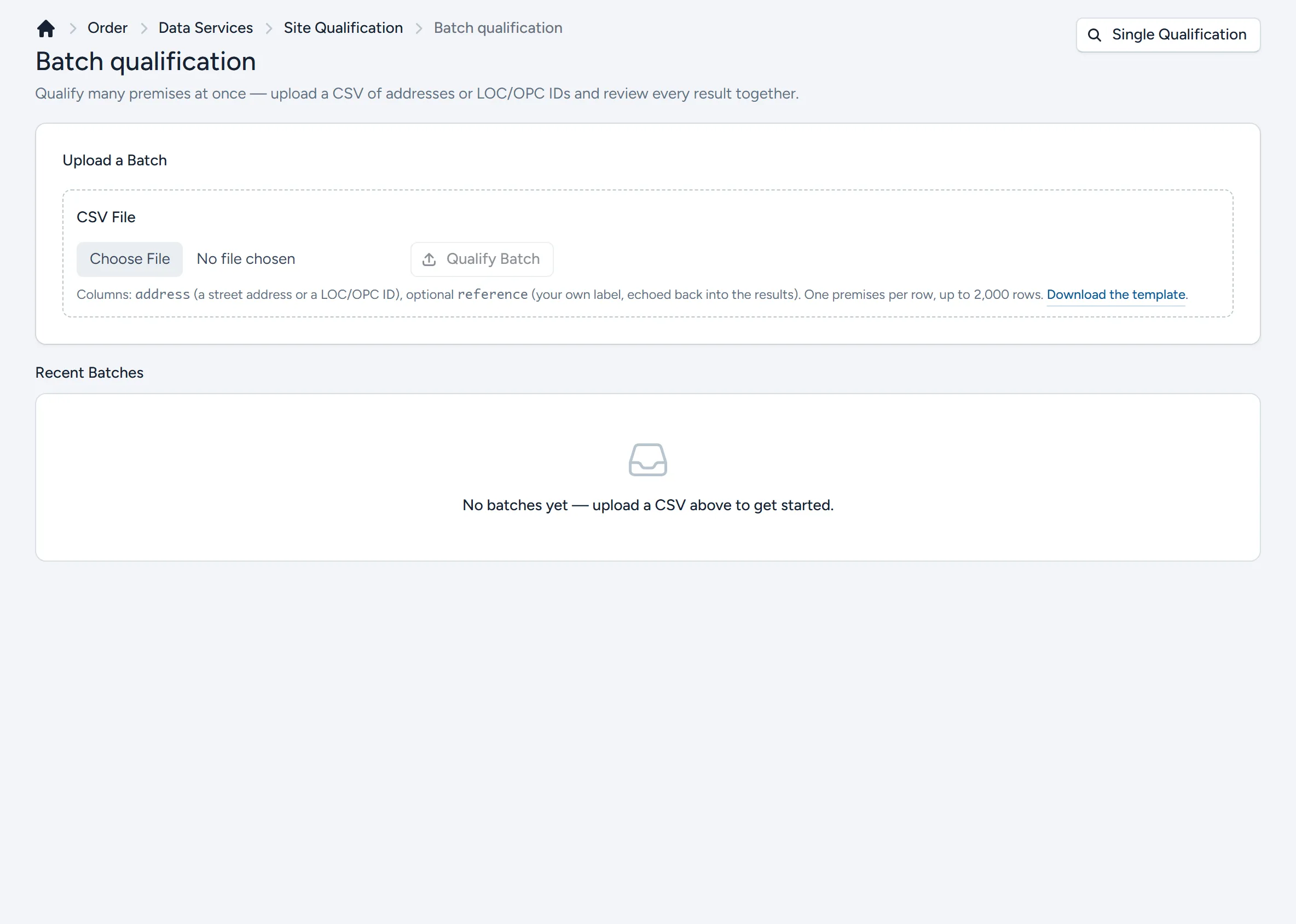
Batch qualification
The batch opens and qualifies in the background: “Qualifying N of M remaining — this page updates automatically.” You can leave and come back. The batch is listed under Recent Batches.
Read the results
The counters show the Total, and how many are Pending, Serviceable, Not Serviceable, Unresolved and Failed. Unresolved means the address couldn’t be matched to a premises. Failed means the check itself didn’t complete.
Each row shows your Reference, what you entered, the premises it Resolved to, the Carrier, the Status and any Detail. Open shows that premises’ full qualification, where you can start an order.
Export CSV downloads the results. Delete removes the batch and its results.
To order the serviceable rows, choose Add to a Bundle as Draft Orders. Each row you pick a plan for becomes a draft order in a bundle, up to 200. Nothing is sent until you check the bundle out. See Bundles and draft orders.
Limits
Each account can upload 10 batches an hour and qualify 5,000 rows a day. The day is counted in Brisbane time. Partners see only the batches they uploaded.
If the file is refused
Under “The file couldn’t be read”:
| The page says | What to do |
|---|---|
| ‘Header row is missing an “address” column’ | Add a header row with an address column. |
| “File exceeds the 2,000-row limit.” | Split it into smaller files. |
| “The file contains a header but no address rows.” | The rows are empty or below the header in the wrong place. |
| “…rows a day left” | You’ve reached the daily limit. Upload a smaller file, or the rest tomorrow. |
| “The batch couldn’t be started just now, so nothing was kept.” | Upload the same file again in a few minutes. It wasn’t counted against your limits. |