 Help
The list
Data Services, under Services, lists your NBN and Opticomm services. Your orders are on their own page. See Existing orders.
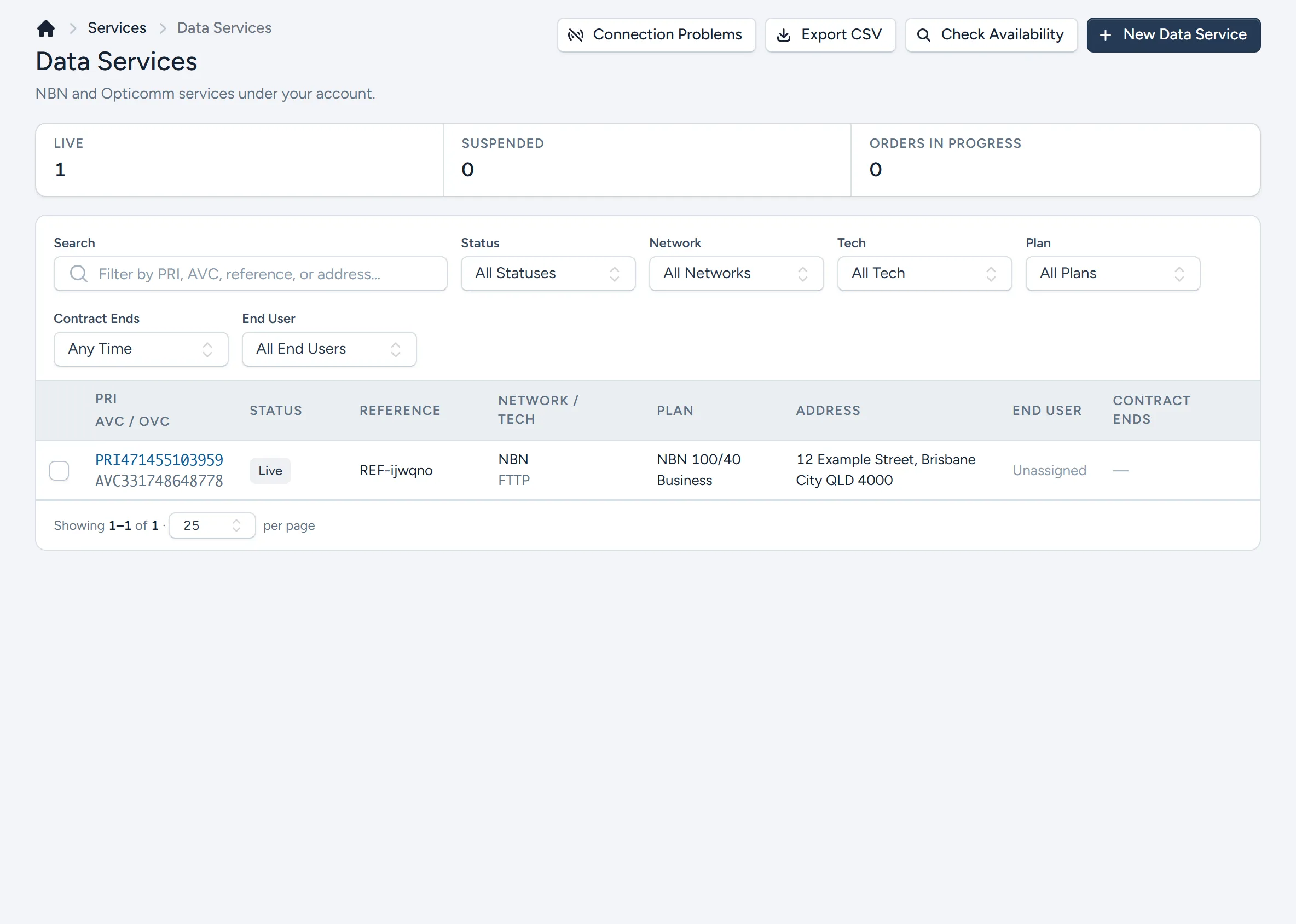
Above the list, a strip counts your Live and Suspended services and your Orders in Progress. The counts cover the whole account, whatever the list is filtered to. Choose Orders in Progress to open Existing orders.
Each row shows the PRI with its AVC / OVC under it, the Status, your Reference, the Network with its technology under it, such as NBN and FTTP, the Plan, the Address, the End User and when its Contract Ends. Select a column heading to sort by it; the first column sorts by PRI or by AVC / OVC, whichever of its two headings you select.
- Search by PRI, AVC, your reference or address.
- Filter by Status, Network, Tech, Plan or End User. Status is Live, Suspended or Cancelled. Tech is a technology such as FTTP or HFC.
- Filter by Tag to show only the services carrying one of your own tags. The filter shows once one of your services has a tag.
- Contract Ends shows when each service’s minimum term ends, the same date as its page. While the service is still in term, it also shows what leaving now would cost, excluding GST. The term is the current plan’s. After a plan change, it is the new plan’s. A charge we have waived shows as $0.00 with Waived beside it, as a disconnect would charge nothing. Filter it to terms ending In the next 30, 60 or 90 days to plan renewals. Select the heading to sort on it. Services with no term go last.
- Export CSV downloads the services the filters show. The file has the list’s columns, plus the end user, your reference, the contract end and what leaving costs. If you can see billing, it also has the plan’s monthly price excluding GST.
- To give several services to an end user at once, tick them and choose Assign End User. It needs permission to manage services. A partner login doesn’t have it.
- To change the plan of several services at once, or disconnect them, tick them and choose Change Plan or Disconnect. See Changing several services at once.
- Check Availability and New Data Service at the top start a new service. See Qualifying an address.
A service appears here once it is built. Changes to it, such as a speed change or a disconnect, are orders of their own and show on the service’s page.
Changing several services at once
Change Plan and Disconnect appear above the list once you tick services. Both need permission to manage services. One change takes up to 100 services. With more ticked, the review doesn’t open and you are asked to untick some, so no service is left out without you knowing.
-
For Change Plan, pick the New plan. For Disconnect, pick the Cease date: today, or up to 90 days ahead to book each disconnect for that day.
-
Check the review. Each service shows its monthly price now and after, or what a disconnect saves. It shows any Early Termination charge, excluding GST. It shows whether the service Goes ahead, and is still in contract, or is Blocked, with the reason. A blocked service is, for example, a suspended service, a service already on that plan, or one with a disconnect already under way. For Change Plan, it can also be one with a plan change the carrier hasn’t finished.
For Change Plan the review also checks each premises can take the new plan. Where the technology decides it, the check is from the technology: an FTTN, FTTB or FTTC line takes no more than 100/40 Mbps, and HFC no more than 1000/50. Where it doesn’t, the check is from the site’s own qualification. A premises that can’t take the plan is Blocked, with the reason, and no order is placed for it.
If a site’s speeds couldn’t be looked up just then, its service is Blocked saying so, and Re-check Blocked Rows appears. It checks only those services again, leaving the rest of the review as it is.
-
Confirm. One order is placed for each service that goes ahead.
The progress page then lists each service as Queued, Sent to the carrier, Booked, Failed with the carrier’s reason, or Blocked. Booked is a disconnect for a later day. Orders go to the carrier a few a minute, and the page updates as they do. If the carrier can’t be reached, an order is tried again on the next minutes, and shows Failed after five tries.
Each order also shows on its service’s page, as a single change would. Early termination charges are billed when each change completes.
Connection problems
Connection Problems, at the top of the list, shows your live services that are offline now or keep dropping, so you can act before your end user calls.
| Column | What it shows |
|---|---|
| Connection | Offline when the router has no session now. Unstable when it is connected but has dropped 3 or more times in the last 24 hours. |
| Last Connected | When an offline service’s router was last heard. It reaches back only as far as the session records we keep, which the page states. Older than that reads Not in the records we keep. |
| Dropouts (24h) | The sessions that ended in the last 24 hours, as on the service’s page. |
Show narrows the list to Offline Now or Unstable.
Services authenticated by the carrier’s own RADIUS, for example Opticomm or Kinetix Layer 3, aren’t listed, because we hold no session records for them. Check those on the service’s page.
A service handed to you at layer 2 on your own interconnect never logs on to our RADIUS, so it is never shown as offline and has no dropouts. It is listed by its path status instead, when it is No device seen or Path failed. Last Connected is then when a device was last seen on it.
To be emailed when services keep dropping, set up connection problem alerts.
Existing orders
Existing Orders, under Order, lists your data orders, newest first. A partner login finds it under Services, then Existing Orders.
- It opens on your Open orders: drafts, scheduled orders, and orders the carrier is still working on.
- Status also shows Complete orders, orders that Did Not Go Ahead, or All Orders. Did Not Go Ahead covers rejected, failed and cancelled orders.
- Search by the order reference, your reference, or the site’s LOC or OPC ID.
- Waiting On says who has to act next, with the next step under it. It reads You, Carrier with the days since its last update, or Check Networks. For You, the next step is to finish a draft, book an appointment, make room on the NTD, send the provisioning request, or answer the carrier.
- Sort puts the newest update first, or the oldest first to find the orders that have waited longest.
- Export CSV downloads the orders the filters show, with the address, who each is waiting on and its next step.
- Select an order to view, schedule or submit it, or to see why it ended. A complete order links to the service it built.
A service’s page
Select a service to open it. From the top, its page shows:
- A banner when an outage affects the service.
- The contract term: when the current plan’s minimum term ends, and what leaving before then costs. A charge we have waived shows as $0.00 with Waived beside it. Add-ons with a term of their own are listed under it, each with its term end.
- The carrier’s Product Instance.
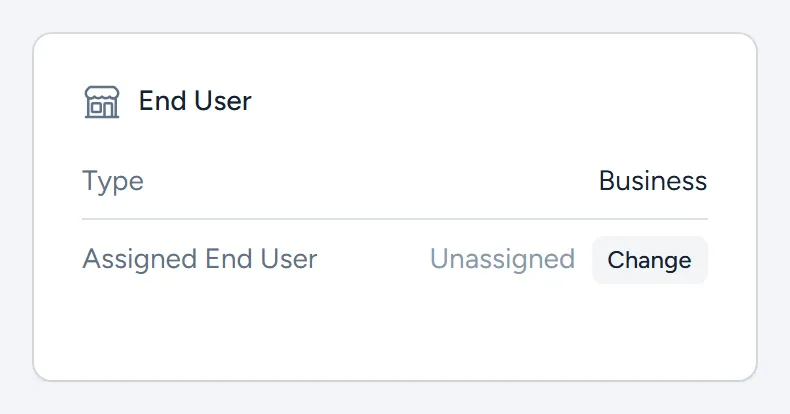
- End User: who the service is for. Change assigns it to another of your end users. Beside it, the AVC or OAC Service Details.
- On a service that ends on our network: RADIUS Details, IP Details and Session Details. RADIUS Details has the sign-in method, IP Assignment and whether the session is active. IP Details has the IPv4 address, the IPv6 WAN address and routed prefix. Session Details has how long the router has been connected, its MAC address, the data used this session, and dropouts in the last 24 hours.
- On a service the carrier ends instead, there is no live view. Opening the page asks the carrier when the last answer is more than 15 minutes old, and Session Data reads Loading until it arrives. Get Session Data asks again at any time. The answer shows where it does on any other service: whether the session is active on RADIUS Details, the IPv4 address on IP Details, and on Session Data how long it has been connected, the data used this session and the router’s MAC address. Each answer also adds the data used since the last one to Usage. On an Opticomm service the location is shown as the OPC ID.
- Usage: this month so far, the Total, Download and Upload, how much of any allowance is used, and any usage notices sent to the end user. The month and its days are the ones on your invoice: each starts at midnight in your account’s Time Zone. Detailed Usage opens the day-by-day charts and earlier months, described below.
- The equipment, which is Device (NTD) or Copper Pair, then Service Health and Service Diagnostics. See below.
- Orders: every order placed on the service.
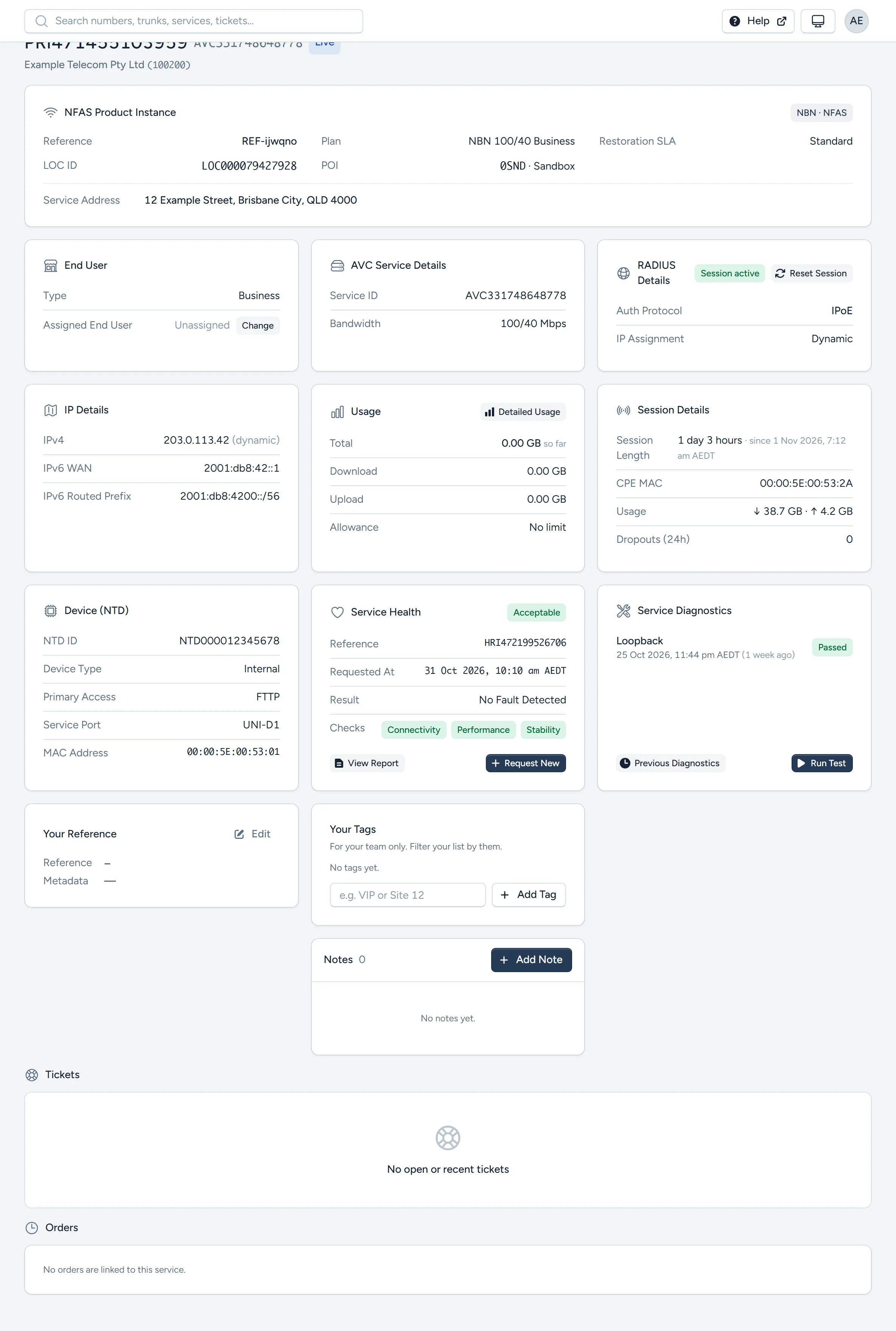
Changing a service needs permission to manage services. Without it, the page shows the same details and none of the buttons.
Reading the service details
| Detail | What it tells you |
|---|---|
| PRI | The carrier’s product instance ID: the service’s ID on every order and ticket. |
| AVC or OAC | The access virtual circuit (NBN) or Opticomm access circuit: the path from the premises to the POI. |
| Device (NTD) | The carrier’s box at the premises, and the port the service uses on it. |
| Copper Pair | On FTTN, FTTB and FTTC services, the copper line the service runs on. |
| IP Details | The addresses the router is given: quote these for firewall rules or support. |
| Session Details | Whether the router is connected now, for how long, and dropouts in the last 24 hours. Many dropouts point at the line or the router. |
Give the PRI when you raise a ticket about a service. It is the fastest way for us to find it.
A layer 2 handoff
A service handed to you at layer 2 on your own interconnect (see Layer 2 handoff) shows a Customer-Side Handoff card with the tags it carries there. Building it doesn’t start its billing. Until its network path to your interconnect is in place, the card says Waiting for its network path. Once the path is applied, billing starts on whichever comes first:
- the day a device is first seen on it: your interconnect port is up and we see a device address on your side of the service;
- 10 business days after the path was applied.
The card says the day billing starts, or started.
Path Status on the card says where the service is, checked every minute:
| Status | What it means |
|---|---|
| Waiting for its network path | We are building its path to your interconnect. |
| Waiting for the wholesaler | The path is in place, and no device has been seen on it yet: connect your equipment to the service. |
| Live | A device has been seen on your side of the service in the last 15 minutes. |
| No device seen | No device has been seen on it for 15 minutes, since the time shown. Check your equipment and port. |
| Cut | The service is suspended, and its path is cut until it resumes. |
| Path failed | We could not apply its path. It is tried again every 15 minutes; raise a ticket if it stays. |
Interconnect Port on the card is your interconnect port’s own state, read from our switch every minute:
| State | What it means |
|---|---|
| Waiting for link | The port is set up, and has not been up yet. You can order services on it while it waits. |
| Up | The port is up. The name your device sends over LLDP shows beside it, if it sends one. |
| Down | The port was up and has dropped. Every service on it is down, and we are alerted. |
The API gives the same state as portState and lldpNeighbour on each
destination from GET /data/layer2/destinations.
Detailed usage
Detailed Usage, on the service’s Usage card, shows one month at a time. It shows this month unless you pick another under Month.
- The Total, set against the month before. While a month is still running, it is compared with the same days of the month before, so “+12% vs 1–9 Oct” means more than the first nine days of October.
- Download, Upload, the Daily Average, the Peak Day and the allowance.
- Daily Usage: a column a day, download and upload stacked. Point at one for its figures.
- Daily Breakdown: the same days as a table, newest first.
- Monthly History: the last 13 months, each against the month before. Select a month to open it.
- Any usage notices sent to the end user that month.
Health and diagnostics
Service Health shows the carrier’s latest health report. Request New asks for one. Before the first report, the button reads Request Service Health. View Report opens one. Previous Reports, once there are two or more, lists them all. See Service health reports.
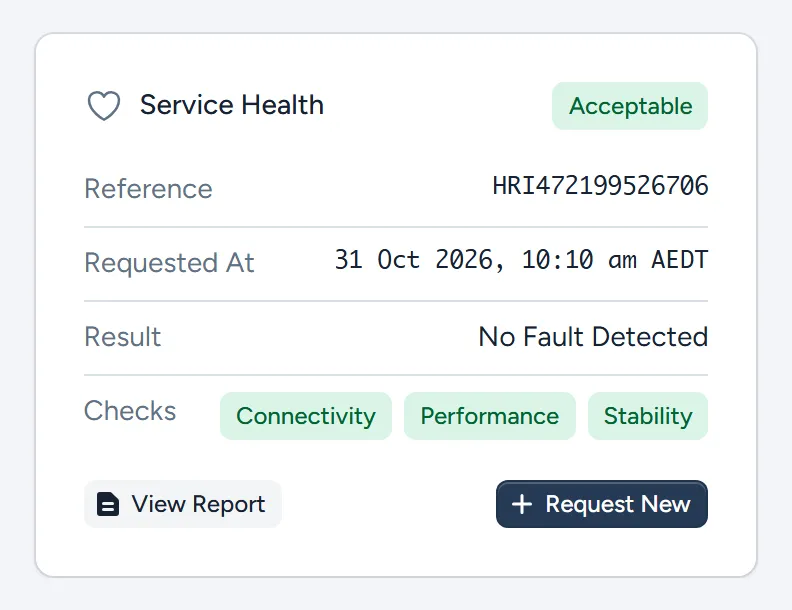
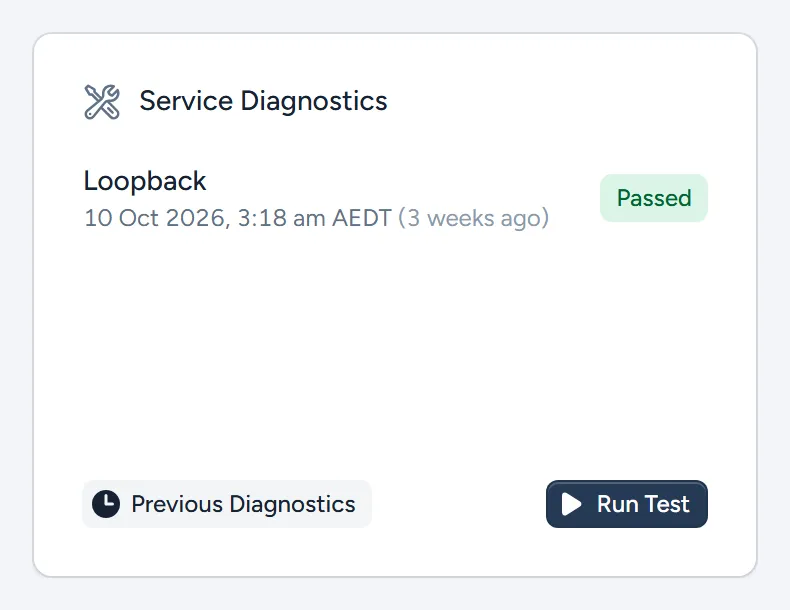
Service Diagnostics lists recent tests. Run Test starts one. It is at the foot of the card, or in the card before the first test. Previous Diagnostics lists them all. See Running a diagnostic test. Both cards are for live services only. On any other, the buttons are switched off.
Change the speed
- Choose Change Speed and pick the New Bandwidth Product. If the service can’t change right now, for example while another order is open on it, the button is switched off. Point at it to see why.
- Check the new monthly price and the change. Lowering the speed during a minimum term may carry an Early Termination Charge, shown here first.
- Confirm.
Billing moves to the new price from the day the carrier completes the change, pro-rated. The service stays live while it happens.
Relocate
Relocate moves the service to a new address. It orders a new service there and ceases this one once the new one is live. While a relocation is under way the page shows a Relocation panel with View Relocation in place of the button. See Relocating a service.
A suspended service
You can’t suspend a data service yourself. A service shows Suspended only when we suspend it, for credit or an overdue account, and it comes back when that is cleared.
A suspension takes effect within 15 minutes, or within 1 business day for an Opticomm L3 service, which the carrier suspends for us. A service handed to you at layer 2 on your own interconnect is suspended by taking its tags off your port, and they come back when it is resumed.
Disconnect
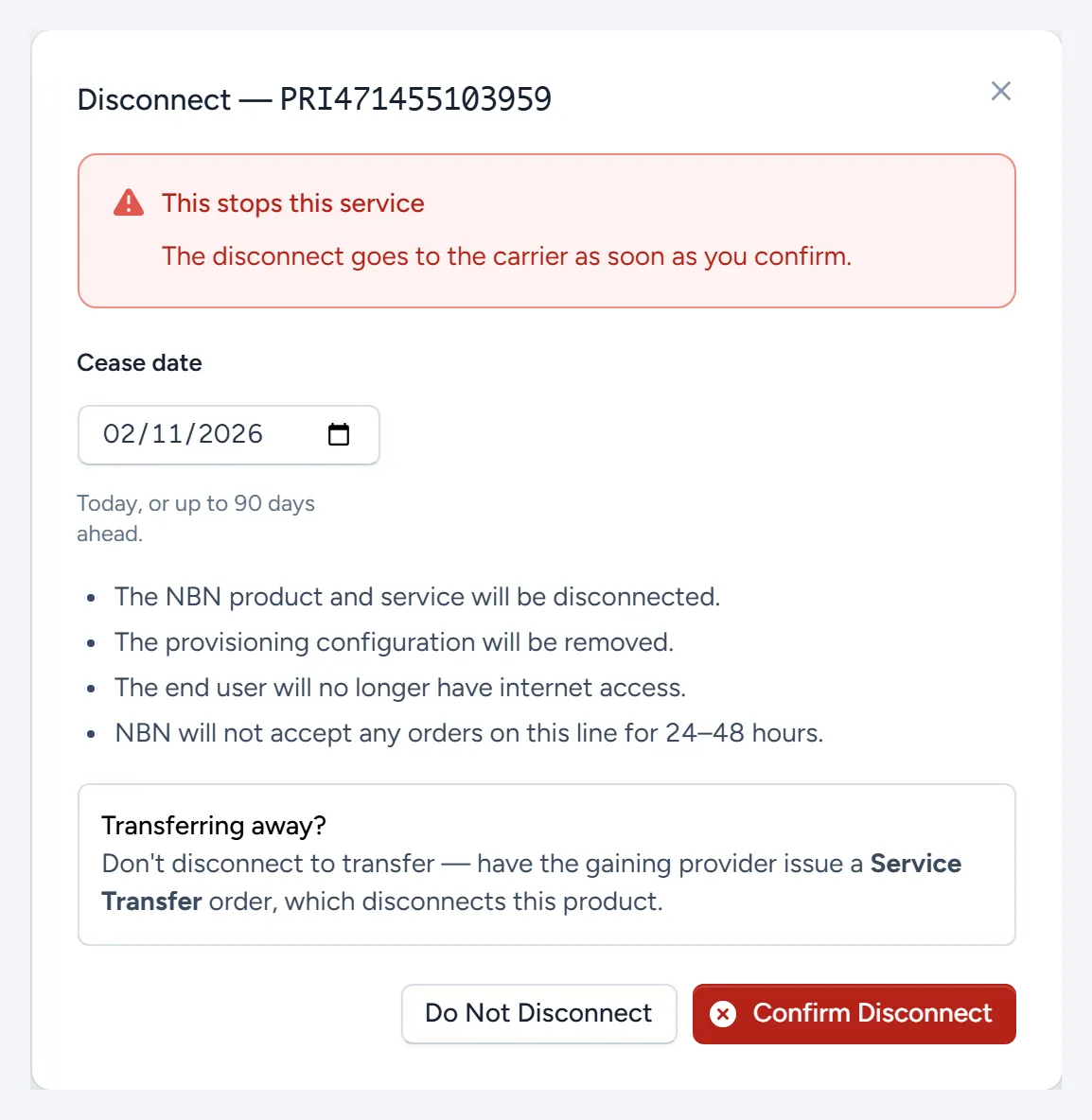
- Choose Disconnect. The dialog warns that this stops the service.
- Pick the Cease date: today, or up to 90 days ahead.
- Check whether an early termination charge applies. The dialog shows it, excluding GST, for the date you pick. It is billed when the carrier completes the disconnection.
- Choose Confirm Disconnect, or Book Disconnect for a later date. Do Not Disconnect closes the dialog without changing anything.
Your end user loses their internet on that day, and NBN won’t accept any order on that line for 24–48 hours afterwards.
A booked disconnect shows at the top of the page as Disconnect booked for its date, such as 5 Oct 2026. The service stays live and billed until then. Cancel Booking calls it off, after asking. Back to Draft on the disconnect’s own order page does the same. A disconnect has no draft, so it cancels the booking. To move the booking to another day, ask us. We move the same booking and you are sent the new date.
If the carrier cannot take a booked disconnect on its day, we try again a few times. If it still cannot go, or the carrier did not answer and we need to check with it first, the disconnect’s order page says Held Before Submission, we look into it, and you are told once.
If the carrier turns a disconnect down, the page says The carrier did not accept the disconnect, with the carrier’s reason. The service is still live and billed. Request it again, or contact support.
When the carrier disconnects one of your services that you didn’t ask us to disconnect, usually because the end user moved to another provider, we email your users a Service Ceased By The Carrier notice, with the date when the carrier gives one. If you didn’t expect it, raise a support ticket straight away. Each user can turn this notice off in their notification settings.
Upgrade the ONT (Opticomm)
Some Opticomm premises have an older ONT that limits the service to 50 Mbps.
The page then has an ONT Upgrade card. Choose Request ONT upgrade, pick
the new speed and a Technician visit time, give an On-site contact and Phone
for the technician, and choose Request Upgrade. The card then follows the
request through to its outcome, which is also emailed to you. A system using
the API hears of it through the ontUpgrade.completed webhook: whether the
ONT was upgraded, and whether the speed change was submitted.
Static and dynamic IP
Under RADIUS Details, IP Assignment shows whether the IPv4 address is static or dynamic. Make Static or Make Dynamic switches it, after asking. The address itself stays the same. A static address’s charge starts the day you switch, and stops the day you switch back. The button only shows where the switch is offered for the service.
Reset the session
After you change a service’s password or plan, Reset Session on RADIUS Details drops its live session, after asking. The router connects again on its own a moment later, with the change. The button shows on a live service on our network while its session is active, to the roles that may change the service. A service whose session a carrier holds cannot be reset from here.
Your own reference
On a service’s page, the Your Reference card holds your own id for the service, such as your customer or job number, and up to 20 keys of your own with a value each. Select Edit to change them. Clear the reference to remove it. No two of your data services can share a reference. The API returns both on the service and in its webhooks, and finds the service by its reference.
Your tags and team notes
On a service’s page, Your Tags holds labels you make up, such as VIP or Site 12. Type one and select Add Tag. Select the cross beside a tag to remove it. A service carries up to 20, each up to 255 characters, and vip and VIP are the same tag. Filter the list by Tag to find every service carrying one. They are the same tags the API sets on a service.
Notes below it holds your team’s notes on the service: where the router password is kept, the site contact, install details. Select Add Note, and tick Pin to the top for one everyone should read first. A note is not edited. To correct one, add another and remove the old.
Tags and notes are your own. Your end users and partners never see them. Check Networks staff see your tags on the service, so they can find it by the name you use, but cannot change them. They see your notes only while signed in as one of your users to help you. Read-only users can read tags and notes. The roles that may change the service can add and remove them.