Provisioning a voice trunk
SIP trunks are self-service. Go to Services → SIP Trunks, then Order → New Service (or the New Service button on the SIP Trunks page) to start a new trunk.
Before you start
Section titled “Before you start”- Partners: you must pick which of your clients the trunk is for — provisioning is not available at the partner level, only for a scoped client.
- Wholesalers: you can create an account-level trunk first and assign it to a client later if you don’t yet know who it’s for.
- You need a default caller ID (CLI) you’re entitled to present — either a number your account already holds, or a number covered by an account-level operator CLI authorisation (Support → Caller ID Approvals). Trunks are rejected at the border if the default CLI isn’t entitled — there’s no way to save a trunk without one.
- If the default CLI is a platform-hosted Australian number, its IPND address must be linked first (Services → IPND Addresses). This is an emergency-services (000) location requirement, not optional.
Fields on the trunk form
Section titled “Fields on the trunk form”- Plan — Pay As You Go (a fraud/capacity ceiling on concurrent calls) or Ultimate (billed per channel, dedicated capacity).
- Trunk name (alias) — a label to identify the trunk in your account; not used for routing.
- Channels — the concurrent-call limit. On PAYG this is a safety ceiling; on Ultimate it’s what you’re billed for.
- Auth method — how the trunk authenticates to us (e.g. by IP, by SIP credentials, or both).
- Call permissions — which call classes are allowed outbound (national, mobile, 13/1300, international, and so on). International carries its own spend limit field once selected.
- Default CLI — the caller ID presented on outbound calls when the call itself doesn’t specify one. Must be a number you’re entitled to present (see above).
- Force outbound CLI / Force private outbound — override whatever CLI an inbound call leg tries to present, or force outbound calls to present as private/withheld.
After provisioning
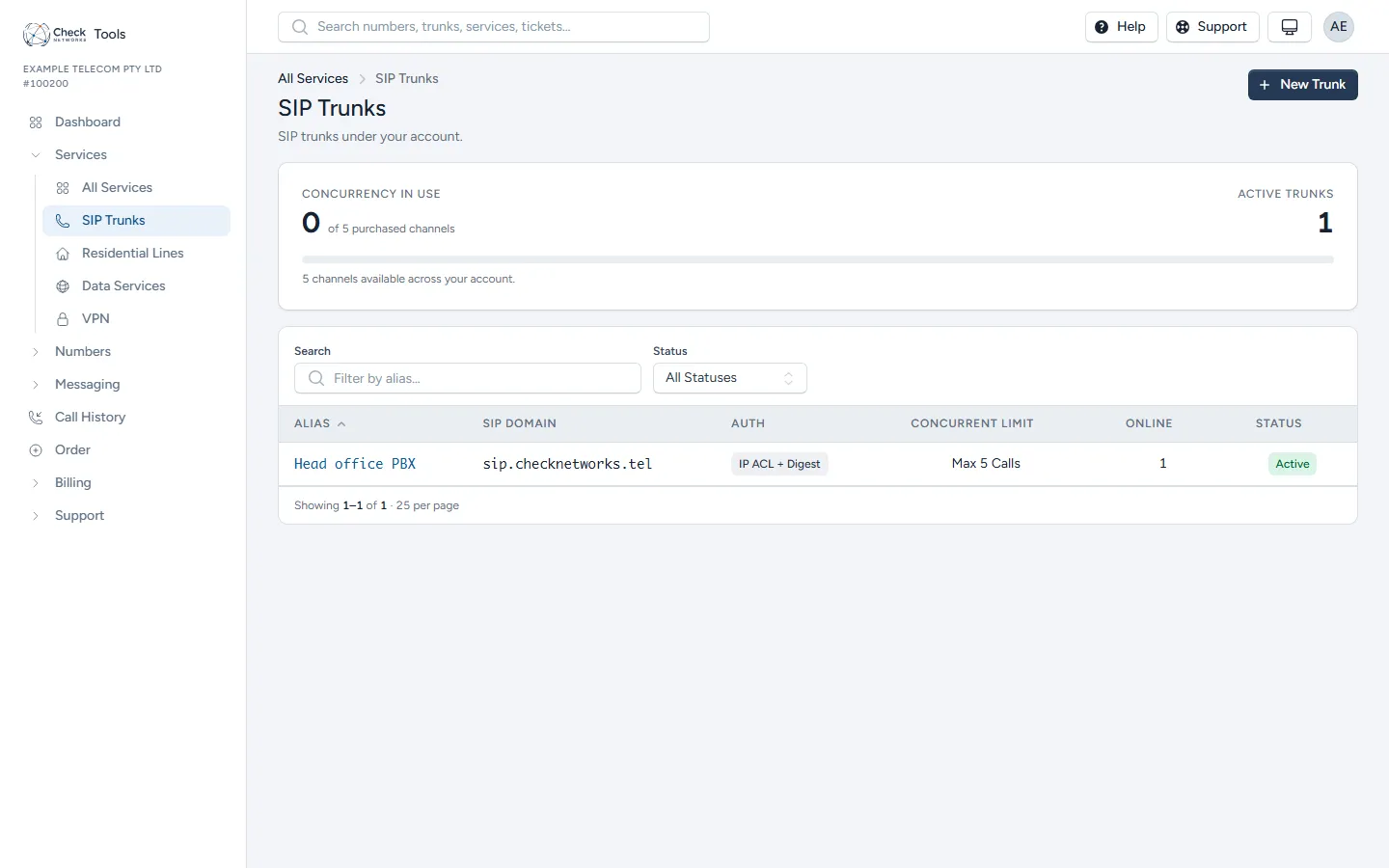
Section titled “After provisioning”Your trunks are listed under Services → SIP Trunks.
Each trunk’s own page shows its registered devices, plan, concurrency and details. Trunk Configuration, under Trunk Details, gives the settings your PBX needs and the addresses to allow-list.
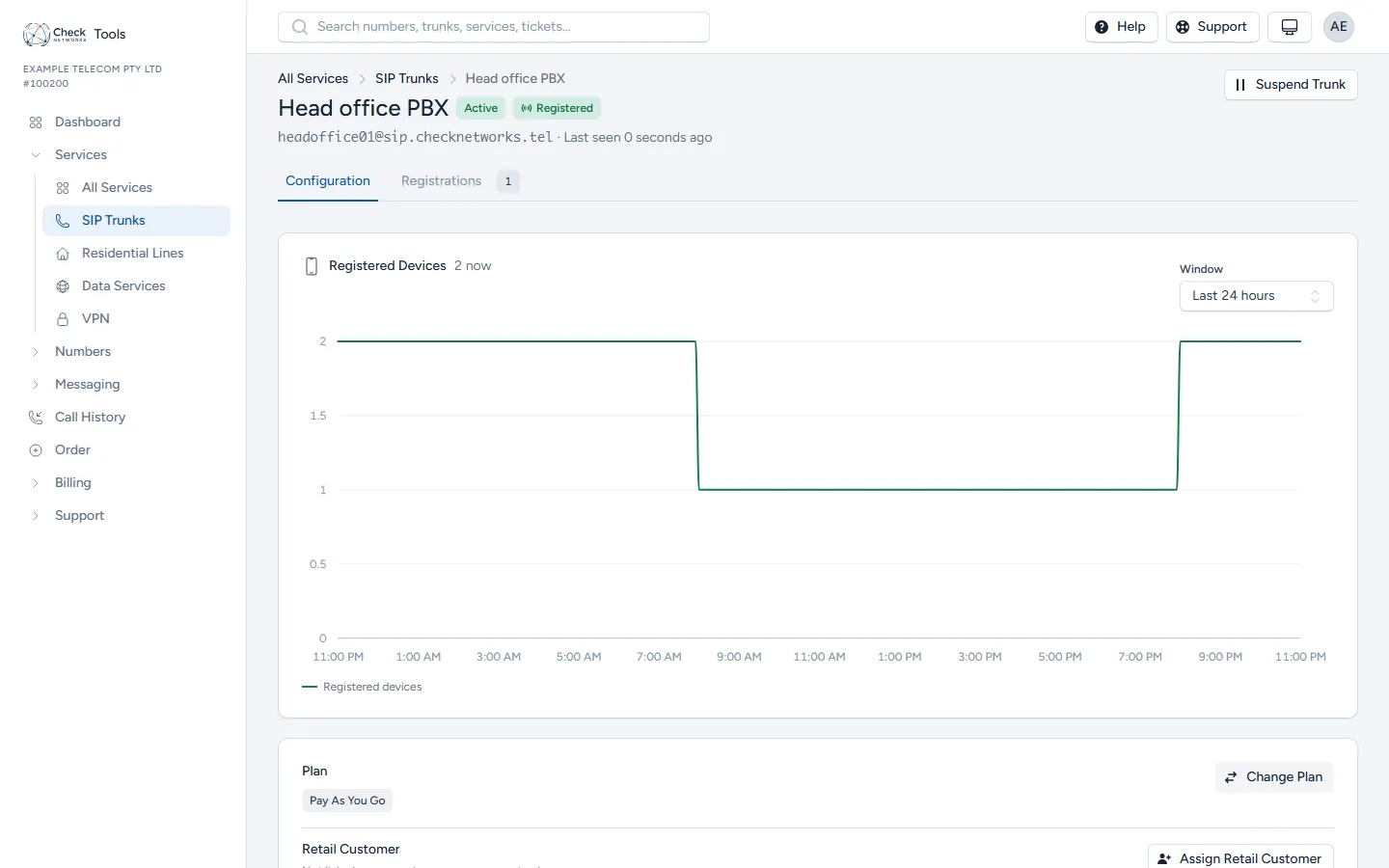
The trunk’s SIP username and password are shown once, immediately after creation, on the trunk’s own page. They are not retrievable again from the portal — store them in your own systems straight away. If you lose the credential, you’ll need to reset it from the trunk’s page rather than looking it up again.
If something’s wrong after provisioning
Section titled “If something’s wrong after provisioning”Registration failures, one-way audio, or call-quality problems are support-ticket territory. See What to Include Per Ticket Type — for voice issues in particular, running the self-test checklist there before raising a ticket usually cuts straight to the fix, or at minimum gets it resolved faster once escalated.