 Help
Two-factor asks for a code from an authenticator app each time you sign in, so a stolen password alone can’t get into your account. Any authenticator app works: Google Authenticator, Microsoft Authenticator, Authy, 1Password and the like. We recommend it for everyone, and an Owner or Admin can require it for your whole account.
Turn it on
-
Open the profile menu and choose Profile.
-
Under Two-Factor Authentication, enter your Current Password and choose Enable Two-Factor.
-
Open your authenticator app, add an account, and scan the QR code.
-
Enter the 6-digit code the app shows under Authenticator Code and choose Confirm. Two-factor is on once the code is accepted. Cancel stops without turning it on.
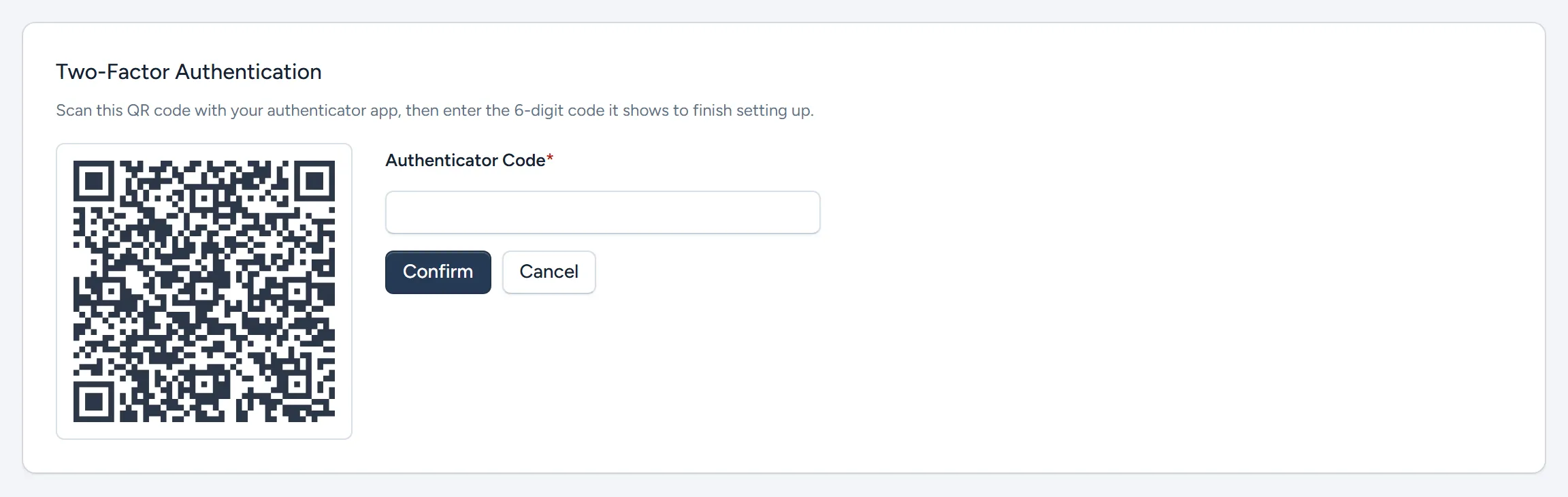
Turning on two-factor -
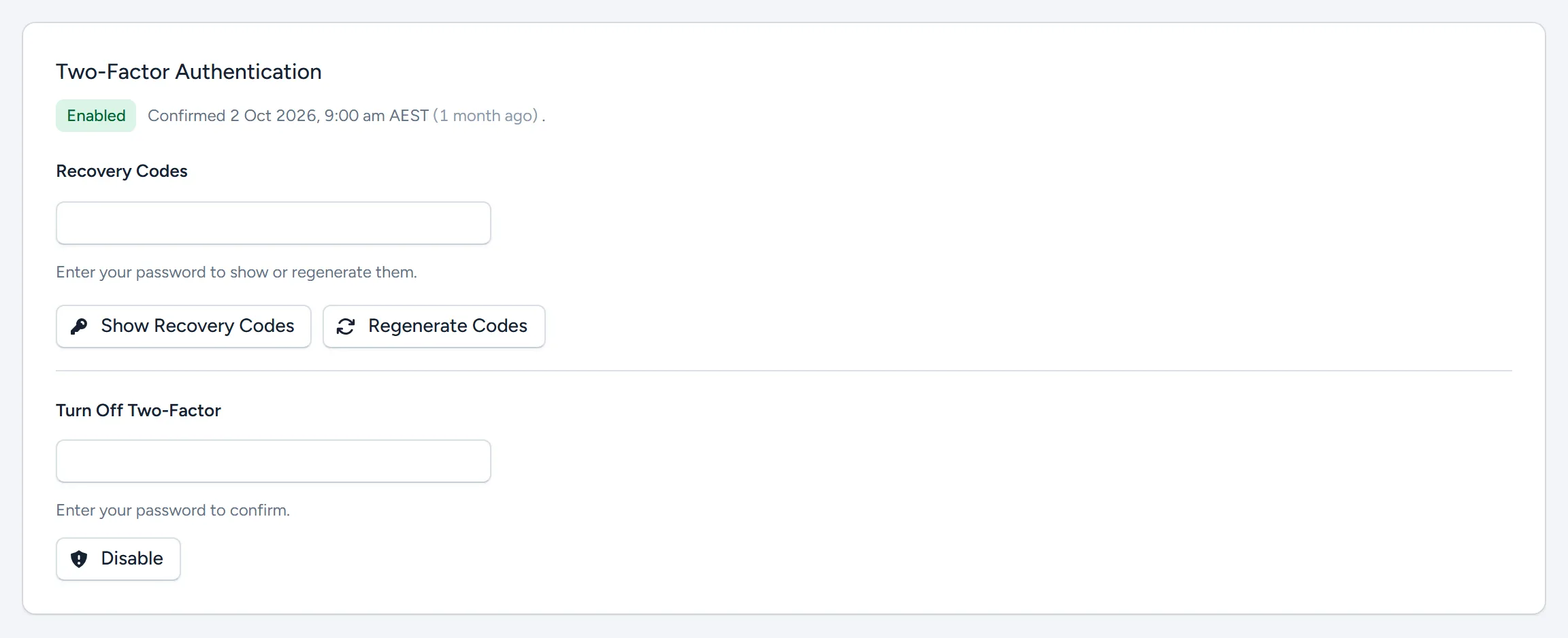
Under Recovery Codes, enter your password and choose Show Recovery Codes. Store them somewhere safe, away from your phone, such as your password manager. Each one signs you in once if you lose your phone.
Once it is on, the card shows Enabled and when you confirmed it.
Sign in with a code
After your email and password, the portal asks for the 6-digit Authenticator Code. Open your app, enter the code it shows for Check Networks, and choose Verify. Codes change every 30 seconds. If one is refused, wait for the next.
When your account requires it
If an Owner or Admin has made two-factor required and you haven’t set it up, every page takes you to your profile with “Your account requires two-factor authentication. Set it up below to continue.” The rest of the portal opens once it is set up. Owners and Admins turn this on under Users and roles.
Recovery codes
Each recovery code works once. To see them again, open Profile, enter your password under Recovery Codes and choose Show Recovery Codes. Hide Recovery Codes puts them away. To get a fresh set, for example after using some, choose Regenerate Codes instead. The old ones stop working at once.
Turn it off
On Profile, enter your password under Turn Off Two-Factor, choose Disable and confirm. It is refused while your account requires two-factor for everyone.
Lost your phone
- On the code step, choose Use a Recovery Code and enter one of your recovery codes. Use Authenticator Code Instead switches back.
- Once you’re in, set up two-factor again on your new phone, and regenerate your recovery codes.
If you have no recovery codes left, an Owner or Admin can choose Reset 2FA for you under Users and roles. You set it up again at your next sign-in.
If a code is refused
If your app holds several codes, make sure you’re entering the one for this portal.
| What you see | What to do |
|---|---|
| “Invalid code.” | Check the clock on your phone is set automatically. An authenticator code depends on the time. |
| Too many attempts. | Sign-in pauses after repeated failures. Wait a minute and try again. |