 Help
Network Utilisation, under Services, shows a card for each NBN point of interconnect (POI) where you have a live data service. A POI is where NBN hands traffic for an area over to us. Each card is named for its POI, such as Sandbox 0SND in the picture below, with its Planned capacity under the name.
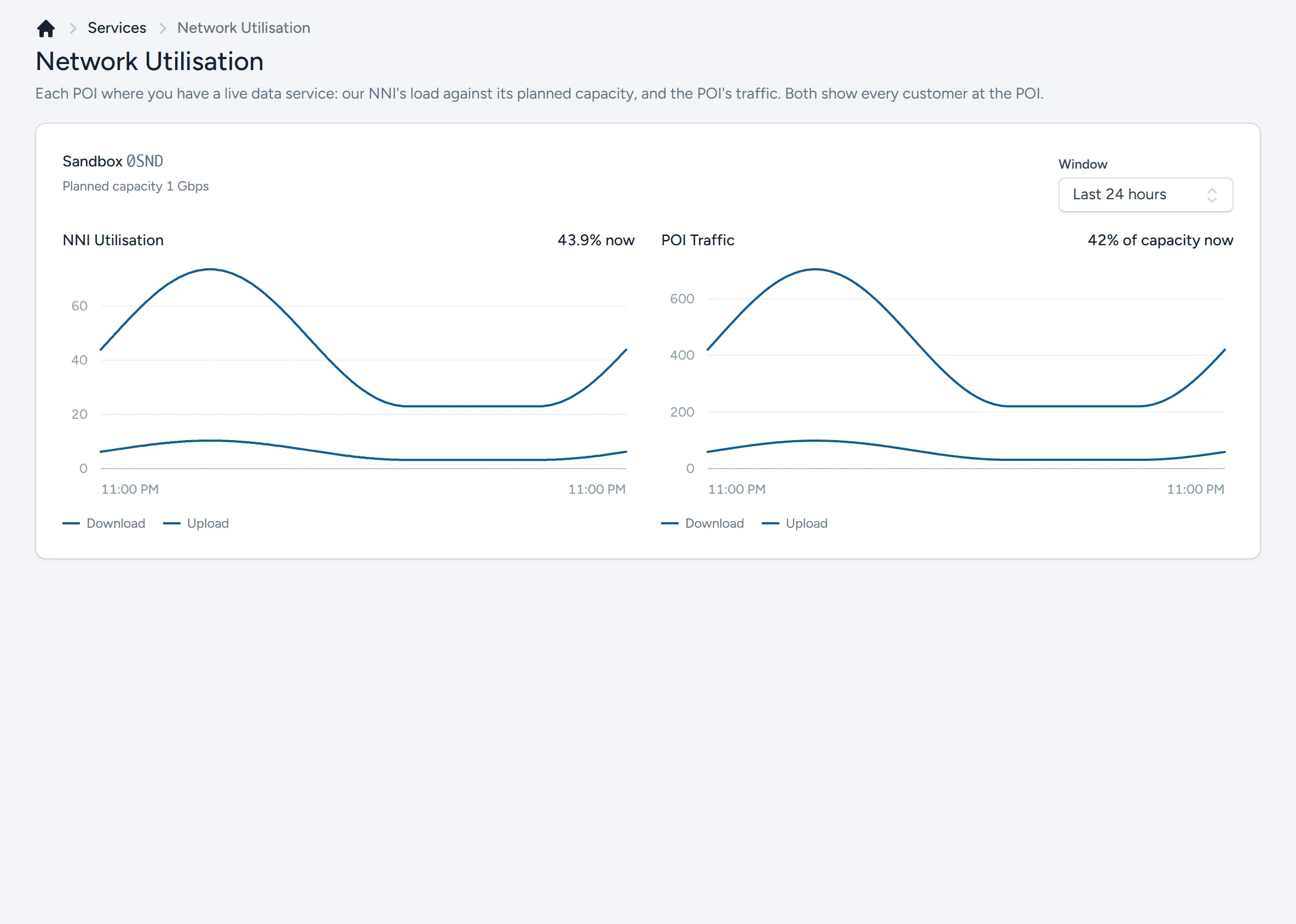
Each card has two charts:
| Chart | What it shows |
|---|---|
| NNI Utilisation | How full our connection to NBN at that POI is, as a percentage of its planned capacity, with the figure now beside it. |
| POI Traffic | The traffic on that POI’s link to our network, with the percentage of capacity now beside it. |
Both show Download and Upload, and both cover every customer at the POI, not just yours. Pick the period at the top right of the card to look further back.
To watch these in your own monitoring, the API lists the same POIs at
GET /data/pois. It returns each one’s figures, in Mbps with the planned
capacity, at GET /data/pois/{code}/utilisation, up to 30 days back. That
call needs the data:read scope.
Using them
They tell you whether a slowdown is on the network or closer to the premises.
| What you see | What to do |
|---|---|
| Your end user is slow at peak times, and NNI Utilisation is well under 100%. | The network has room, so the problem is closer to them: the premises’ wiring, Wi-Fi or router, or the line itself. Run a diagnostic test on the service. |
| NNI Utilisation is near 100% at the same times. | The POI is busy. Raise a technical ticket with the times and the services affected. |
Before you order many services in one area
When you pick a plan on a data order, the order page checks whether the path serving that address has room for one more service of that speed. The path is our connection to NBN at the address’s POI and, for a layer 2 handoff, your own interconnect as well. If it has no room, the page says This area’s network path is near capacity. The order can still be placed: services there may be slower at busy times until we add capacity, which we plan from the same check.
Planning a batch, such as a new estate or a building fit-out? Ask the API
first: GET /data/capacity?locId=…&services=…&downMbps=… (with the
data:read scope, and deliveryMode=l2 for a layer 2 handoff) answers
hasCapacity true or false for that many services of that download speed. It
gives no figure beyond yes or no. A no is advice, not a refusal: raise a
technical ticket with the area and how many services you plan, and we’ll give
you a date for the extra capacity.
If there’s nothing to show
| The page says | What to do |
|---|---|
| “You have no live data services yet, so there is no POI to show.” | The page shows a POI only once you have a live service there. |
| “Utilisation is unavailable right now. Try again shortly.” | The figures couldn’t be read just then. Reload the page in a few minutes. |