 Help
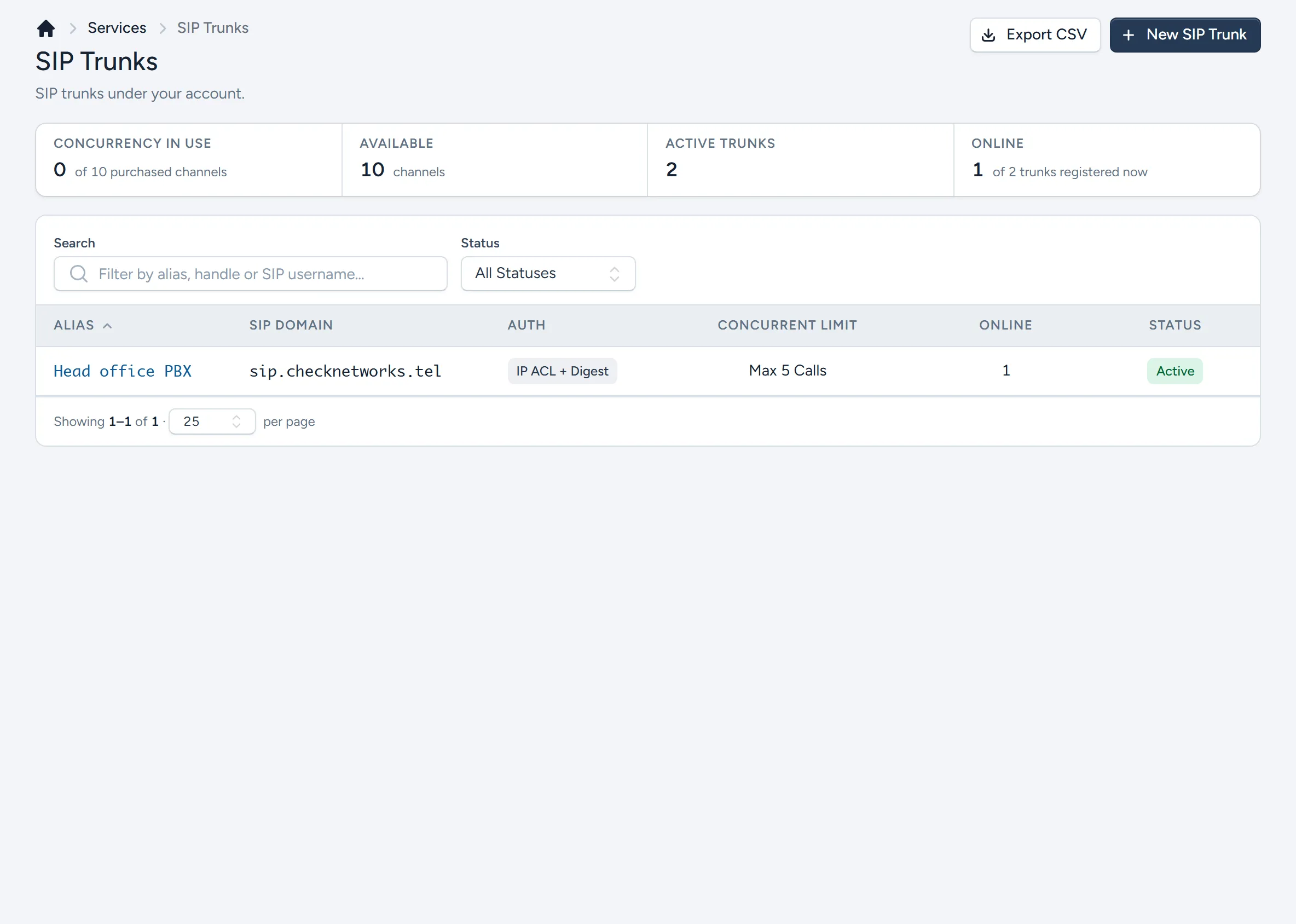
SIP Trunks, under Services, lists your trunks with their Alias, SIP Domain, how they authenticate under Auth, their Concurrent Limit, whether they are Online, and their Status. Search by alias, handle or SIP user. Filter by Status, or by Tag once one of your trunks carries one of your own tags. Select a column heading to sort by it. Select a trunk to open its page.
The figures above the list refresh every ten seconds:
| Figure | What it shows |
|---|---|
| Concurrency In Use | The calls in progress across all your trunks now, against the channels you have bought. |
| Available | The channels left. |
| Active Trunks | Your active trunks, with how many have no channel cap. |
| Online | How many of them are registered now. |
Export CSV downloads the list as filtered: each trunk’s SIP domain, authentication, concurrent limit, numbers, registrations and status.
The trunk’s page
The header shows the trunk’s status and registration, with the SIP user and when it was last seen. The registration is Registered, Unconfirmed or Not registered. A banner shows when an outage affects the trunk.
3CX Import File in the header lists the numbers routed to the trunk (those whose calls ring it, whichever trunk bills them) and downloads the file a 3CX phone system imports them from. Anyone who can order and route numbers has it; a partner gets only their clients’ numbers (see Import your numbers into 3CX).
After you change a trunk, its credential or its IP authentication, the page says Changes reach the network within a minute until every part of our voice network has the change. Until then, calls may still follow the old settings. Wait for the note to go before a test call.
International calls are on hold means the trunk reached its international minutes cap, so its international calls are refused. Calls within Australia, and 000, still go. The banner shows when the hold started and the minutes against the cap. Raise a support ticket to have it released.
The page has two tabs. Configuration starts with a chart of the devices registered over time, then the Plan, the End User, Concurrency and Trunk Details. Concurrency is the calls in use now.
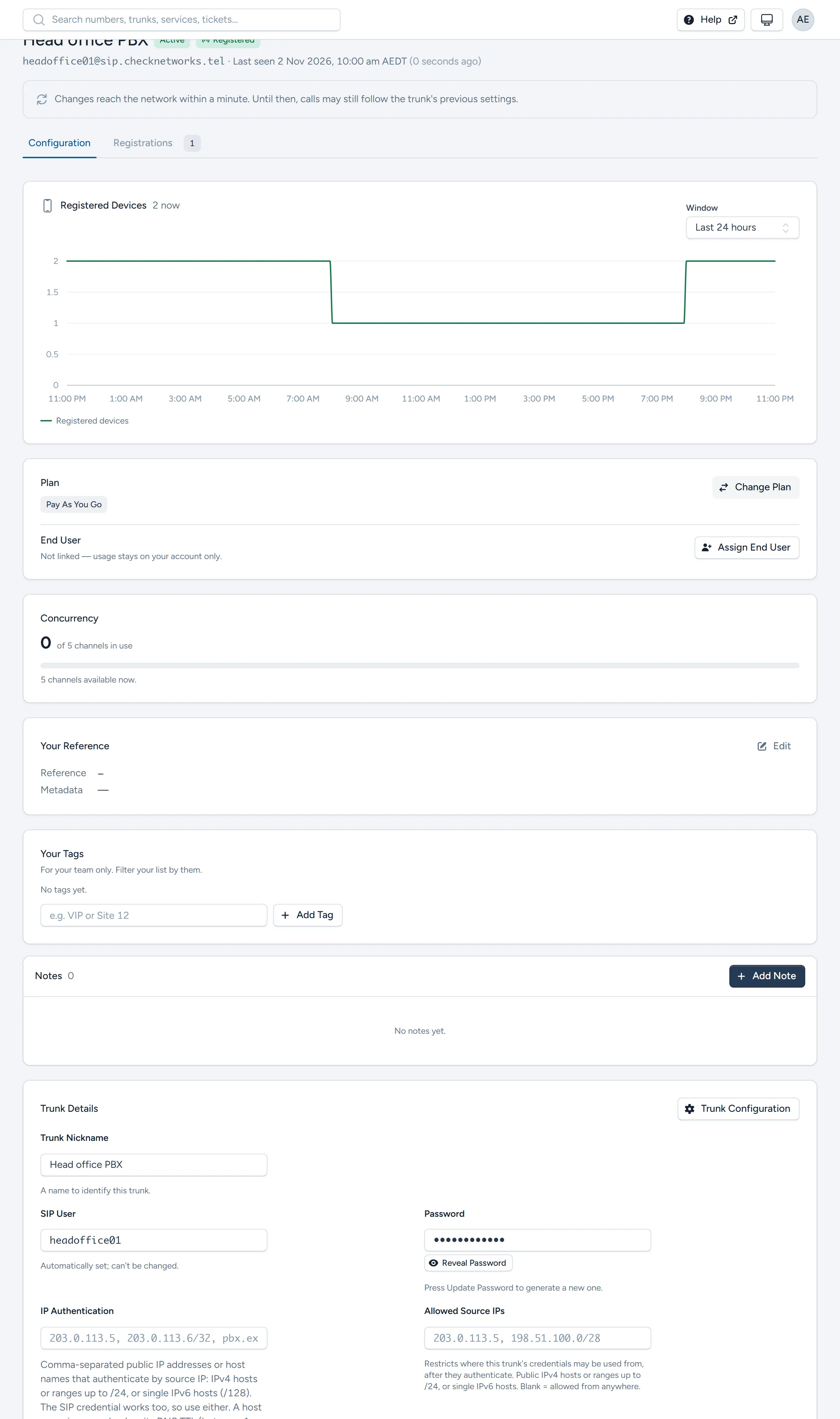
Under Concurrency, each call up now is listed with who it is from, the number called, when it started and when it was answered. It reads Ringing until then. Hang Up ends one, after you confirm. Both parties are disconnected. It needs permission to manage services. A call to 000, 112 or 106 is marked Emergency and can never be hung up.
With the API, GET /voice/calls/active lists the same calls, each trunk shows
activeCalls, and POST /voice/calls/{callId}/hangup hangs one up, but never
an emergency call. To stop fraud in one step,
POST /trunks/{username}/calls/hangup hangs up every call on the trunk at
once, leaving any emergency call up.
The Registrations tab, with the count of devices beside it, lists the devices registered now, with their address, user agent and when their registration expires. Refresh reloads it.
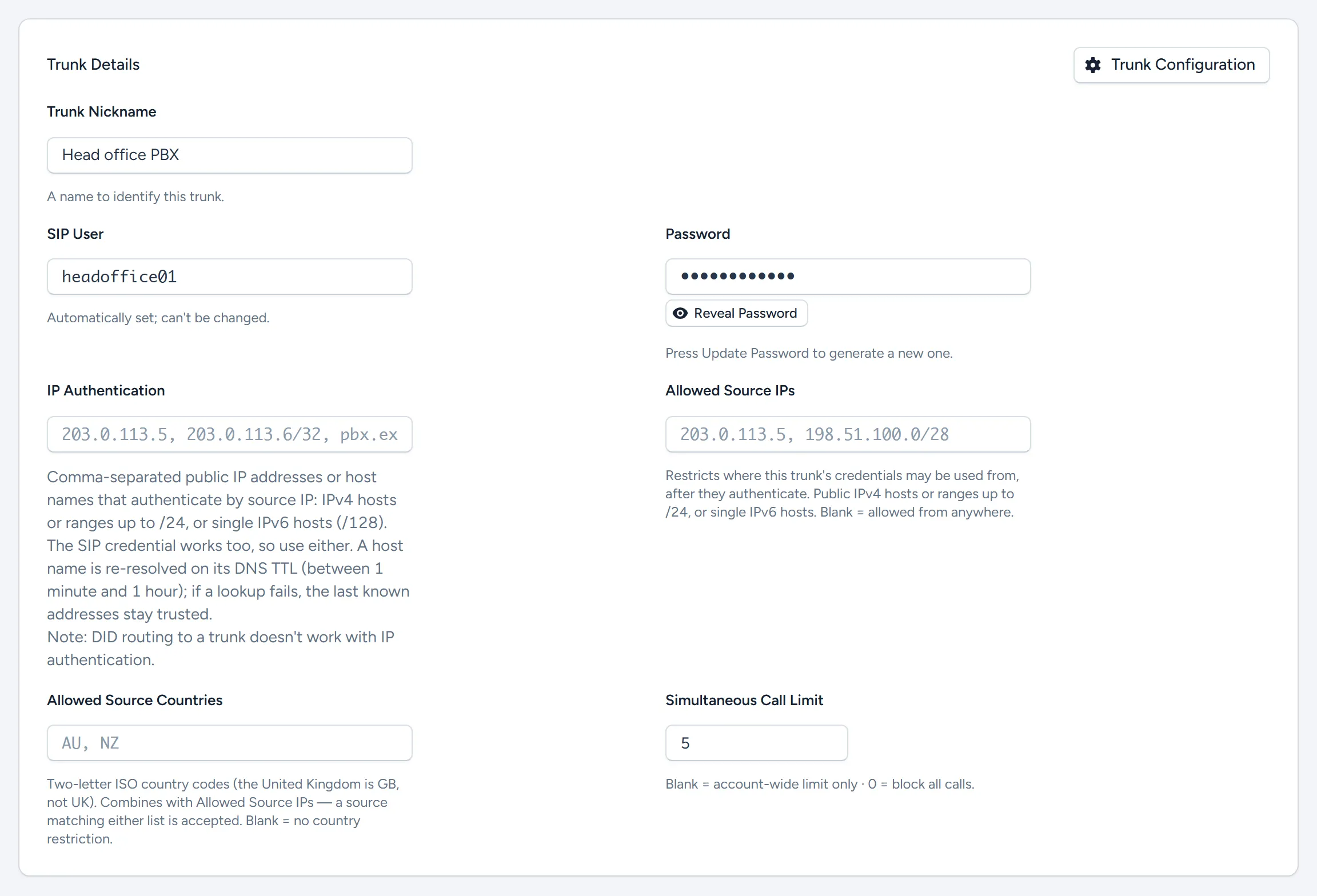
Changing a trunk needs permission to manage services. Without it, the page shows the settings greyed out and no buttons. Trunk Nickname names the trunk for you. Save changes under Trunk Details with Update Trunk.
How the trunk authenticates
A trunk accepts calls from your PBX in either of two ways. Use whichever suits it, or both.
The first is the SIP credential. The SIP User is set for you and can’t be changed. Reveal Password shows the password, and Hide puts it away again. Each reveal is recorded in the audit log. Update Password generates a new one. Your PBX stops registering until you enter it there.
A trunk with no credential authenticates only by IP. Add SIP Credential creates one. Copy the password straight away.
The second is IP Authentication. List your PBX’s public IP addresses or host names, separated by commas:
- IPv4 addresses or ranges up to
/24, or single IPv6 addresses. - A host name is looked up again whenever its DNS record expires, which is between 1 minute and 1 hour. If a lookup fails, the last addresses stay trusted.
- An address can only be on one trunk.
To narrow where the credential can be used from, set Allowed Source IPs and
Allowed Source Countries. Countries are two-letter codes: the United Kingdom
is GB, not UK. A source that matches either list is accepted. Leave both
blank to allow anywhere. An entry we added, for example to stop fraud, stays
on the list whatever you save. Contact support
about it.
Caller ID and calling
| Setting | What it does |
|---|---|
| Outbound Caller ID | The number shown on outbound calls when your PBX doesn’t set one. It must be a number on your account, or one we have approved. Request authorisation, under the field, opens Caller ID Approvals to ask for a number you hold elsewhere. |
| Default State | Enables 8-digit local dialling: it adds your state’s area code to local numbers. Choose None — Overseas to turn it off. |
| Always present this outbound caller ID, and Show all outbound calls as a Private Number | They work as they did when you created the trunk. |
| Simultaneous Call Limit | On Pay As You Go: blank for your account-wide limit only, or 0 to block all calls, both the trunk’s own calls and calls to its numbers. 000 always connects, and so does the emergency service’s call back to the trunk in the hour after it dials 000, whatever the limit. On Ultimate it follows your channels. |
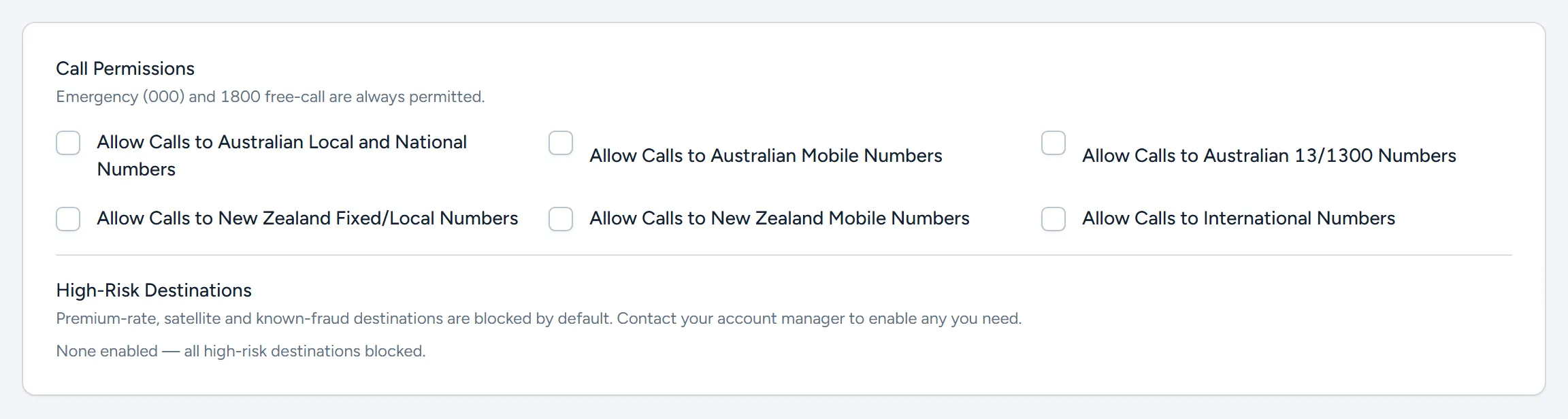
| Call Permissions | Which kinds of call the trunk may make. 000 and 1800 are always allowed. |
| Simultaneous International Call Limit | When the trunk may call internationally: blank for no limit, or 0 to block international calls. Calls to New Zealand are not counted. Turning off Allow Calls to International Numbers clears the limit. |
| High-Risk Destinations | Premium-rate, satellite and known-fraud destinations. They are blocked by default. Any your account manager has enabled are listed as tags. Contact them to enable one you need. |
When the Outbound Caller ID number ports to another carrier, we don’t change it for you. Set another of your numbers there. Choose a Number puts one on the trunk. We email the account’s technical and primary contacts when the port-out is requested, when it completes, and 24 hours before the trunk is suspended. The email on the request is sent for a fixed number. A notice above the field says when the suspension is.
Calling limits
The Calling Limits card sets two more limits. 000 always connects, whatever is set here.
Daily Spend Cap (ex GST) is the most the trunk’s outbound calls may cost in a day. It is measured on what we charge you, ex GST, from midnight Brisbane time. Leave it empty for no cap. Spent today shows the trunk’s calls so far. A call counts when it ends, so calls still up are not in it yet.
When the trunk reaches its cap, new outbound calls stop until midnight
Brisbane time. Calls already up carry on. We email your credit alert
addresses, and a red banner on the card says when calls resume. Your PBX is
told too: each refused call’s 403 Outbound calling suspended carries a
Retry-After header with the seconds until calls resume. A cap you set at or
below today’s spend, $0.00 included, stops them as soon as you save it.
Release Now turns calls back on for the rest of the day. So does raising
the cap above today’s spend. Inbound calls and 1800 numbers keep working.
International Countries applies when the trunk may call internationally. Follow the account’s country list uses the list in Company Settings, and any later change to it. Choose this trunk’s own countries gives this trunk its own list. A call to a country off the list is refused. Calls within Australia and to New Zealand follow the call permissions above. New Zealand is not in the list: Allow Calls to New Zealand Mobile Numbers and Allow Calls to New Zealand Fixed/Local Numbers control it. High-risk destinations stay blocked whatever the list says.
The API sets the same limits: allowedCountries and dailySpendCapExGst on
the trunk, and Release Spend Cap Hold.
Number format
The Number Format card sets how numbers arrive at your PBX on calls to the trunk, so its dial plan can match them. Each list shows an example.
| List | What it sets |
|---|---|
| Called number | The number that was dialled, in the Request-URI and To. |
| Caller number | An Australian caller’s number, in From. An overseas or withheld caller arrives as received. A number’s own inbound format, set on the number under My Numbers, wins over this for calls to that number. |
Each is one of:
- National:
0755501234 - International (with +):
+61755501234 - International (digits only):
61755501234
Save with Update Trunk.
Call recording
The Call Recording card turns on recording of every call on the trunk, a monthly add-on. Recording is silent, and telling your callers is up to you. See Call recording.
Change plan
Change Plan switches between Pay As You Go and Ultimate, or changes your channels. A change that doesn’t apply straight away shows as a Scheduled Plan Change. Cancel Scheduled Change withdraws it before it applies.
Your own reference
The Your Reference card holds your own id for the trunk, such as your customer or job number, and up to 20 keys of your own with a value each. Select Edit to change them. Clear the reference to remove it. No two of your trunks can share a reference. The API returns both on the trunk and in its webhooks, and finds the trunk by its reference.
Your tags and team notes
Your Tags holds labels you make up for the trunk, such as VIP or Site 12. Type one and select Add Tag. Select the cross beside a tag to remove it. A trunk carries up to 20, each up to 255 characters, and vip and VIP are the same tag. Filter the SIP Trunks list by Tag to find every trunk carrying one.
Notes below it holds your team’s notes on the trunk: the PBX and where it sits, the site contact, install details. Select Add Note, and tick Pin to the top for one everyone should read first. A note is not edited. To correct one, add another and remove the old.
Tags and notes are your own. Your end users and partners never see them. Check Networks staff see your tags on the trunk, so they can find it by the name you use, but cannot change them. They see your notes only while signed in as one of your users to help you. Read-only users can read tags and notes. The roles that may manage the trunk can add and remove them.
Assign it to an end user
Assign End User puts the trunk under one of your end users. Its calls then show in their portal and against them in your usage and reports. Once assigned, the button reads Change. It needs permission to manage services.
Suspend or resume
Suspend Trunk stops the trunk making or receiving calls, including inbound calls to its numbers. A caller to one of its numbers hears that the number can’t be reached. No failover step runs, voicemail takes no message, and call forwarding and Do Not Disturb are not applied. It keeps its charges. Resume Trunk turns it back on. A suspended trunk can always call 000. If it has called 000, 112 or 106 in the last hour, calls to its numbers are put through so the emergency service can call back. Those calls ring the trunk even if forwarding or Do Not Disturb is on.
“Suspended by Check Networks” means we suspended it, usually for an overdue account or suspected fraud. Contact support to lift it.
Unusual calling can also pause new outbound calls on your whole account, with the trunk itself left on and an email to tell you. See Unusual calling activity.
Cancel a trunk
Cancelling is permanent. The trunk stops working at once, calls in progress on it are ended within a minute, its recurring charges end, and it can’t be restored.
- Move or release the trunk’s numbers first, under My Numbers. The trunk can’t be cancelled while numbers ring on it. The trunk’s default caller ID can’t be released while the trunk is up. When it is the trunk’s only number, leave it: cancelling the trunk releases it too. If it can’t be released just then, the page says so and nothing changes. Try again in a few minutes.
- Choose to cancel the trunk. If an early termination charge applies, the dialog shows it and asks you to accept it.
- Type the trunk’s handle exactly as shown, and choose Cancel Trunk Permanently.