 Help
Go to Billing, then Reports, and pick a report from the tabs at the top. It has these reports, in this order. Each opens with its headline figures across the top, then its table.
- Recurring Revenue (MRR): your monthly recurring charges.
- Billed Trend: what you were billed, month by month.
- Usage Summary: usage over a period you choose with From and To.
- End-User Billing: what you billed each of your end users over a period.
- Partner Commissions: each partner’s commission for the months in a period, by client and product, with the clawbacks each month took and what was payable. It is built from the months on your Partners page, so the totals are the same. A month still in draft is marked as not final. The table has fourteen columns and is wider than most windows: scroll it sideways to reach Payable. A shaded edge shows where more columns are.
If you bill your end users, four more reports are about that money, in the tabs after Partner Commissions. Billing your end users is your account’s Bills End Users setting. Without the setting they are not offered.
-
Aged Receivables: what each end user owes you, split by how long ago each unpaid invoice was issued. The split is Current, for under 30 days, then 30 Days, 60 Days and 90+ Days. Each end user also has its Balance and the date and amount of its last payment. A payment pays off the oldest invoice first. Amounts include GST. An end user who owes nothing is not listed. It is as at today. For a month-end or BAS review, set As At to an earlier day. It then shows the position at the end of that day, leaving out invoices, payments and credits dated after it.
-
Payments Received: every payment from your end users in a period, by day, with its gateway and method, so you can match it to your bank. A dishonour, chargeback or reversal is its own line, as a minus amount on the day it happened. A failed autopay attempt is listed but counted in no total, as no money moved. Each gateway has a total line, then the overall total. A payment matched to an end user but not yet applied to an invoice is listed as “Matched, not yet applied”. It has its own total line, out of the overall total, so the total agrees with the end user’s account. Amounts include GST.
-
Margin: for the invoices issued in a period, what we charged you against what you billed, for each end user and product. It is split into recurring charges, setup fees and usage, with the margin in dollars and as a percentage of what you billed. Your own charges to end users are listed with nothing from us against them. Usage or a fee nothing priced on the end-user invoice shows as “unpriced”, not $0. A service you marked not billed shows “not billed”. Neither counts in the margin. A service held by no end user is under “No end user”. Amounts exclude GST.
Before you bill a month, its usage so far is listed too, as “Usage so far (not yet billed)”. That is each end user’s calls and other usage in the period, priced as their invoice will price it, against what we will charge you for it. Their invoice prices it by their call plan, your retail book or your default markup. Once we have invoiced you for that month, our charge is on our invoice instead, so the row shows $0 from us. Once the end user’s invoice for the month is issued, its invoiced figure replaces the estimate in the period it is issued in. A period that has closed keeps its estimate even after that month’s invoices are issued, so running it again gives the same figures. The usage so far is worked out again at most every 15 minutes, and at once when an invoice is issued. Total is the invoices alone. “Total with usage so far” adds the estimate. The usage so far rows and that total are marked as estimates, in italics on the page and in the API.
-
Unbilled Services: every active service you pay us for that no end-user invoice bills. That is a service held by no end user, one you marked not billed, one of an end user you don’t bill, or one nothing prices. Nothing prices a service when it has no retail price or markup, or for calls no call plan and no markup. Each shows what it costs you a month, without GST. A usage-only service shows none. A free service is left out, as it costs you nothing, unless nothing prices it. That holds its end user’s invoice for approval, so it is listed at $0.00. Whether anything prices it is the same check the bill run makes.
GST Summary is for your BAS, over a period. It shows what you invoiced your end users, what you credited them, and the GST you collected, with totals. Then it shows the same for our invoices and credit notes to you, the GST you paid us. It counts invoices and credit notes issued in the period.
Four more follow it, offered whether or not you bill your end users. A service here is any service: a trunk, a data service, a layer 2 handoff, a hosted PBX, a fax plan, and the add-ons on them.
- Services Added and Ended: for a period, the services that started and the services that ended, by end user and product, with a month of the revenue gained and lost and the Net Change. A service starts on the day it bills from and ends on the last day it bills. A layer 2 handoff starts on the day a device is first seen on it after its network path is applied, or when its grace runs out. A plan change ends one service and starts another, so it shows in both. With Bills End Users on, the figures are what your end users’ bills charge for the service: its own price, your retail book or your markup. Without it, they are what we charge you. A service counts as $0 when no end user’s bill charges it, or when nothing prices it. No end user’s bill charges a service that is held by no end user, marked not billed, or of an end user you don’t bill. Not Counted says how many and why. A usage-only service has no monthly figure. Amounts exclude GST.
- Contracts Ending: the services that come out of their contract term in the next 90 days, as at today. They are grouped “Within 30 days”, “31 to 60 days” and “61 to 90 days”, by end user. Each shows the date the term ends, the days left and what we charge you a month for the service, and each group has a total. The term end is the one the service’s Contract Term card shows. A service already set to end before its term does is not listed.
- Call Cost by Destination: for a period, your outbound calls, their minutes and what we charge you for them, by destination. Destinations are the call types your invoice groups calls by, such as AU Mobile or International. The “All calls” rows come first, then each end user’s. Each is sorted with the costliest first, so a badly priced plan or unusual traffic stands out. A call re-rated since is counted once, at its latest figure. With Bills End Users on, each row also has its Retail Value and Calls Not Billed. Retail Value is what the end user’s bill charges for those calls on their call plan, retail book or markup. Calls Not Billed is the calls no end user’s bill charges: calls on a service held by no end user or marked not billed, or that nothing prices. The retail value is worked out again at most every 15 minutes, and at once when a call is added or re-rated. Amounts exclude GST.
- Our Invoice by End User: every line of one of our invoices to you, each once, grouped by the end user its service is assigned to. There is a total for each end user. An Unassigned group holds lines no end user’s service carries: a one-off charge, or a service held by no end user. Pick the invoice in Invoice. It opens on the newest. A line goes to the end user the invoice’s By End User table shows, so the two agree. A line that table names no end user for goes to the end user holding the service now. The Total is the invoice’s total, excluding GST. A scheduled delivery sends the newest invoice issued by the end of the period.
A period’s days are your account’s days. They run from midnight to midnight in your account’s time zone, which is Brisbane until you set one. So the end-user bill run in the early hours of the 1st counts in that month, and so does a call at 12:30 am on the 1st. The page opens on the first of this month to today, in that zone.
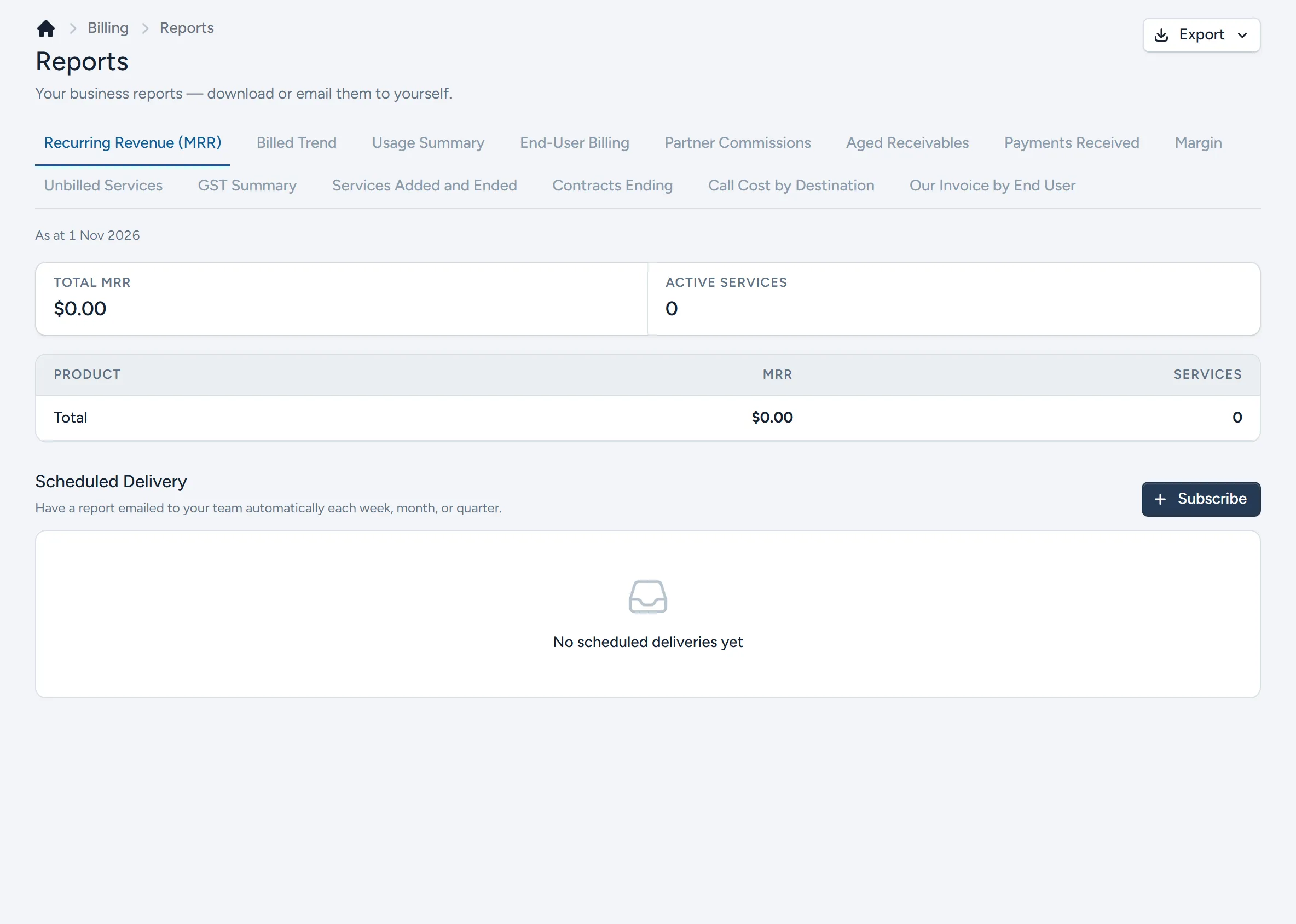
Download or email one
Open the report and use the Export menu. Choose Download CSV, Download PDF or Email to Me, which sends it to your sign-in email.
Deliver one on a schedule
Have a report emailed to your team every week, month or quarter.
- Under Scheduled Delivery, choose Subscribe.
- Pick the Cadence: Weekly, Monthly or Quarterly.
- Pick the Recipients from your team. Only people who can see billing are listed.
- Pick the Formats: PDF, CSV, or both.
- Save.
Each delivery covers the period that has just closed in your account’s time zone. A monthly one sent on 1 December covers 1 to 30 November there. The list shows each schedule’s next due date and whether it is Active or Paused. Pause stops it for a while and Resume starts it again. The trash icon deletes a schedule, after asking.