Using the wholesale portal
This page covers the layout of the portal and what each section does. If you’re new to the portal, start here.
Signing in and account roles
Section titled “Signing in and account roles”Every user in your organisation signs in with their own login. What a user can see and do depends on their account role:
- Owner — full access, including billing, company settings and user management.
- Admin — full operational access; can manage users but has the same billing visibility as Owner.
- Billing — billing and invoicing screens only.
- Read-only — can view services, tickets and reports, but cannot make changes or raise orders.
- Partner — a delegated channel partner sees only their own scoped clients (their “Clients” section replaces the account-wide Services, Order and Billing groups).
If a menu item you expect to see is missing, it’s most likely gated by role rather than broken — ask your account Owner or Admin to check your role under Company Settings.
Layout
Section titled “Layout”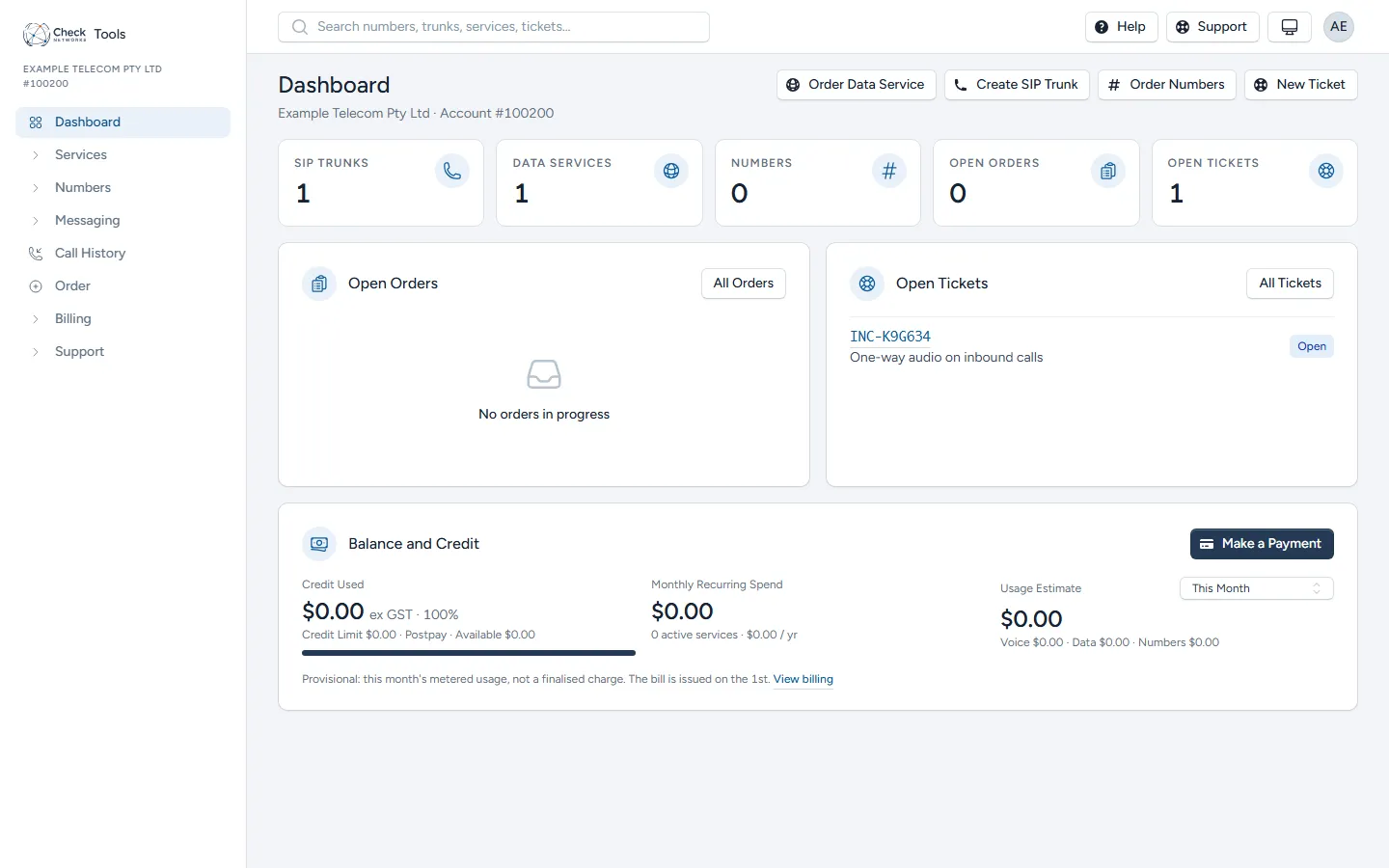
- Sidebar (left) — the main navigation, top to bottom:
- Dashboard — your services, open orders and tickets, and this month’s spend at a glance.
- Services — All Services (everything on your account in one list), SIP Trunks, Residential Lines, Data Services and VPN.
- Numbers — My Numbers (where each number’s calls go), IPND Addresses and Number Lookup.
- Messaging — SMS.
- Call History — every call, with what it cost.
- Order — start a new service or order numbers.
- Billing — invoices, credit notes, usage, reports, pricing and payment methods.
- Support — support tickets, network status, this knowledge base and Caller ID Approvals.
- Header (top) — search, a quick link to Support, the light/dark appearance toggle, and your profile menu (Profile, Company Settings, Audit Log, Sign Out).
Company Settings
Section titled “Company Settings”Reached from the profile menu, not the sidebar. This is where an Owner or Admin manages:
- Branding & Domain — your portal’s name, colours and domain.
- Users & Access — inviting staff, setting their account role, partners and sign-in security.
- Integrations — API keys for the Platform API, webhooks, and call record (CDR) delivery by SFTP.
- Notifications — where we send notices, and your usage and credit alerts.
- Notice Wording — the wording of the notices we send.
The Audit Log (also in the profile menu) records what changed in your account and by whom.
Live updates
Section titled “Live updates”Ticket replies and a few other panels update in real time without a page refresh (the portal keeps a live connection open in the background). If something looks stale, a manual refresh always gets you the current state.
Getting help from here
Section titled “Getting help from here”Every page has a Support link in the header. See Logging a Support Ticket for how to raise one, and What to Include Per Ticket Type for what to gather before you do — especially for voice-quality issues, where a few checks on your end can save a round trip.