 Help
A partner is a channel partner who sells and supports services on your behalf: an IT provider or reseller who looks after some of your end users. A partner gets their own login to your portal, but only ever sees the end users you grant them and sells only the products you choose. They never see your billing, your other end users, or your account settings.
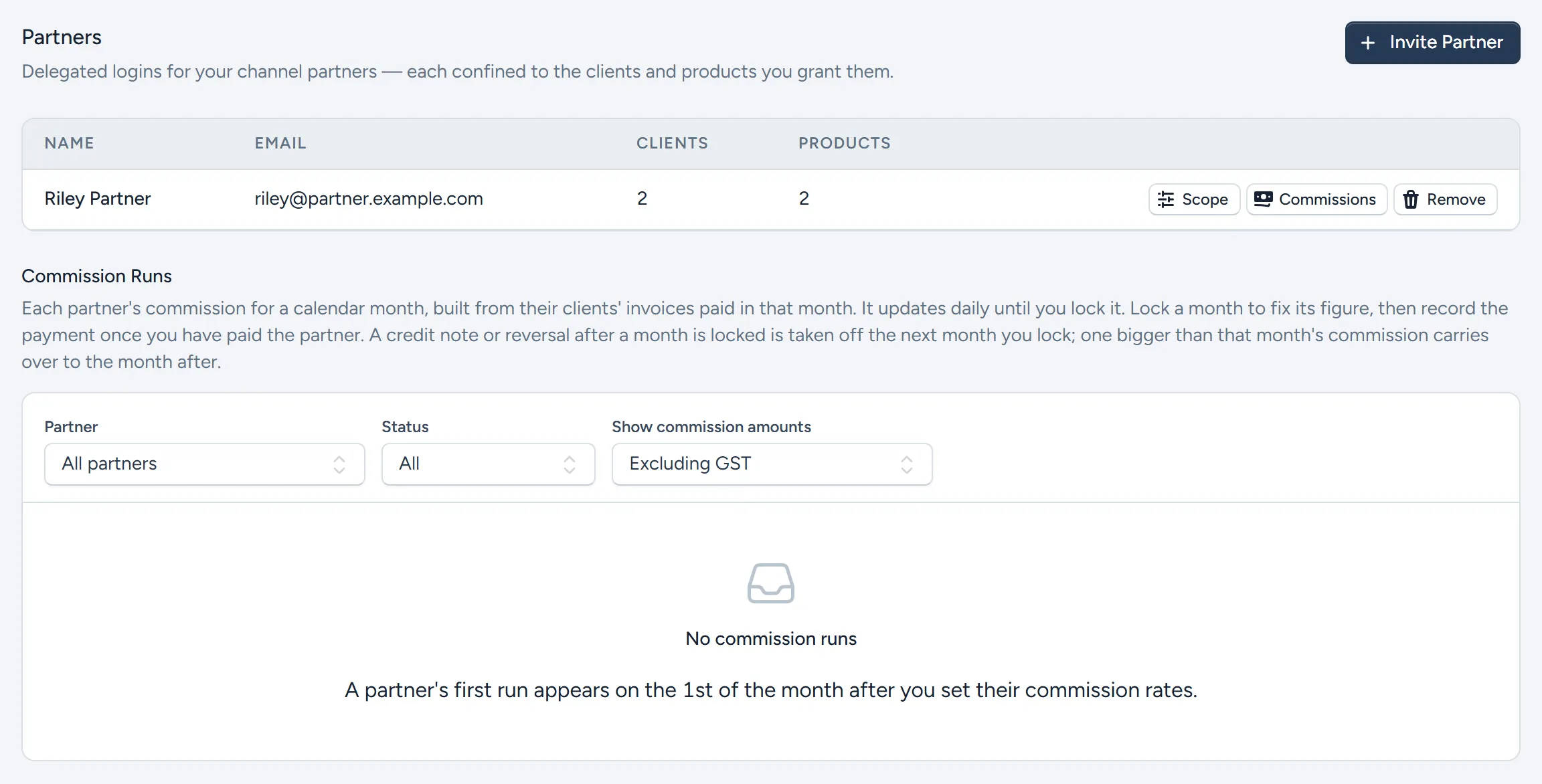
Partners are managed under Company Settings, then Users & Access, in the Partners section below Staff Users. You need to be an Owner or Administrator.
Invite a partner
- Under Partners, choose Invite Partner.
- Enter their Email.
- Under Clients they may manage, tick the end users this partner looks after.
- Under Products they may sell, tick the products from your retail price book they may order for those end users.
- Choose Send Invitation.
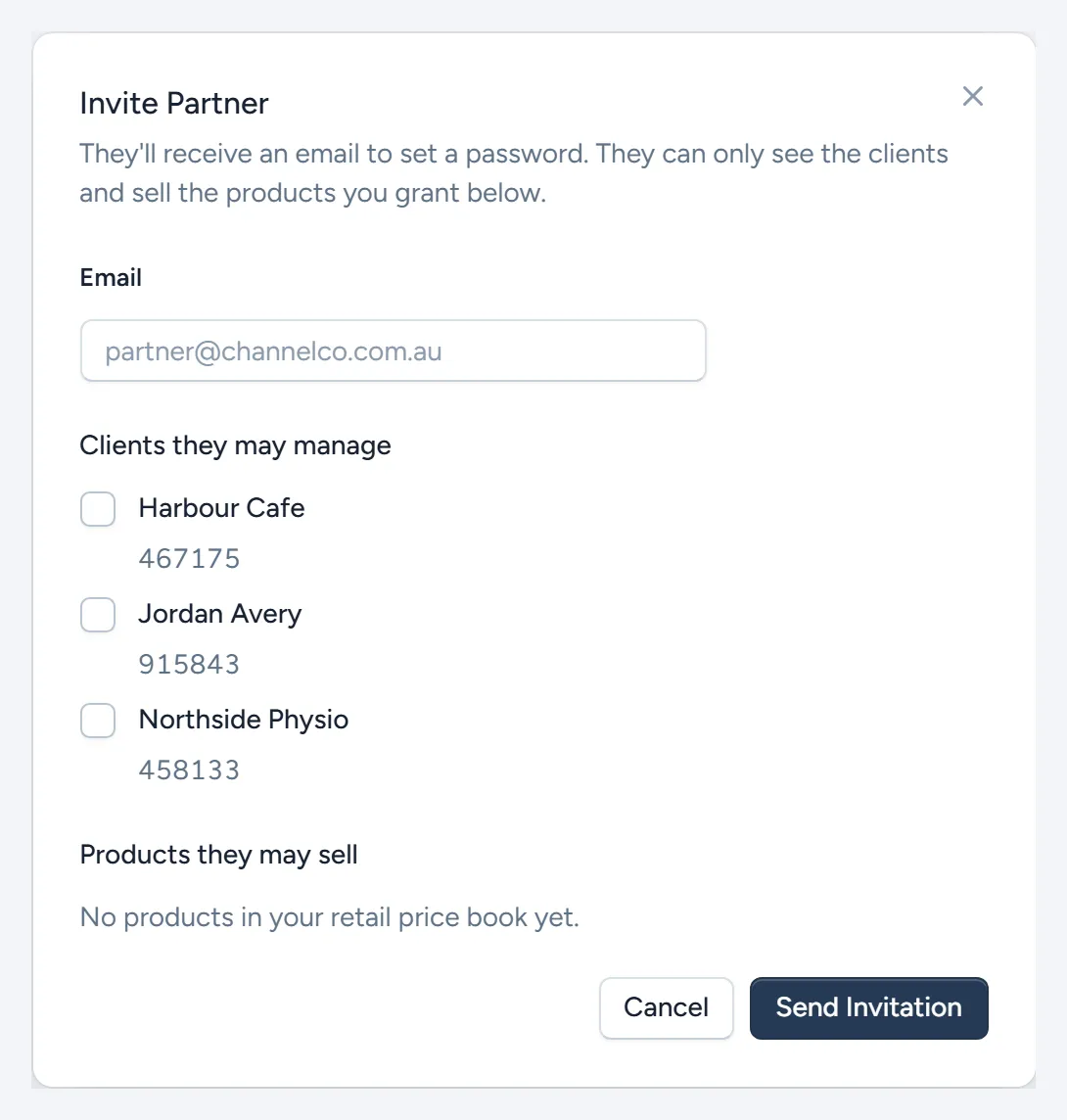
They get an email to set their name and password, as any new user does. See Signing in. Until they accept, the invitation waits under Pending Invitations with the clients and products it grants and when it Expires. Revoke cancels it. To send a fresh one, revoke it and invite them again.
Change what a partner can see
The Partners table lists each partner with how many Clients and Products they have.
- Scope opens the partner’s grants. Tick or untick their clients and products. Under What they may do, tick what else they may do for those clients, then choose Save Scope. See What a partner sees. It takes effect the next time they open a page.
- Remove ends their access, after asking. Their end users and services are untouched: they stay on your account.
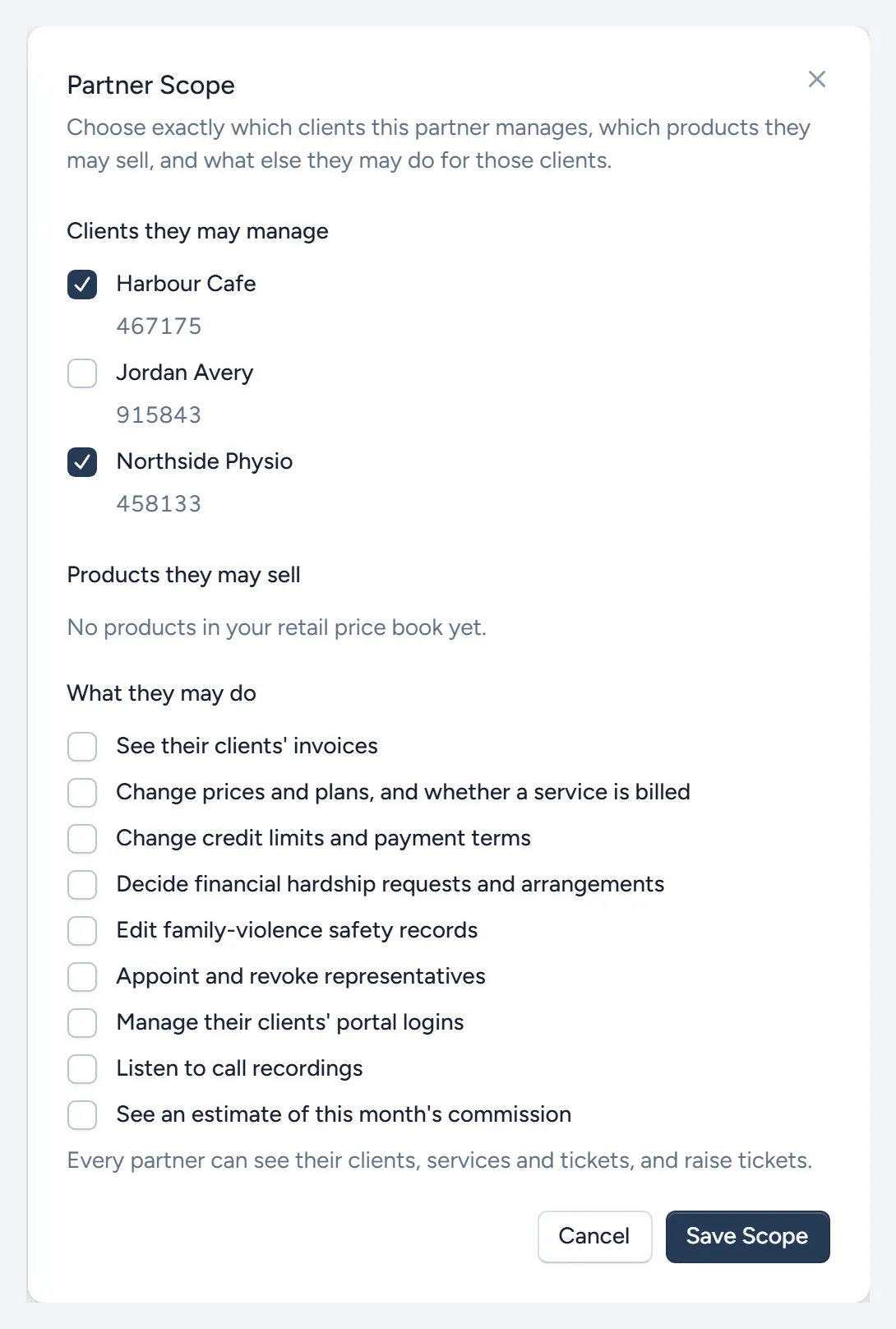
A partner with no clients ticked sees nothing, so you can invite one before you decide what to give them.
Your own system can do the same through the API: list partners and their
invitations, invite one, set their clients, products and permissions, and
remove one, with a key holding the account scopes. See Partners in the
API reference.
Commission
If you pay a partner a commission on what their end users pay you, the portal works out what you owe each month. You pay the partner yourself, the way you pay anyone, and record here that you did. Commission needs you to bill your end users through the portal, since it is worked out from their paid invoices.
Set a partner’s rates
- In the Partners table, choose Commissions on the partner’s row.
- Under Commission on, choose what the rate applies to. Retail revenue is what the end user was charged. Margin is what they were charged, less what we charge you for it.
- Enter a Default rate (%). Add a rate for a kind of product, or for one product, where it differs: the most specific rate wins.
- Choose Save Rates.
Commission is worked out on amounts without GST. On the margin basis, a charge we can’t put a cost on earns nothing and is listed as uncosted, so it is never paid as if it were all margin.
Your Own Charges, under By Product Type (%), is the rate on the recurring and once-off charges you add to an end user yourself. See Your own charges. They earn commission only at the rate you enter there, never at the default rate. Leave it blank and they earn nothing. On the margin basis, all of such a charge is margin, as we charge you nothing for it.
How a month is worked out
- An invoice counts in the month the end user paid it, not the month it was issued, and only once it is paid in full. Months run from midnight to midnight in your account’s time zone, which is Brisbane until you set one. So a payment at 8 am on the 1st counts in that month.
- Each month’s commission appears under Commission Runs on the 1st of the next month as a Draft. It is updated every night until you lock it, so a late payment still counts.
- Show commission amounts switches every commission figure on this page, on the partner’s own page and in the report between excluding and including GST. It changes how the amounts are shown, never what was worked out.
The Commission Runs table has a row for each partner’s month:
| Column | What it shows |
|---|---|
| Commission | What the month earned. |
| Clawbacks | What was taken off it. See Clawbacks. |
| Payable | What you owe the partner for the month, the commission less the clawbacks. |
| Status | Draft while the month can still change, Locked with the date you locked it, or Paid with the date and your payment reference. |
Filter the list by partner or status, and page back through earlier months.
Lock a month, then record the payment
- Once the month has ended, choose Lock This Month’s Commission on its row, and confirm. The button appears only after the month’s last day, from midnight on the 1st in your account’s time zone. A locked month never changes again. A later credit or bounced payment on one of its invoices becomes a clawback on a later month instead.
- Pay the partner the Payable amount.
- Choose Mark Paid, and enter the date you paid and your payment reference. The date starts on today, on your account’s time zone, and can’t be later. Add a note if you want one, and choose Mark Paid.
The run then shows Paid, with the date and reference, to you and to the partner. A payment is recorded once and can’t be edited.
Clawbacks
If an end user’s payment bounces, or you credit or cancel an invoice, after its month was locked, the commission already worked out on it is taken back. This is a clawback.
- A part credit takes back the same part of that invoice’s commission.
- Clawbacks are found overnight and listed under Clawbacks Still To Come Off, below the runs, while any are waiting. Each shows the partner, the month it is Raised Against, the invoice, the reason, the date, the Clawback and how much of it is Still To Come Off. Raised Against is the locked month whose commission it takes back.
- They come off the next month you lock, oldest first. Payable is never less than zero: when a month’s clawbacks are more than its commission, the rest carries to the month after.
- If the end user then pays that invoice again, the month they pay it in earns the commission back, on what you kept of the invoice after any credit. It shows by client and product marked (re-payment).
- A card dispute you win counts as paying it again. The payment is applied again on the day the dispute closes, and that month earns back the commission the chargeback took, once however many times the provider tells us.
What the partner sees
A partner has My Commission in their menu. It shows each of their months with its commission, clawbacks, payable amount and status, and for a paid month the date and reference. Opening a month shows it by client and product, and each clawback taken from it with its invoice and reason. A draft month is marked as not final. A partner sees only their own commission and can’t change anything.
If you tick See an estimate of this month’s commission for them, the page also shows Estimate So Far This Month: what the month in progress would earn if it were worked out now, by client. It counts only invoices already paid, so it rises as the month’s invoices are paid, and it is marked as an estimate, not what you will pay.
The Partner Commissions report under Billing, then Reports lists the same months, with the same totals, for any date range.
Your own system can read the same months, breakdowns, outstanding clawbacks
and rates through the API, with a key holding billing:read. See Partners in
the API reference. For commission the API only reads.
Setting rates, locking a month and recording a payment stay here.
What a partner sees
A partner signs in to the same portal, with a shorter menu. Their dashboard has a Your Clients card listing each of those end users with an open outage, open fault tickets or data orders in flight. See The dashboard. With See their clients’ invoices ticked, it also says whether each one is overdue, as a yes or no, never an amount. For the end users you have granted them, they can:
- See and edit those end users, and add new ones, including by import. They see only the imports they ran themselves.
- See, order and manage their data services, including site qualification and bundles. They order only the products you let them sell, and from a qualification batch only from the batches they uploaded.
- See and set up their SIP trunks and residential lines.
- See and route their numbers, and order numbers for them.
- See their call history.
- Raise and reply to support tickets. They see the tickets they raised, and tickets for those end users or about their services and numbers. Support, its Export CSV, Support reports, the dashboard and the header search show no others. A new ticket can be about one of those services or numbers, never an invoice.
Anything more is what you tick for them under What they may do in Scope. Without a tick the partner is refused, not just shown less:
- See their clients’ invoices, if you bill your end users: Invoices in their menu, with only those clients’ invoices.
- Change prices and plans, and whether a service is billed: a service’s Billing, its plan and End on the end user’s Services tab.
- Change credit limits and payment terms: those two fields on the end user’s details.
- Decide financial hardship requests and arrangements.
- Edit family-violence safety records.
- Appoint and revoke representatives.
- Manage their clients’ portal logins.
- Listen to call recordings: Call Recordings in their menu.
- See an estimate of this month’s commission on My Commission. See What the partner sees.
A new partner starts with See their clients’ invoices only. So did every partner you had when this list arrived: tick the rest for each partner who should have it.
They can’t:
- See anything for an end user you haven’t granted, or anything on your account that isn’t tied to an end user, including your own support tickets and other end users’ tickets.
- See your own invoices, payments, pricing or anything else under Billing.
- Open Company Settings, users, notices or the audit log.
- Request ports, add IPND addresses or request caller ID approvals. These are account-wide, so you do them. When they order a number or a residential line, they choose from the IPND addresses you have added, and the form asks them to have you add a missing one.
- See NBN quotes. Batch qualifications they upload are visible only to them and to you.
On a number’s page, a partner always edits that number’s own route, never the shared route of a block that might include numbers for end users they don’t manage. See Number routing.
Security
Partners follow your account’s security settings: if you require two-factor or limit sign-in to approved networks, that applies to partners too. Everything a partner does is recorded in the audit log under their own name.