 Help
Company Settings is under Account in the sidebar, and in the profile menu at the top right. It has five tabs:
| Tab | What it holds |
|---|---|
| Company Details | Your legal and billing details. Below. |
| Users & Access | Who can sign in, partners, two-factor and approved networks. See Users and roles. |
| Integrations | API keys, webhooks, connected apps, CDR delivery, Xero and usage upload. See API keys, Webhooks, Connected apps, Call history, Xero and Uploading your own usage. |
| Notifications | Where our notices go, and usage and credit alerts. See Alerts and notifications. |
| Your Emails | The emails your own users get, previewed, with a Send Test for each. Below. |
How your end users see you is under Retail Settings. That covers your branding and portal domain, retail billing, the notices they get, and your DFV statement and complaints process.
Anyone on your account can open these tabs. Changing them needs permission to manage services, which Owners and Admins have. Users & Access needs permission to manage users. Anyone else sees the settings read-only.
CDR Delivery on Integrations is there for Owners and Admins only, because its login reaches every call on your account. Xero and Usage Upload are there for Owners and Admins too, if you bill your end users through us. A partner login has no Company Settings at all.
Company Details
| On the page | What to know |
|---|---|
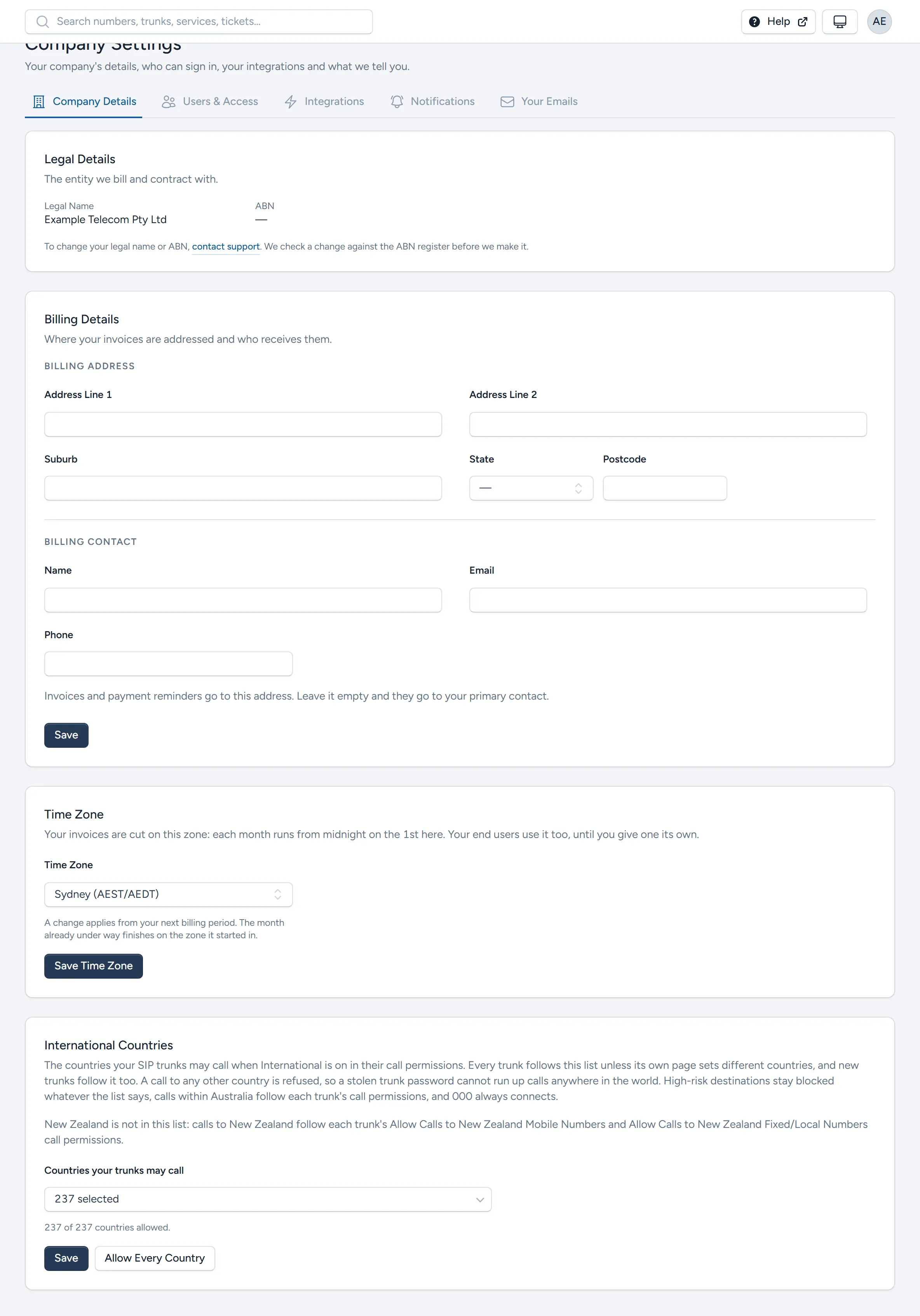
| Legal Details | Your Legal Name, your Trading Name if you have one, and your ABN. To change them, contact support: they are on your agreement and your invoices. |
| Billing Details | The billing address and the billing contact on your invoices. The address is Address Line 1 and Address Line 2, a third line only if your address already has one, Suburb, State and Postcode. The contact is Name, Email and Phone. Your invoices, statements and credit notes print the billing address. Without a street line they print your registered address instead. Change them and choose Save. |
| Time Zone | The zone your invoices are cut on: each month runs from midnight on the 1st there. Your end users use it too, until you give one its own. Owners and Admins pick one of the Australian zones and choose Save Time Zone. Other roles see it but can’t change it. A change applies from your next billing period. The month already under way finishes on the zone it started in, and the card says so until it ends. Every change is recorded in the audit log. |
The API reads the billing address and billing contact on GET /account, with
the billing:read scope. It changes them at
PATCH /account/billing-details, with account:update, under the same rules
as this page. Each change is in your audit log, named for
the API key that made it. Your legal details stay read-only there too.
International Countries
The International Countries card, under Company Details, is the list of countries your SIP trunks may call when Allow Calls to International Numbers is on in their call permissions. Every trunk follows it unless its own page sets different countries, and a new trunk follows it too. A call to any other country is refused, so a stolen trunk password cannot run up calls anywhere in the world. Until you choose, every country is allowed.
Pick the countries and choose Save. Allow Every Country selects them all again. Trunks that follow the list use the change from their next call. Calls within Australia follow each trunk’s call permissions, high-risk destinations stay blocked whatever the list says, and 000 always connects. Only users who can manage services can change it.
New Zealand is not in the list. A call to a New Zealand number is never an international call. It follows the trunk’s Allow Calls to New Zealand Mobile Numbers and Allow Calls to New Zealand Fixed/Local Numbers call permissions. To stop calls to New Zealand, turn those off on the trunk.
The API reads and sets the same list at /account/allowed-countries.
Your Emails
Your Emails lists the emails your own users get, with a line on when each is sent: New Voicemail, SMS Received and Emailed Report.
Choose Preview to see an email as it is sent, on sample details: its subject, who it is from, any attachment, and the email itself.
Send Test emails it to you, so you can check it in your own inbox. It is
the real email with sample details, the subject starts [TEST], and it goes
only to you. The report comes with a one-page sample PDF, not a real one. You
can send five tests in ten minutes, shared with the end-user emails and notices
under Retail Settings.