 Help
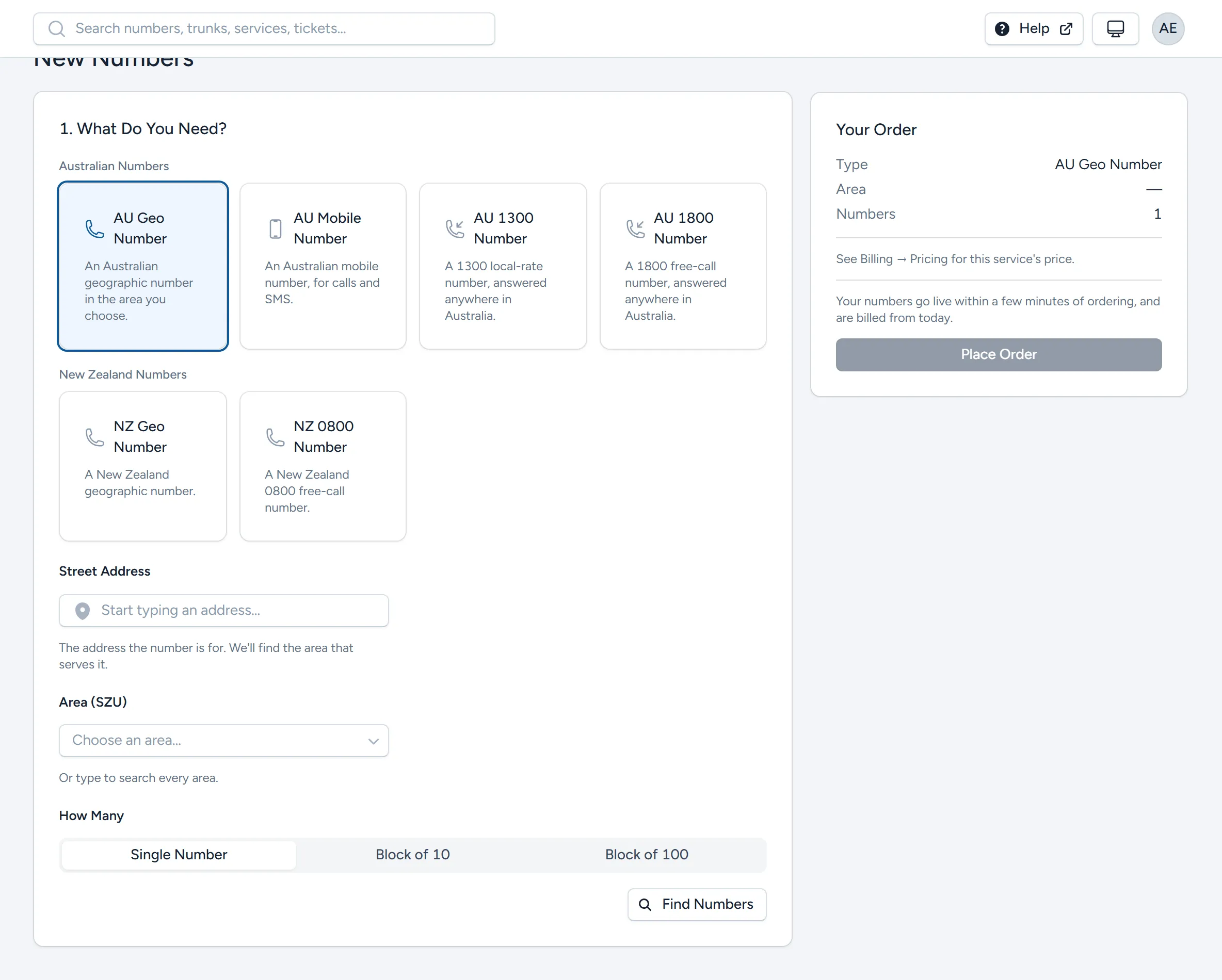
You can order these numbers yourself:
- Australian Numbers: AU Geo Number, AU Mobile Number, AU 1300 Number and AU 1800 Number.
- New Zealand Numbers: NZ Geo Number and NZ 0800 Number.
13 and 19xx numbers aren’t self-service: contact support.
Ordering needs permission to manage services, and number hosting on your account. Without it, the page says “You are not approved to order numbers”. Ask your account manager.
Order
-
Go to Numbers, then My Numbers, and choose New Numbers. You can also go to Order and choose Numbers.
-
Pick the type of number.
-
For an AU Geo Number, start typing the Street Address the number is for and pick it from the list. Areas Serving This Address lists the areas, with the best match chosen. Pick another if it isn’t right, or search every area under Area (SZU).
-
AU Geo and NZ Geo numbers also come in blocks. Under How Many, choose Single Number, Block of 10 or Block of 100. Every other type is ordered one number at a time.
-
Choose Find Numbers, then pick the number you want, or Any — you choose. A number you pick is held for you for 24 hours while you finish, so nobody else can take it.
-
Under Service, choose a SIP Trunk or a Residential Line and pick it, or Disconnected to keep the number spare for now.
-
Under Send Calls To, choose one of:
- The Trunk, or The Line.
- Forward to a Number, and enter it. It can never be 000, 112 or 106.
- SIP Address, and enter one starting with
sip:.
Time of day, caller location and failover routing are set on the number’s routing once it’s live. A Res Line’s first number must ring The Line: a Res Line always has a number.
-
Pick the IPND Address. This is the address emergency services are given on a 000 call from this number. If it isn’t listed, choose New beside it and the IPND address form opens. Create and Return to Order brings you back to the order with the new address picked. Your choices are kept, including a number you picked.
-
Check Your Order. It shows the Type, the Area for an AU Geo Number, and how many Numbers. Once you have found numbers, it also shows the number, or the first of the block, and where Calls Go To. If you can see billing, it shows the monthly and setup charge per number, excluding GST. When your price book doesn’t price it, it shows “See Billing → Pricing for this service’s price.” instead. Choose Place Order.
The portal confirms with “Order placed — your number is being provisioned.” The number appears under My Numbers within a few minutes. If you chose Disconnected, set where its calls go from its settings when you’re ready.
If something is wrong
| What you see | What to do |
|---|---|
| “That number was just taken — please pick another.” | Someone else ordered it a moment before you. |
| “You are already holding 50 numbers, your limit.” | Your account can hold 50 numbers at once, counting those held through the API and those being ordered. Order one of them, or wait for a hold to end after 24 hours, then pick again. Ask your account manager if you need a higher limit. |
| “Your number was bought but could not be set up.” | Our team has been told and will finish it. There’s nothing more to do. |
| No areas for the address. | Check the address, or pick the area yourself under Area (SZU). |
To bring a number from another provider instead, see Requesting a port.