 Help
Numbers, then My Numbers, lists every phone number on your account. Each row shows the number’s Type, where its calls go under Routed To, its Status and its IPND Address.
Routed To is the first step of the number’s route: a trunk or line, a divert,
a SIP address, or Not routed. When that is not the trunk or line the number is
billed on, the row also says Billed on and names it. Export CSV has both,
as routed_to and service.
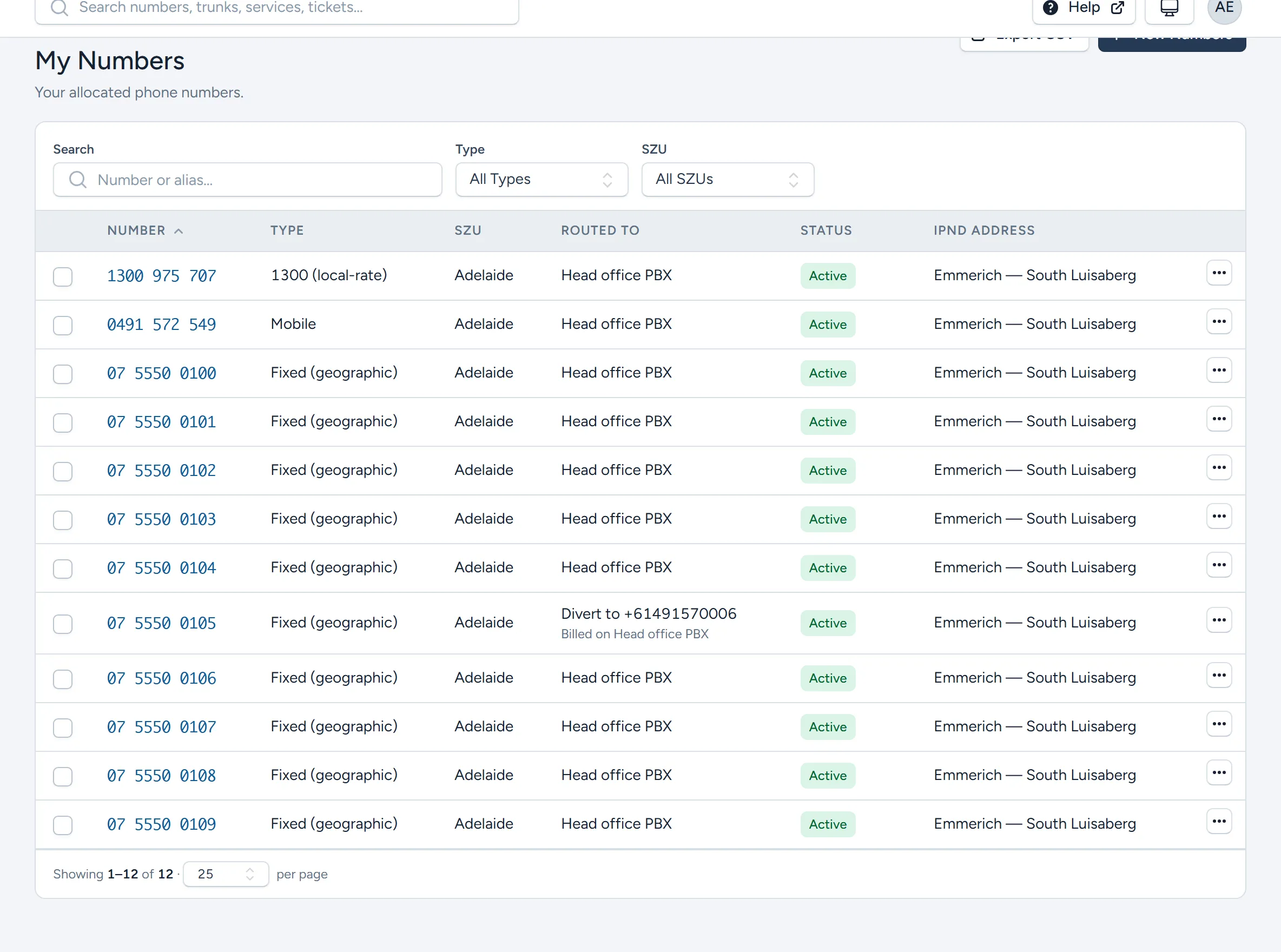
- Search by number or alias. You can also show only one Type, such as geographic, mobile, 13 or 1800, or only one area (SZU).
- Export CSV downloads the list.
- The ⋯ menu at the end of a row has Configure Number and Release. Configure Number opens the number’s settings, covered in Number routing. You see only the actions your role allows.
- Orders still being set up are listed under In-Flight Orders.
Types
| Type | What it is |
|---|---|
| Fixed (geographic) | An Australian landline number tied to an area, such as 07 for Queensland. |
| Mobile | An Australian mobile number (04). It can also receive text messages. |
| 1300 (local-rate) | A national number callers reach for the cost of a local call. You pay for the calls it receives. |
| 1800 (toll-free) | A national number that is free for callers. You pay for the calls it receives. |
| NZ Geographic | A New Zealand landline number tied to an area. |
| NZ 0800 (toll-free) | A New Zealand number that is free for callers. |
New Zealand numbers don’t need an IPND address. Every Australian number does, once it rings anywhere.
Statuses
| Status | Means |
|---|---|
| Active | In service. |
| Pool | On your account but not yet in service. |
| Suspended | Not taking inbound calls. It keeps its IPND address. |
| Cooling-off | Released, and resting before it can be issued to anyone again. |
| Ported away | Moved to another provider. |
| Recycled | Finished cooling off. No longer on your account. |
Change many numbers at once
Tick the numbers you want, or choose Select all matching for every number your search finds. Clear unticks them all. Then choose one of:
- Re-route. Pick the trunk or line under Ring on and choose Re-route. Each number gets its own route straight to it, replacing any failover or time-of-day routing it had.
- Release. This gives them all up. Each stops working, its billing ends, and it cools off before it can be issued again.
- 3CX Import File. This downloads the file a 3CX phone system imports the numbers from, with the extension or queue each rings. See Import your numbers into 3CX.
Re-route and Release need permission to manage services. 3CX Import File is for anyone who can order and route numbers, so a partner has it too, for their clients’ numbers only. Read-only and Billing users have no tick boxes. Re-route and Release ask you to confirm first. If either would leave a Res Line with no number, you choose what happens to the line first. See A Res Line always has a number.

Australian mobile numbers
These settings are on an Australian mobile number’s page only. They don’t apply to landline, 1300, 1800 or New Zealand numbers.
Inbound SMS
Text messages sent to the number are forwarded where you choose. Calls and messages are routed separately. Under Inbound SMS, choose how messages are delivered under Deliver via, enter the Destination, and choose Save Inbound SMS. Last result shows how the last delivery went. See SMS.
Port Out Account Number
If your end user moves the number to another provider, the gaining provider asks them for an account number to authorise the port. Give them the Port Out Account Number shown on the number’s page.
Release a number
Release in a row’s ⋯ menu gives the number up. Choose Release Number to confirm, or Keep It to change your mind. It leaves your list once released, usually within a few minutes. A Res Line’s last number asks what happens to the line first. See A Res Line always has a number.
If one of your trunks is made to present the number as its default caller ID in those minutes, the release is declined and the number stays yours, and billed. It shows under Number Release Declined in Needs Attention on your dashboard, naming the trunk, for 30 days or until you release it again. Change that trunk’s default caller ID first, then release the number.