 Help
To bring your customer list across, import it from a CSV file instead of adding each one.
Prepare the file
One end user per row, with a header row. Up to 2,000 rows and 10 MB, as .csv
or .txt.
| Column | Required | What goes in it |
|---|---|---|
name |
Yes | Their full name, or the business contact’s name. |
type |
No | residential (the default) or business. |
business_name |
For business |
The business’s name. A business row without one is skipped. |
email |
No | Their email address. |
phone |
No | Their phone number. |
external_ref |
No | Your own reference for them. |
invite |
No | yes to email them an invitation to their portal. |
Other names work too: full_name for name, company for business_name, and
ref or reference for external_ref.
name,type,business_name,email,invite
Jordan Avery,residential,,jordan@example.com,yes
Sam Lee,business,Harbour Cafe,sam@example.com,no
Import it
-
Go to Retail, then End Users, and choose Bulk Import.
-
Under Upload a CSV, choose the file.
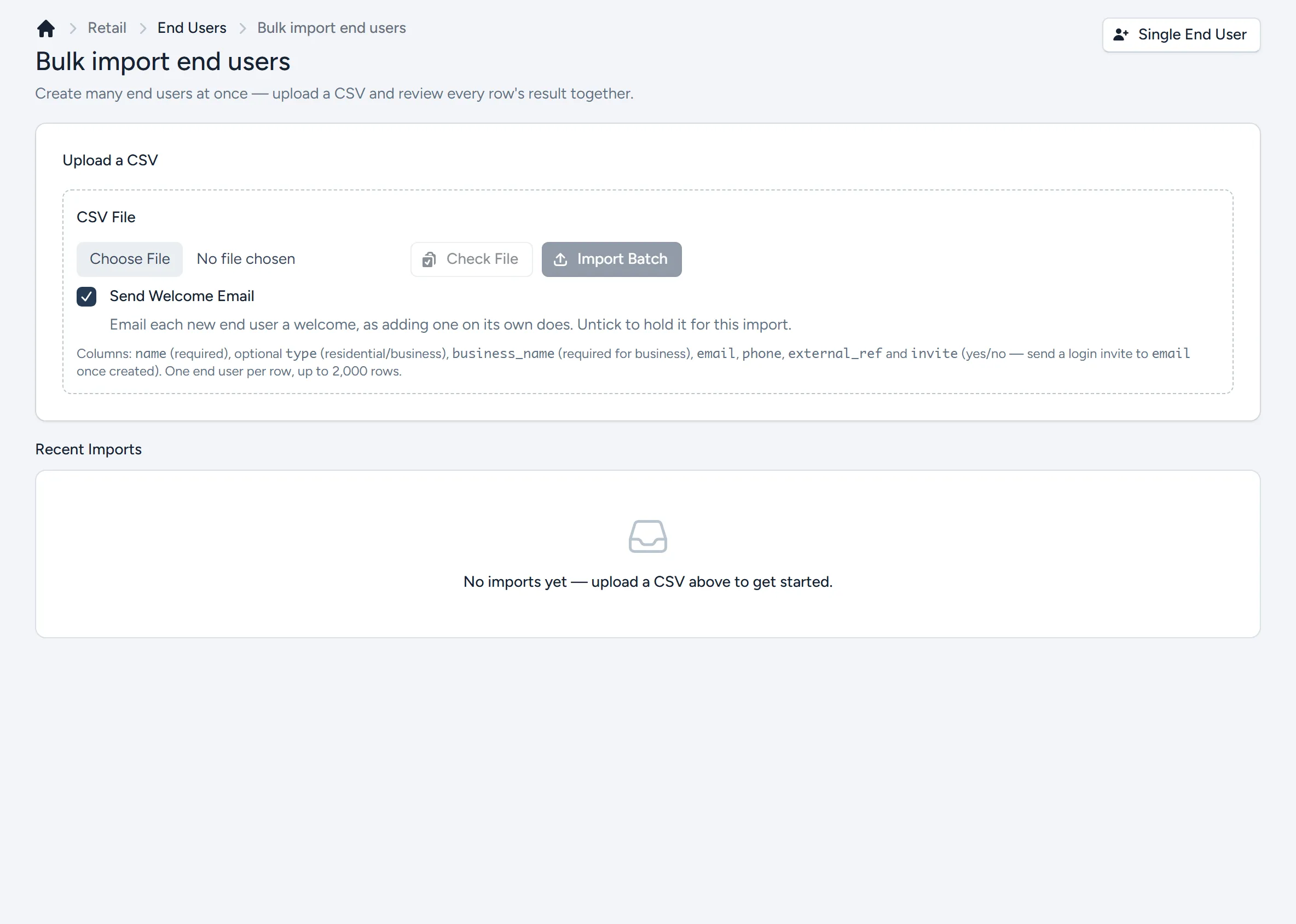
The end-user import page -
Choose Check File to see what the import would do, without creating anything. It runs the same checks as the import and shows how many rows would be created and skipped, with each skipped row and its reason. Fix the file and check it again as often as you like.
-
Leave Send Welcome Email ticked to email each new end user a welcome, as adding one on its own does. Untick it to hold the welcome for this import. The welcome only goes out if you bill your end users or give them the end-user portal.
-
Choose Import Batch. The import opens with a row for each line: Created, or Skipped with the reason. The totals show how many of each. Open on a created row opens that end user. Export CSV downloads the results, so you can fix the skipped rows and import them again.
Past imports are listed under Recent Imports, and View opens one. Imports your own systems sent through the API are listed there too.
A large import sent through the API runs in the background. Until it finishes, it shows Queued or Running in place of its Created and Skipped counts. Queued means it has not started yet. The list and the import’s page refresh by themselves until the counts are in.
If one stops part-way, or has still not started an hour after it was sent, it shows Failed and stops refreshing. Its page lists the rows it wrote, with how many were Created, Skipped and Not Run. Import the file again to finish it. The end users it already made are skipped as duplicates. To import from your own systems, see End users by API.
Rows that are skipped as duplicates
Importing the same file twice doesn’t create anyone twice:
- A row with an email is skipped when an end user with that email is already on your account, or an earlier row in the file has it.
- A row with no email is skipped when an end user with the same name and the
same
external_refis already on your account, or earlier in the file. Two people with the same name need differentexternal_refvalues, or an email.
If the file is refused
| The portal says | What to do |
|---|---|
| Header row is missing a “name” column (accepted: name, full_name). | Name the column name or full_name in the header row. |
| File exceeds the 2,000-row limit. | Split it into smaller files. |
| The file is empty. | Add the header row and a row for each end user. |
| The file contains a header but no data rows. | Add a row for each end user. |
Then assign each end user their services, from each service’s page. See Your end users.