 Help
Start an order
Every order starts from Order in the sidebar. The New Service page shows a card for each kind of service your account can order. Choose Start Order on one to go to its form.
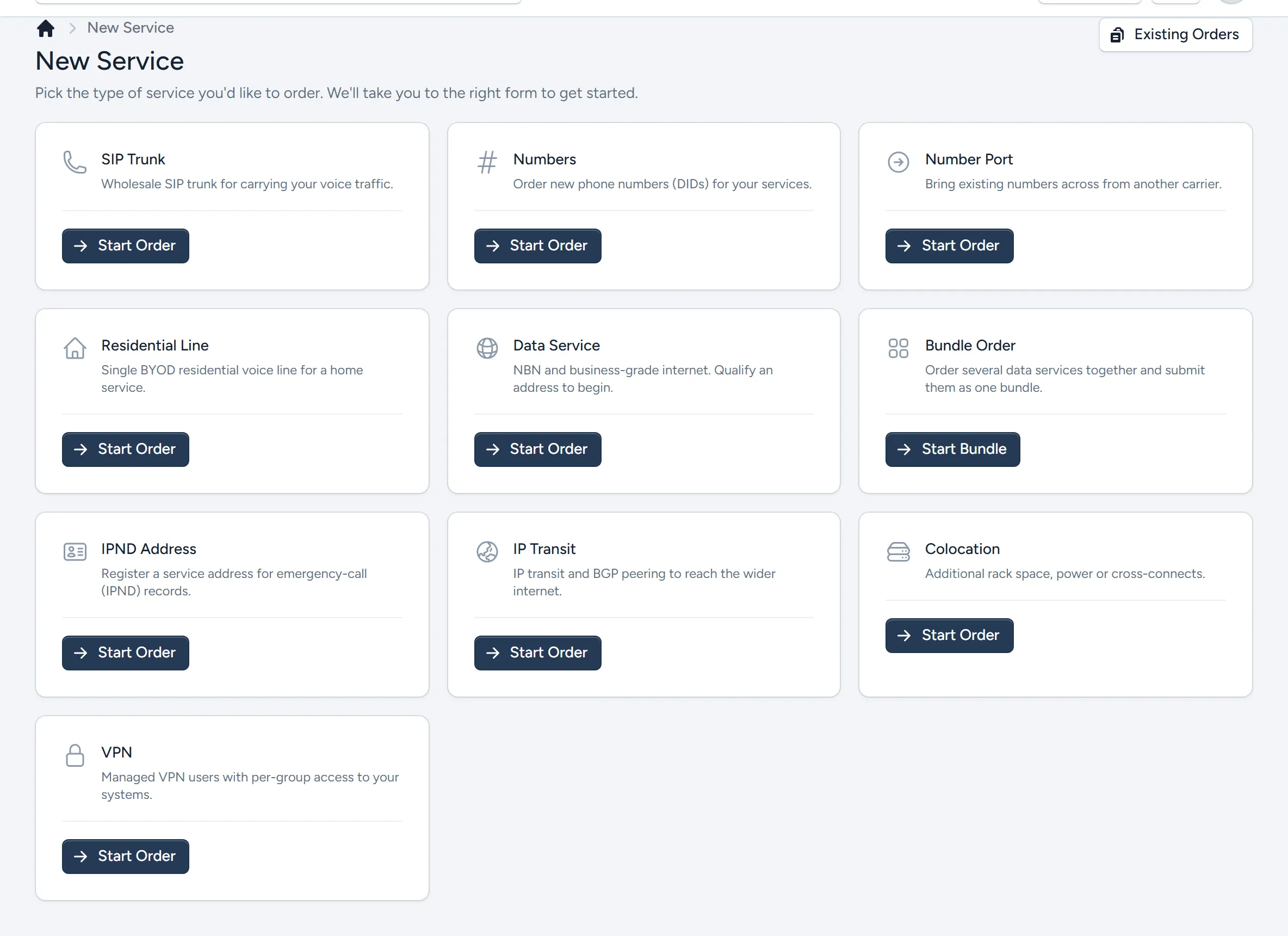
| Card | Where it goes |
|---|---|
| SIP Trunk | Setting up a SIP trunk |
| Numbers | Ordering numbers |
| Number Port | Requesting a port |
| Residential Line | Residential lines |
| Data Service | Qualifying an address, then the order |
| Bundle Order | Start Bundle: Ordering a bundle |
| IPND Address | IPND addresses |
| Hosted PBX | Not available yet. When it is, the Hosted PBX page, where New Hosted PBX sets up a hosted phone system for you or one of your customers. Shown when your account can order one. |
| VPN | VPN users and groups |
| Colocation | The colocation order form, for more rack space, power or cross-connects. Shown once you have colocation. |
Existing Orders, at the top of the page, lists the data orders you’ve already placed. See Existing orders.
While you fill in any order form, Order stays highlighted in the sidebar, and the breadcrumbs start Home, then Order.
A card is hidden when your account isn’t set up to order that service. IPND Address and VPN always show, and Colocation once you have it. If you expected to see one, contact your account manager.
Hosted PBX, when it is available, also needs your account’s onboarding checks to have passed before New Hosted PBX shows. The checks are the credit check, ABN and KYC. A customer who is suspended, on hold or archived can’t be given a new one. If you bill that customer, everything a hosted PBX charges needs a retail price or a markup first: seats, ring groups, call queues, IVRs, call recording and its calls. Calls need a call plan. See Billing end users.
You need permission to manage services to order anything. Owners and Admins have it. See Users and roles.
Everything you have: All Services
All Services, under Services, lists every service, number and IP address on your account in one place: SIP trunks, residential lines, numbers, data services, IP allocations, VPN groups and users, and colocation.
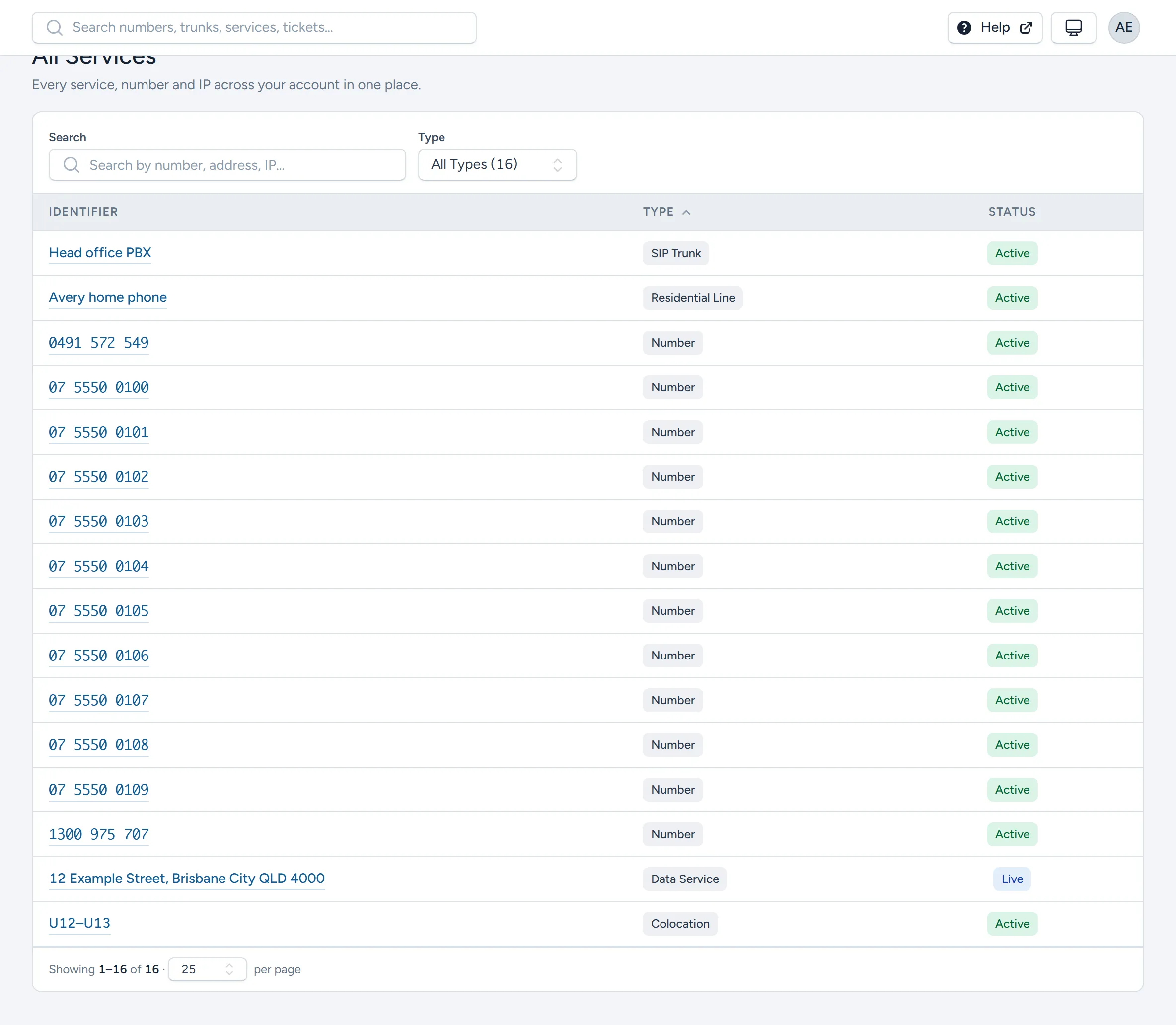
- Search by name, number, address or IP, or pick a Type. The type list shows how many of each you have. Clear resets both.
- Each row shows the service’s Identifier, its Type and its Status. Select the identifier to open that service’s own page.
- With nothing on the account yet, New Service takes you to the order page.
When you have more than 500 of one kind, All Services shows the first 500. Use that product’s own page, such as My Numbers, for the complete list.
What it costs
Prices for your account are under Billing, then Pricing. The order forms show the price where it applies before you confirm.