 Help
Call History lists every call on your trunks and residential lines, with what it cost you.
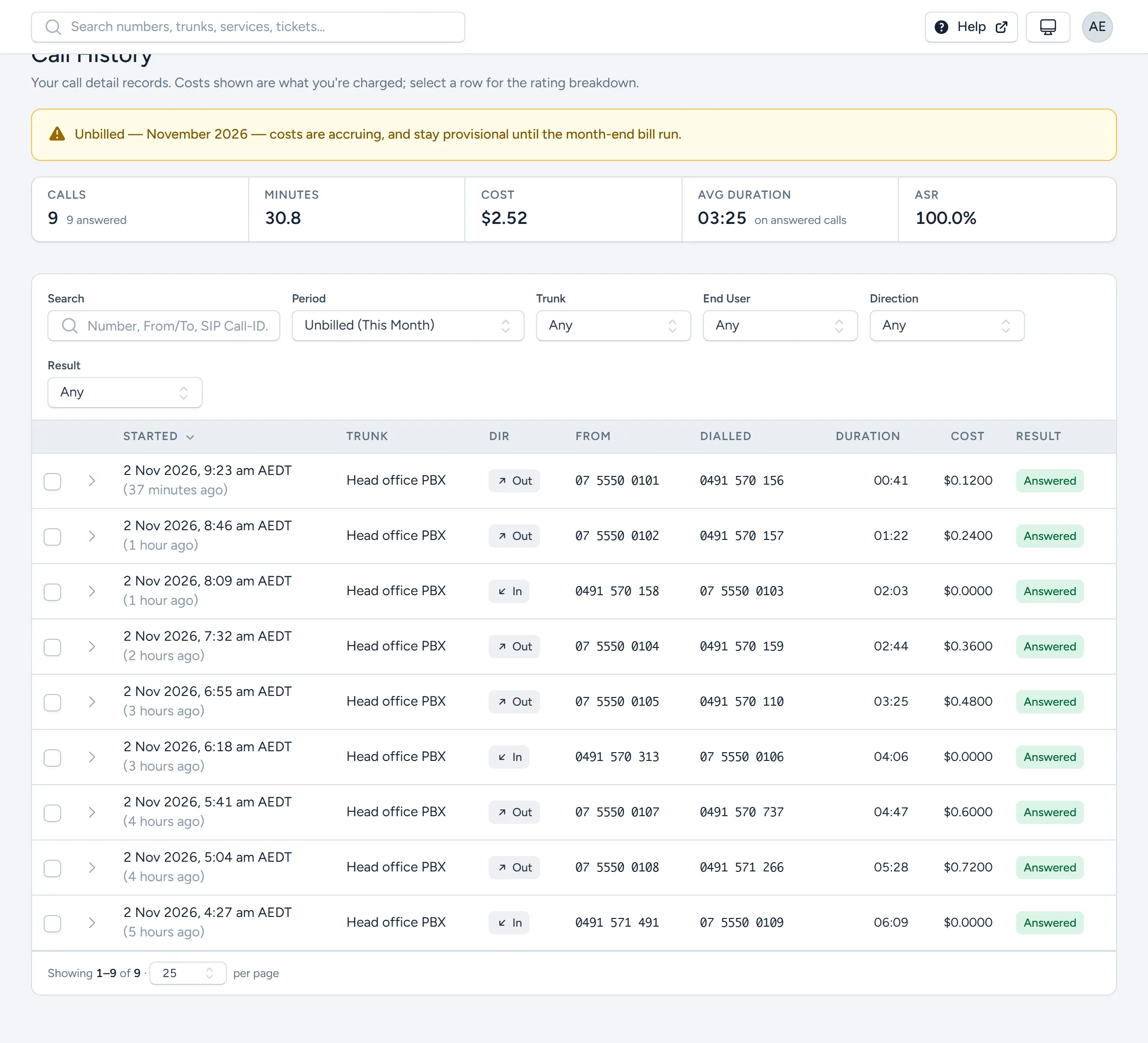
Find a call
- Search by number, the From or To address, or the SIP Call-ID.
- Period opens on Unbilled (This Month). Choose the last 24 hours, 7 days or 30 days, or All Time.
- Narrow it by Trunk, End User, Direction or Result. Direction is inbound or outbound. Result is answered, no answer, busy, failed and so on. An inbound call that rang and was never picked up shows as no answer, with no answer time. An inbound call refused because the trunk or line was suspended shows as blocked, and costs nothing.
- Clear Filters resets them. Refresh reloads the list with the latest calls.
The figures above the list cover the calls that match: Calls and how many were answered, Minutes, Cost, Avg Duration of the answered calls, and ASR, the share of calls that were answered.

Read a call
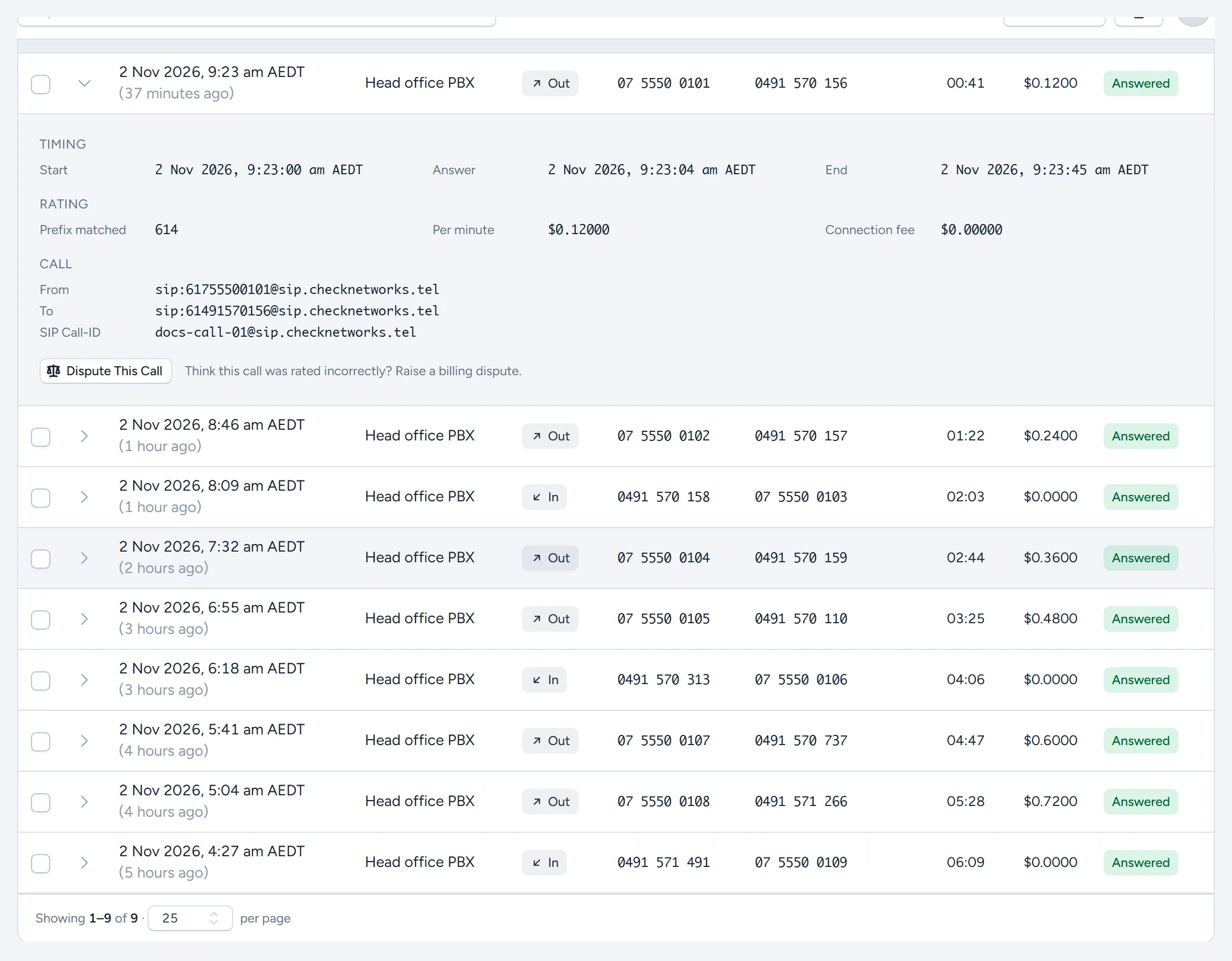
Each row shows when the call Started, the Trunk, its direction under Dir, who it was From, the number Dialled, its Duration, its Cost and its Result. Started is in your time zone, which is named, then how long ago. Select a column heading to sort by it. Select a row for the detail:
| Section | What it shows |
|---|---|
| Timing | When the call started and when it was answered. |
| Rating | The dialling prefix it matched, and the per-minute rate and connection fee it was charged at. |
| Call | The SIP details, which help when you log a ticket about it. |
“Withheld — the caller requested privacy” means the caller hid their number.
Ended By appears when we ended the call ourselves, not either caller hanging up, with the reason:
| Ended By | What happened |
|---|---|
| No audio was flowing on the call any more | The call was still connected, but no audio had passed for some time, so it was hung up, not left to run. |
| The trunk was suspended | The call was up when the trunk was suspended. |
| The trunk was closed | The call was up when the trunk was closed. |
| The account was more than 10% past its credit limit | Calls in progress are ended at that point. |
None of these ever ends a call to 000, 112 or 106, nor the emergency service’s call back after one.
A call we priced again after it was made, a re-rate, is listed once, at its current cost, marked Re-rated. Select the row. Earlier Prices lists each cost it had before, oldest first, with when a re-rate replaced it, so a call re-rated twice shows both. The figures above the list count it once, at its current cost.
This month’s costs are provisional until the month-end bill run. They then appear on your invoice.
Export
Export CSV downloads the calls that match your filters.
Each call carries its start time twice: started_utc in UTC, and
started_local in your account’s own time zone. Both include their offset
from UTC, +10:00 for example, so a spreadsheet or billing system reads
either one without guessing. A re-rated call is one row at its new cost, with
rerated set to yes and the cost before the most recent re-rate in
previous_cost. Any other call has no and an empty previous_cost. The
files delivered by SFTP have the same columns.
Email me a link
A long range on a busy account can take a while to download. Email Me a Link builds the file in the background instead, from the same filters, and emails you a link when it is ready. The link opens the download after you sign in, and the file is kept for 7 days. The file has the API’s call record columns, described below, not the Export CSV ones.
An export covers at most 93 days. With All time chosen, it is the last 93. Up to 3 exports can run on your account at once. A trunk filter on a trunk with no SIP credentials can’t be used for an export. The page says so and starts none, so clear the filter or use Export CSV.
Scheduled delivery by SFTP
To pull call records into your own billing system on a schedule, use CDR Delivery under Company Settings, then Integrations. It needs permission to manage users, which Owners and Administrators have.
We write a CSV file for each closed period into your private area, and you
fetch it over SFTP when it suits you. Periods are days and months on your
bill’s time zone, from midnight to midnight there, so a monthly file holds the
calls its invoice does. Each file is named by its period’s date in that zone,
such as daily/2026-11-30.csv or monthly/2026-11.csv, and is written from
5:30am Brisbane time the day the period closes.
- Under Scheduled Exports, choose Turn On for Daily, Monthly, or both. Daily is one file per closed day, written the next morning. Monthly is one file per closed billing period.
- Under Connection, choose Generate Credentials. The password is shown once, under Your New SFTP Password. Copy it straight away.
- Log a Provisioning ticket with the public IP addresses you will connect from. We allow only listed addresses.
- Connect with the host, port and username shown.
Generate New Credentials replaces the password, and the old one stops working. Withdraw Access removes it altogether.
With the API
GET /voice/cdrs lists your calls with the same filters as the page: trunk,
end user, direction, result, search, the unbilled period, or one invoice. It
says the window it read. GET /voice/cdrs/summary gives the figures above the
list, and GET /voice/cdrs/{cgrid} one call. A re-rated call keeps its
cgrid, has rerated: true, and carries the cost before the most recent
re-rate in previousCostExGst, previousCostGst and previousCostIncGst.
An export with format=csv or format=ndjson covers up to 93 days, and each
one is recorded in the audit log. For a large range, POST /exports with
type: cdrs writes the same rows in the background. GET /exports/{exportId}
gives its state and a download link good for an hour, and export.ready says
when it is done.
GET /voice/cdrs/exports and PUT /voice/cdrs/exports/{cadence} read and
switch the scheduled SFTP exports. The SFTP login itself is managed here only.
If a call looks wrong
For a charge you don’t expect, check the Rating detail first. If it still looks wrong, dispute it as below, or log a Billing ticket with the SIP Call-ID. For a call that failed or had poor audio, log a Technical ticket with the same detail.
Dispute a call
If you can see billing, each answered call that can be disputed has a tick box. The Dispute This Call button is in the call’s detail, so select the row to find it.
- Tick the calls you want to dispute, then choose Dispute N Calls. For one call, select its row and choose Dispute This Call.
- Say why, with at least 10 characters, and choose Raise Dispute.
A support ticket opens so we can talk it through, and the calls show Disputed. While the dispute is open, what an issued invoice charged for those calls, with GST, is not taken by automatic payment and is left out of payment reminders. A call not yet on an issued invoice holds nothing until the invoice that bills it is issued, and then holds what that invoice charges for it.
Disputes, under Billing, lists your call disputes, with the calls, the amount held, the status and the outcome. The outcome is a credit note, a correction on your next invoice, calls corrected before they were invoiced, no change, or declined.
A call can’t be disputed if it was not answered, is already on an open dispute, has already been re-rated, has already been credited in full, or is on an invoice issued more than 60 calendar days ago, counted on the billing calendar. The 60 days may instead be the period agreed with you. The row says which. Contact support if you think that charge is wrong.