 Help
Each number has its own settings page. Open Numbers, then My Numbers, and choose Configure Number on its row. Choose Update Number to save. A message confirms “Routing for” the number “saved”. Changes take effect within moments.
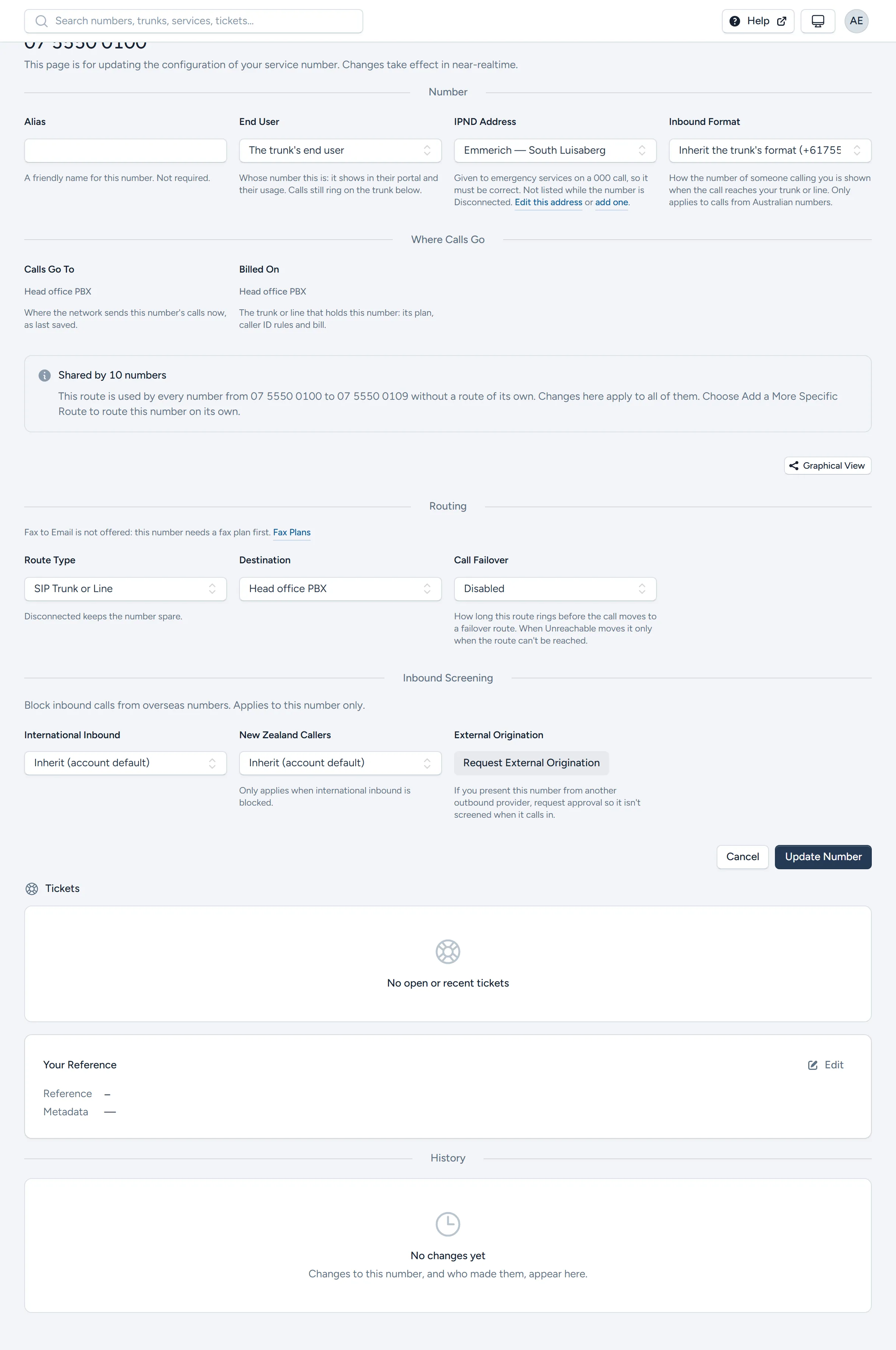
The number
| On the page | What it is |
|---|---|
| Alias | A friendly name, such as Reception. |
| End User | Whose number this is. It shows in their portal and their usage. Calls still ring wherever the route below sends them. |
| IPND Address | The address emergency services are given on a 000 call from this number. It must be right. See IPND addresses. |
| Inbound Format | How a caller’s number is shown when the call reaches you. By default it follows the trunk. |
If the national register refused the last listing we sent, IPND under the address shows the outcome and when it was sent. Otherwise nothing shows there, and History has every listing sent. Edit this address opens it to correct, and add one opens the form for a new one.
If the register refused the listing, a notice under the row lists each error code with what it means, so you know what to correct. The corrected listing goes with the next upload.
Where calls go, and where the number is billed
Under Where Calls Go, Calls Go To is where the network sends this number’s calls now, as last saved. That is the first step of its route. Billed On is the trunk or line that holds the number: its plan, its caller ID rules and its bill. They are usually the same. A number routed to another of your trunks or lines stays billed where it is, and the page says so.
A route that takes away a Res Line’s last number asks you first what happens to the line. See A Res Line always has a number. Return to Block asks the same when the block’s route doesn’t ring the line.
A block’s route, and a number’s own
Numbers come in blocks: a single number, or a range of 10 or 100. Each block has its own route, and every number in it uses that route until you give a number a route of its own.
- On a block of 10 or 100, the page says the route is Shared by that many numbers, from the first number in the range to the last. A change here applies to every number in the range that doesn’t have a route of its own.
- Add a More Specific Route takes this number out of the block’s route. It starts with a copy of the block’s route for you to change and save. The rest of the block is unaffected.
- Return to Block appears on a number that has its own route. It puts the number back on its block’s route and removes its own.
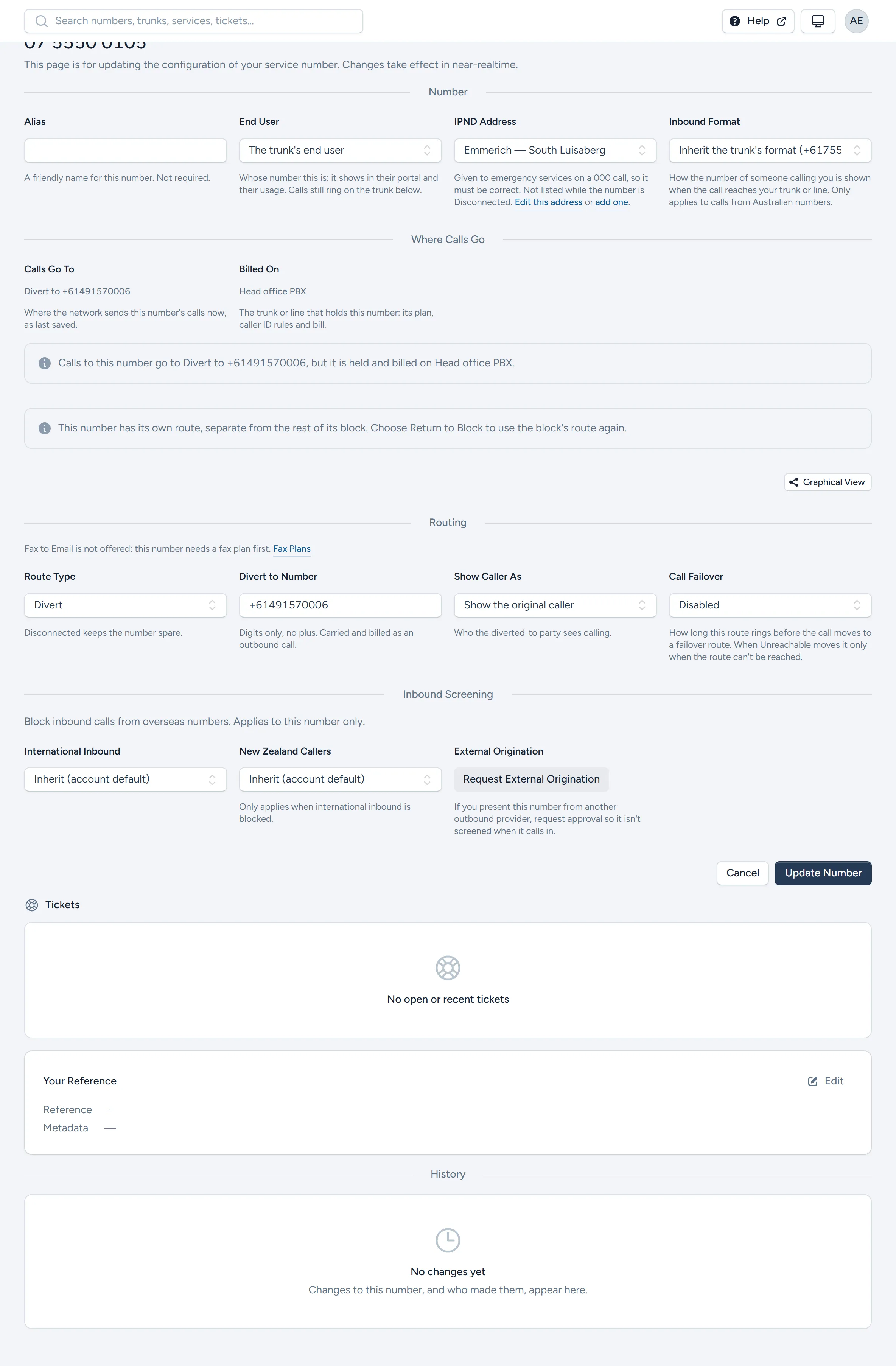
On a single number, the block’s route and the number’s route are the same thing, so neither button appears.
A new number with nothing set up yet is Disconnected. Callers hear that the number is not connected, which is Unallocated, 404. Choose where it goes and save.
Route types
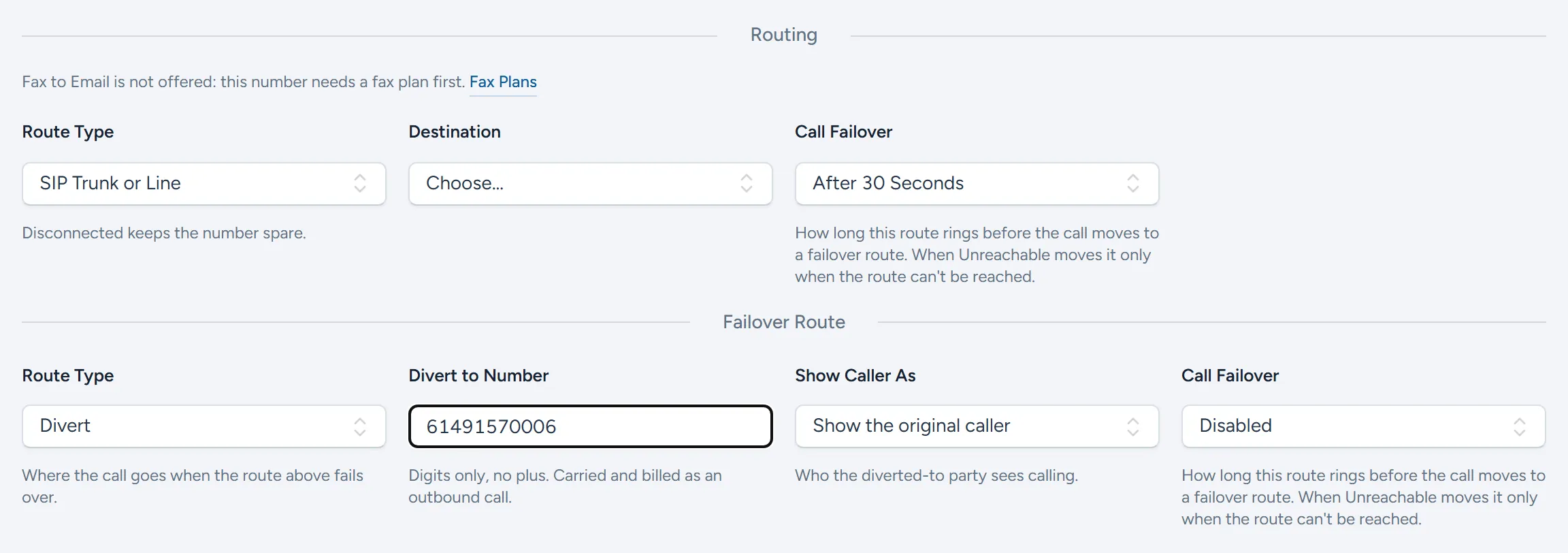
Pick the Route Type, then its destination.
SIP Trunk or Line
SIP Trunk or Line rings one of your trunks or residential lines. Pick it under Destination.

Divert
Divert sends the call on to another phone number, as a new call. Enter the number, and choose which caller ID the diverted call shows.
A call can’t be diverted to an emergency number. 000, 112 and 106 are refused
in any form, such as +61000 or 1831000. The page says “Calls can’t be
diverted to an emergency number (000, 112 or 106).”

SIP Address
SIP Address sends the call to a SIP address of your choosing, such as a
hosted PBX elsewhere. Enter the full address, for example
sip:reception@pbx.example.com.

Time of Day
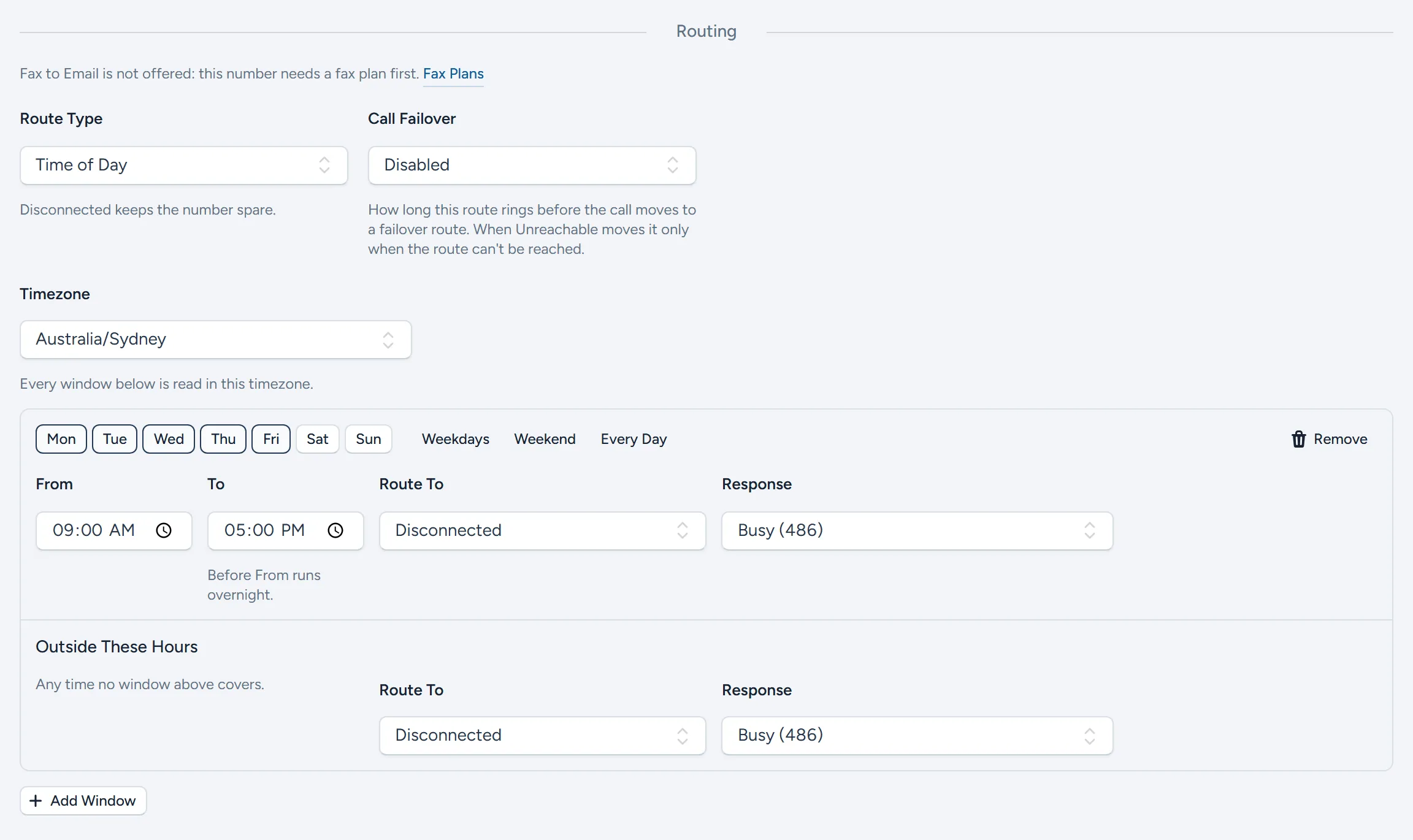
Time of Day sends calls to different routes at different times, such as to the office during business hours and to a mobile after hours.
- Pick the Timezone every window is read in.
- For each window, pick its days, or Weekdays, Weekend or Every Day. Then pick its From and To times, and where it goes under Route To. A To earlier than From runs overnight. Add Window adds another, up to 12. Remove takes one out.
- Under Outside These Hours, pick where every other call goes.
Geographic
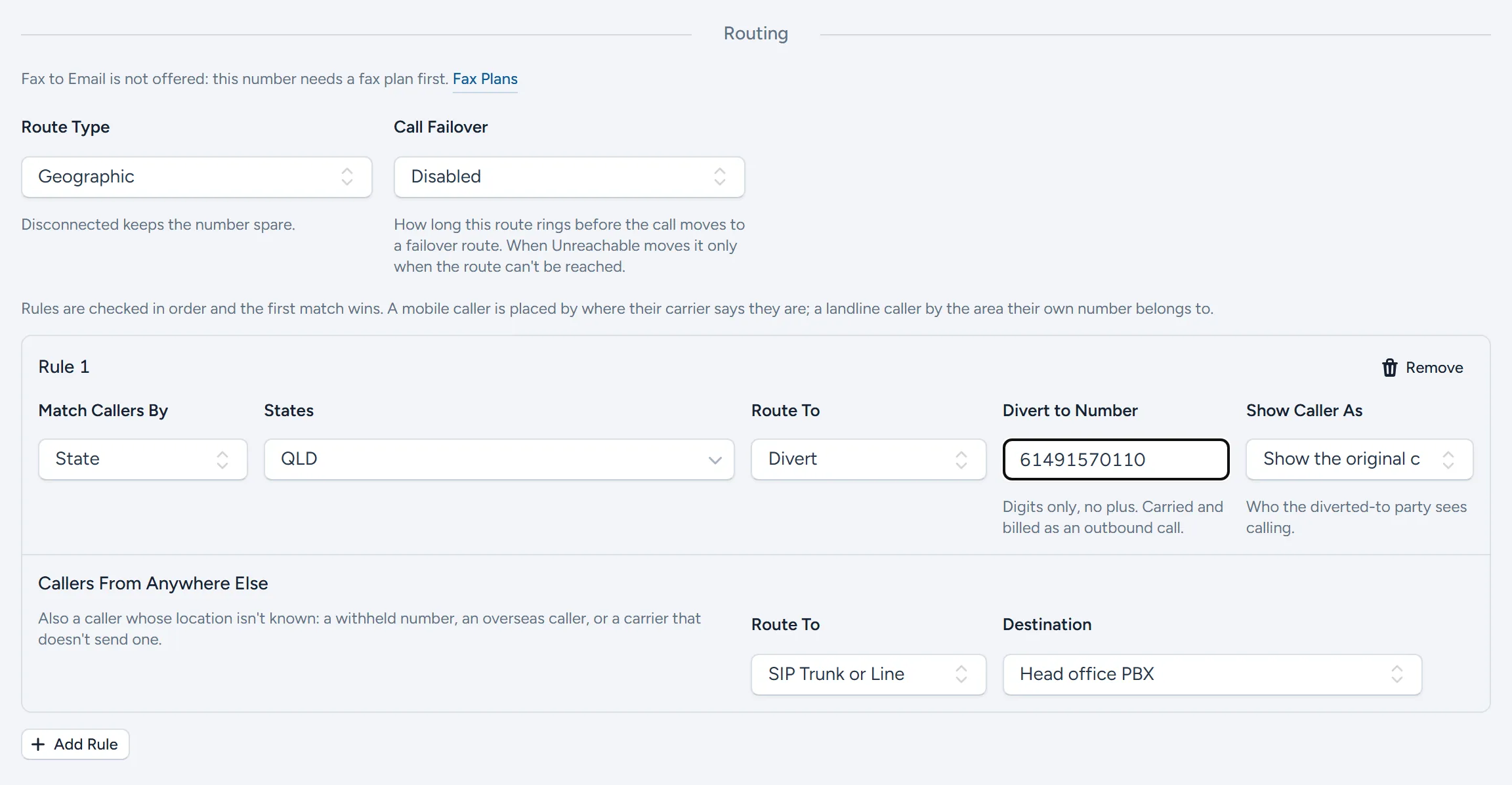
Geographic sends calls to different routes depending on where the caller is, which suits 1300 and 1800 numbers.
- Choose Add Rule.
- Choose how to Match Callers By: State, or Area to pick the Mobile Callers In and Landline Callers In areas.
- Pick the states or areas the rule covers, and where those calls go under Route To.
- Under Callers From Anywhere Else, pick where every other call goes.
Fax to Email
Fax to Email receives faxes on the number and emails each one, as a PDF, to the Email Address you enter. It is offered only for a number on a fax plan. For any other number the page says the number needs a fax plan first. The same holds inside a time-of-day window, a geographic rule or a fallback, and by API. A number that comes off its plan has this route cleared, and answers as disconnected until you route it somewhere else. See Fax.
Disconnected
Disconnected sends calls nowhere and keeps the number spare. Choose what callers hear, for example Unallocated (404), Busy (486) or Out of service (410). Unallocated means the number isn’t connected. A spare number with no trunk or line doesn’t need an IPND address yet.

Failover
Call Failover moves a call to a backup route.
| Call Failover | When the call moves on |
|---|---|
| Disabled | No failover. The call only ever tries the route above. |
| When Unreachable | Only when the route can’t be reached at all, such as the PBX being offline. |
| After N Seconds | When the route rings for that long without an answer. |
With failover on, a Failover Route section appears below. Pick its Route Type and destination as for the main route. A number can have the main route and up to three failover routes.
Graphical view
The routing is a form by default. Graphical View, above the routing, draws the same routing as a call flow, which is easier to follow once a number has time windows, geographic rules or failover routes. Standard View switches back. Both show the same settings, so you can change views at any time, and nothing is saved until you choose Update Number.
- The number is at the top. Each route sits below the one before it. The line between them is marked with the reason a call moves on: When unreachable, or After N seconds.
- A Time of Day or Geographic route is a round step, with a clock or a map pin. A line runs right from it to each window or rule: a label saying when it applies, then an arrow to where it sends the call. The last line is Outside these hours or Callers from anywhere else.
- Choose a step to change it in the panel beside the flow. Remove takes out a window, a rule or a failover route. Removing a failover route removes the ones after it as well. Done closes the panel.
- Add Window and Add Rule add a line to a Time of Day or Geographic route. Add Failover Route, at the foot of the flow, adds a backup route after the last one. It isn’t offered once there are three failover routes, or when the last route is Disconnected.
- If a step has something missing when you save, the reason shows under that step.
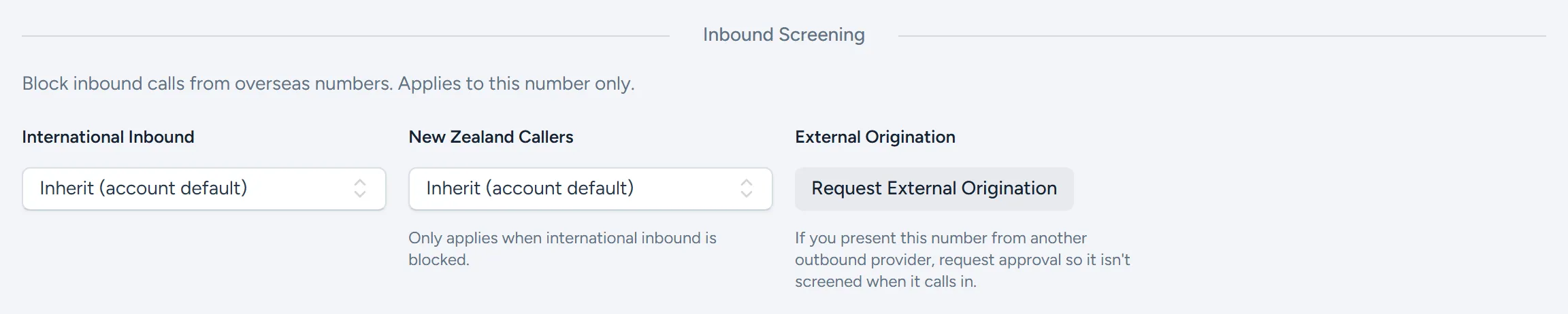
Inbound screening
| Setting | What it does |
|---|---|
| International Inbound | Blocks or allows calls from overseas to this number, or follows your account’s default. |
| New Zealand Callers | Whether New Zealand callers get through when international calls are blocked. |
| External Origination | If you also present this number on outbound calls through another provider, choose Request External Origination so those calls aren’t screened when they reach us. An approval lasts while you hold the number: when you release it or it ports away, the number goes back to normal screening, and a request still waiting is closed. |
Your own reference
The Your Reference card holds your own id for the number, such as your customer or job number, and up to 20 keys of your own with a value each. Select Edit to change them. Clear the reference to remove it. No two of your numbers can share a reference. The API returns both on the number and in its webhooks. A released number loses them.
History
History, at the foot of the page, lists every change to the number since it became yours, newest first. It also lists each time its listing was sent to the IPND, with the result.
- By names the person on your team who made the change. A change made by Check Networks staff says Check Networks staff, and one made automatically says Check Networks.
- Open a change your team made for its detail.
Australian mobile numbers
An Australian mobile number’s page also has its Inbound SMS settings and its Port Out Account Number. Both are covered in Your numbers.