 Help
The audit log records what each of your portal users did, what each of your API keys did, and what each app you connected under Connected Apps did on your account. That covers sign-ins, security changes, orders and changes to settings. It is under Account in the sidebar and in the profile menu. Only Owners and Administrators can see it.
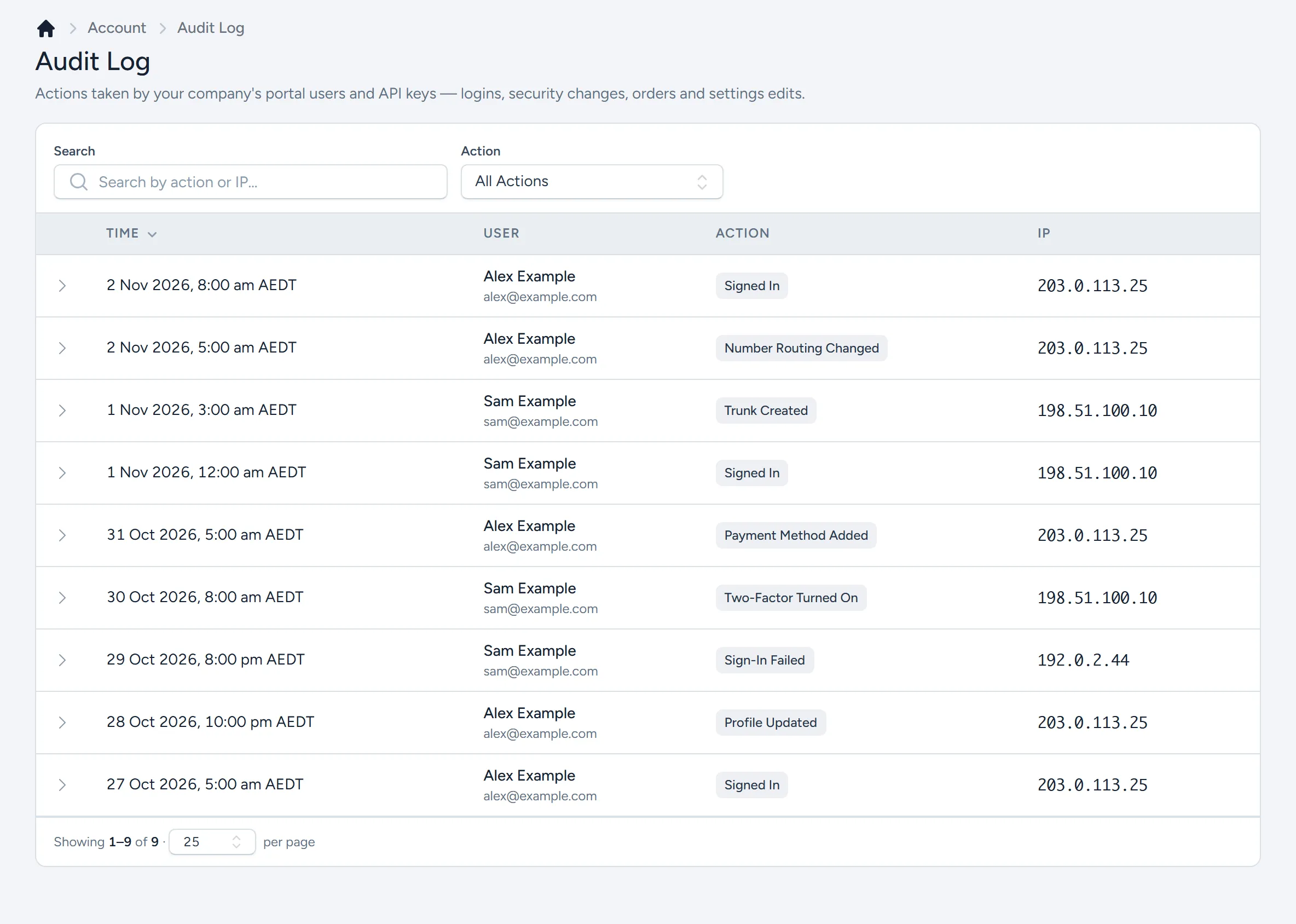
Each entry shows the Time, the User, the Action and the IP address it came from. An entry made through the API shows the key’s name, or the connected app’s name, marked API key, in place of a user. An entry our support staff made while helping you is marked Carried out by Check Networks staff. The staff member is not named, and the entry shows no IP address.
- Search by action or IP address.
- Pick an Action to see only one kind, such as sign-ins.
- Select an entry to open its detail beneath it. Details shows what it applied to. For a change, a Changed table shows each Field with its value Before and After. Select the entry again to close it.
Use it to answer “who changed this?”, or to check for sign-ins you don’t recognise. If you find one, change that user’s password, check their two-factor, and log a Security Incident ticket straight away.
By API
The same entries are at GET /account/audit-log, with the account:read
scope, so you can feed them to a security log system. They come newest
first. You can narrow them by time with from and to, by action with
action=user.login,user.password_changed, and by who did it with actor:
a user’s id, an API key’s or connected app’s id, or support. Follow
nextCursor to read every entry once, however many are written while you
read.
Each entry names the actor as a user, an API key or Support, never the
staff member. An API key is apiKey, which a connected app is too, named by
the app. A Support entry’s ip is null.