 Help
Our VPN lets your staff, or your customers’ staff, reach private systems through a tunnel to our network. It uses OpenVPN, so any standard OpenVPN client works: OpenVPN Connect on Windows, macOS, iOS and Android, or the client built into most routers.
It is built from two things:
- A group decides what its users can reach. That is either specific networks, a list of IP addresses and ranges, or full internet, where all of the user’s traffic goes through the tunnel. A group can also have a dedicated egress IP, which staff assign. Ask support if you need one.
- A user is one person with one certificate and one profile to download. Each user is billed monthly while they exist.
You need permission to manage services to change anything here. Owners and Admins have it. See Users and roles.
Ordering new users, here or by API, needs VPN enabled for your account, which your account manager does. Without it the order is refused with “VPN are not enabled for your account”. You can still rename, move and remove the users you already have.
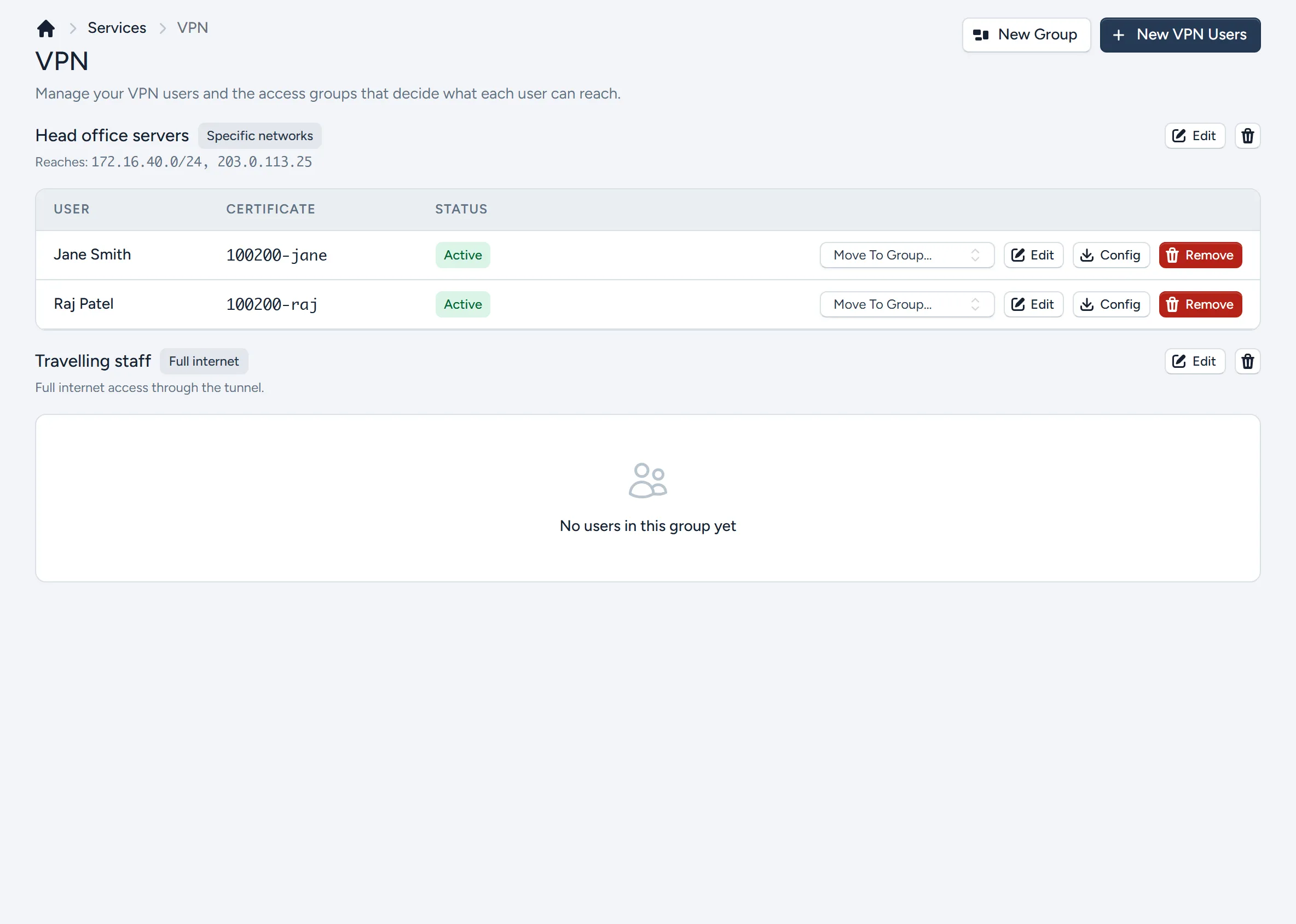
Create a group
-
Go to Services, then VPN, and choose New Group.
-
Give it a Name your team will recognise, such as Head office servers.
-
Choose the Access:
- Specific networks: list the Destinations, one IP or CIDR range per line. Only traffic to these goes through the tunnel. Everything else uses the user’s own internet.
- Full internet: everything goes through the tunnel and out of our network.
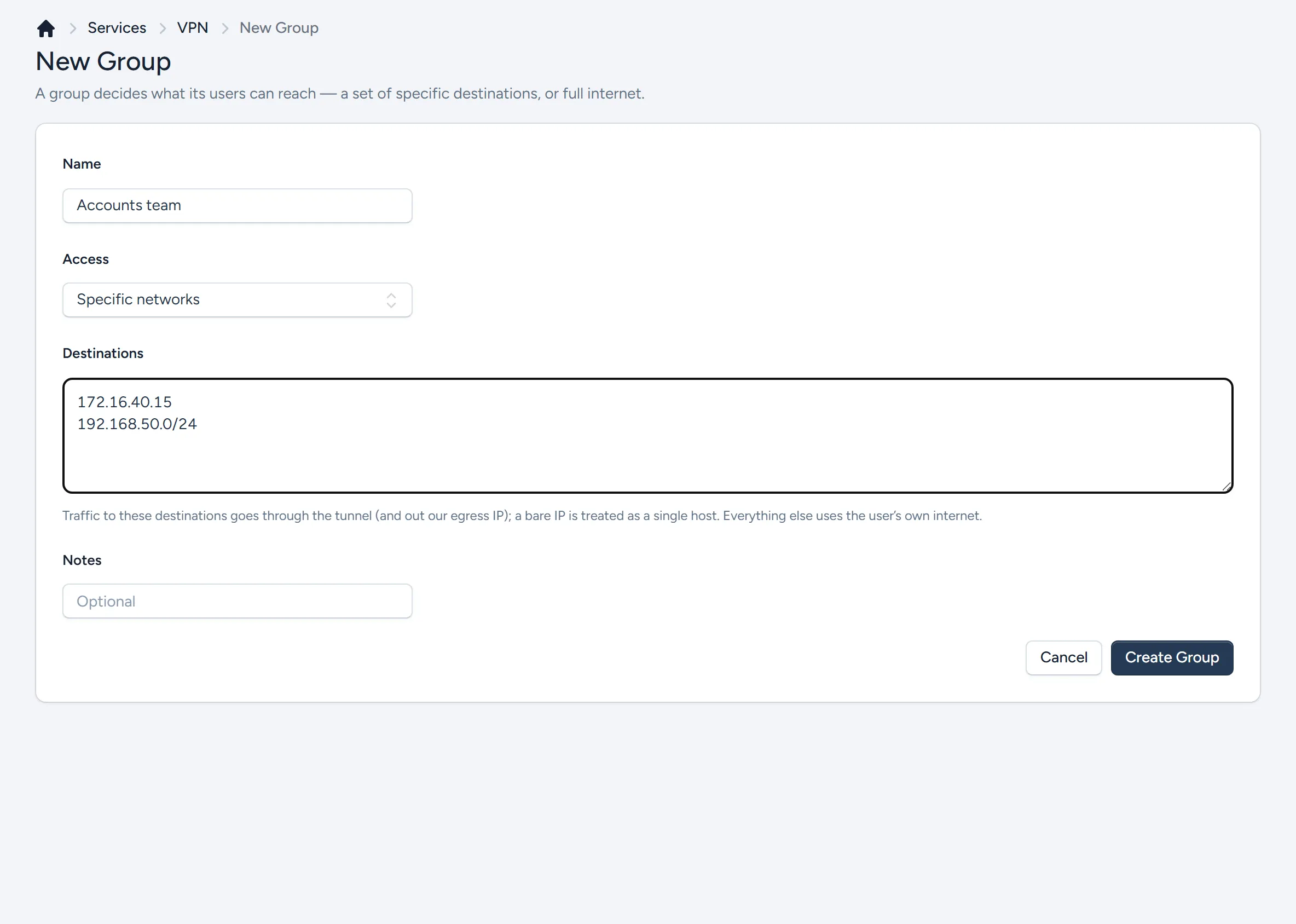
A new group limited to two destinations -
Add any Notes for your team, and choose Create Group.
Each group’s card shows its access and, if it has one, its Dedicated IP. Edit on the card changes its name, access or notes. The trash icon deletes it, after asking.
Order users
-
On the VPN page, choose New VPN Users. It is available once you have a group. With none, the order page offers New Group to make one first.
-
Pick the Group and the number of Seats, up to 50 at a time.
-
If the users belong to one of your end users, pick them as the End User. Those users then appear in that end user’s own portal, where they can download and reset their own profiles. You are still billed for the seats.
-
Under Who Are They For?, enter one name per seat. The name is how you will recognise the user, and it forms their certificate name.
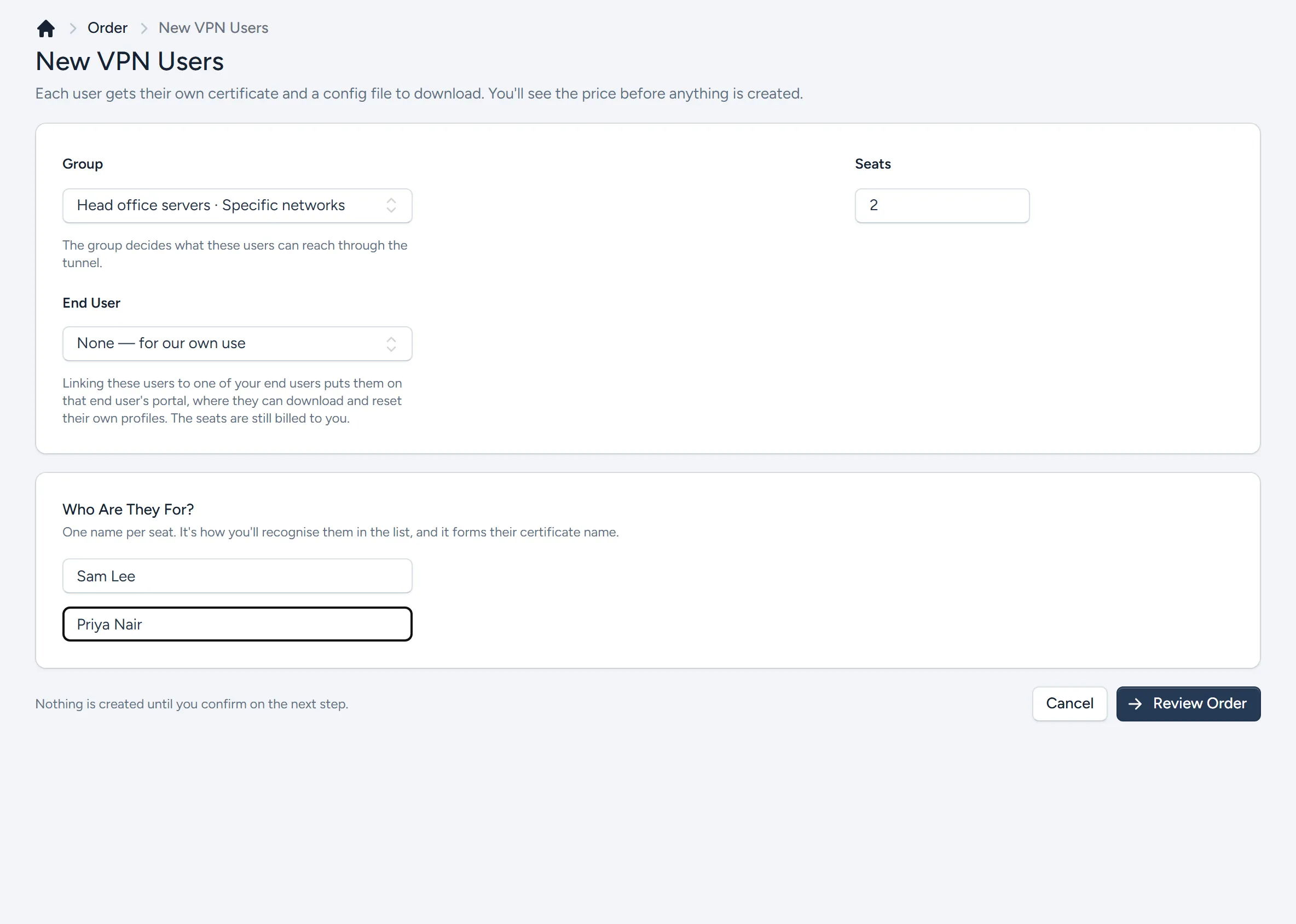
Ordering two VPN users -
Choose Review Order. The confirmation shows the monthly price per user, any dedicated IP charge, and the new monthly total.
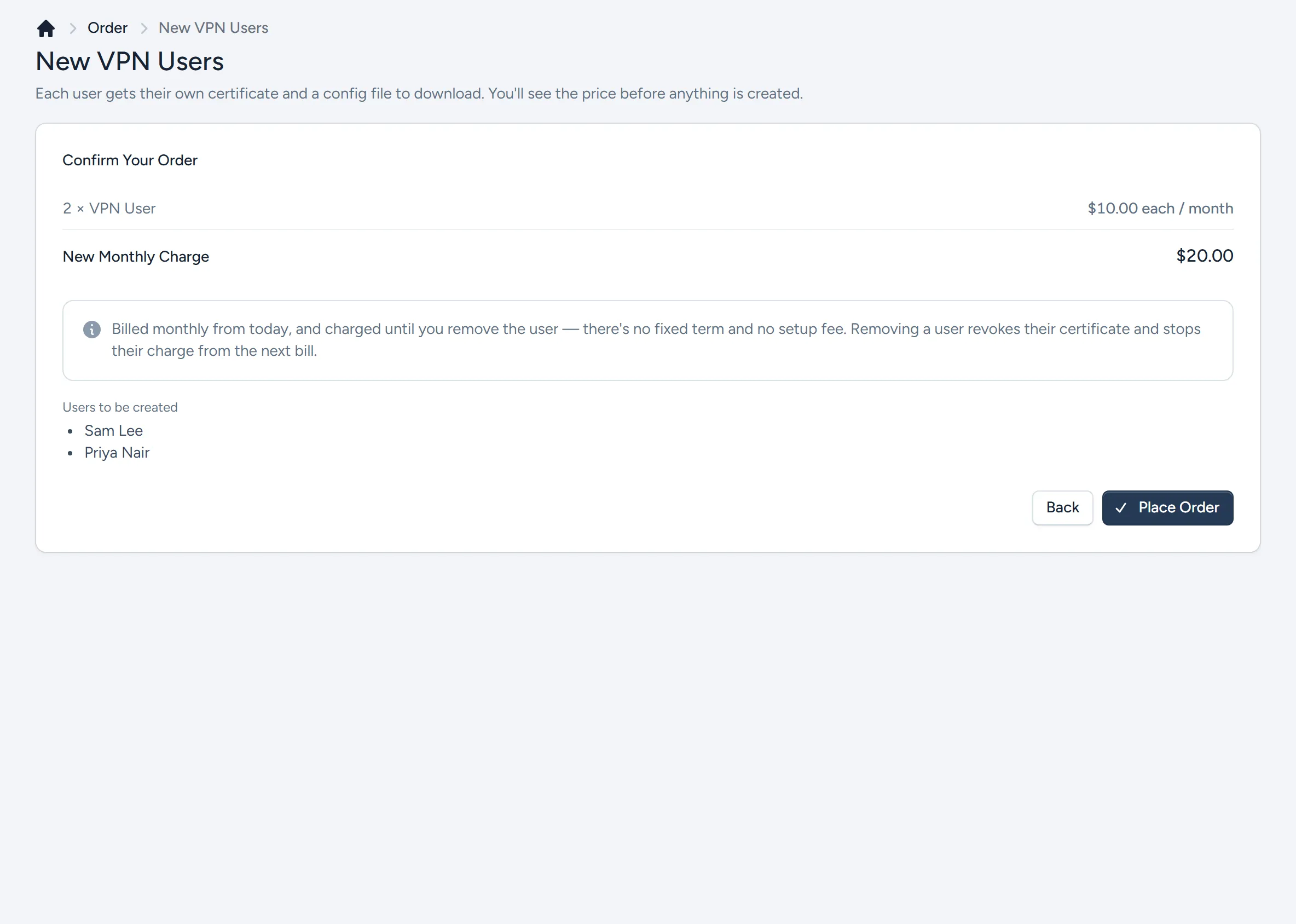
Confirming the order -
Choose Place Order, or Back to change it.
Users are billed monthly from the day you order them, with no fixed term and no setup fee. Removing a user stops their charge from the next bill.
Download a profile
Each new user shows Provisioning for a minute or two while their certificate
is issued, then Active. Once active, Config downloads the user’s .ovpn
profile. Import it into the OpenVPN client and connect.
Rename, move or remove a user
- Edit renames a user, moves them to another group, or changes their End Customer. Move To Group… in the list moves them in one step. It shows when you have more than one group and the user is Active or Provisioning. The certificate and profile stay the same, so the user has nothing to download again.
- Remove revokes the user’s certificate straight away. They are disconnected and can’t connect again.
- To delete a group, remove or move its users first. Deleting a group with a Dedicated IP releases the address, and its monthly charge ends that day. If the address can’t be released just then, the group isn’t deleted and nothing changes. Try again in a few minutes.
By API
Everything on this page can be done by API, with a key holding the vpn:*
scopes. /vpn/groups is for groups, and /vpn/users is to
order, rename, move and remove users. GET /vpn/users/{id}/profile gives a
link to a user’s profile. It needs its own scope, vpn:credentials, because
the profile holds the user’s private key.
If something is wrong
| What you see | What to do |
|---|---|
| Config says “Config pending”. | The profile is still being generated. Try again in a minute. |
| “This VPN user is suspended — contact support to restore access.” | Our team suspended the user, usually for an unpaid account. Contact support. |
| The user connects but can’t reach a server. | Check that the server’s address is in the group’s Destinations, and that the server or its firewall accepts traffic from the VPN. If it still fails, log a Technical ticket with the user’s name and the address they are trying to reach. |
| “Add at least one destination for a “specific networks” group.” | A specific-networks group needs at least one IP or range. Use Full internet if the user needs everything. |