 Help
Your end users can have their own portal, in your brand and on your domain. They sign in to check their services, calls and usage without calling you. The portal and billing your end users are two separate settings on your account, End-User Portal and Bills End Users. Our staff turn them on when you ask: contact your account manager. You can have the portal without billing. Its logo, colours, domain and support details are under Retail settings.
Giving someone a login
On the end user’s page, on the Logins tab, enter their Email, pick the Role, and choose Send Invite. See Your end users. They accept the invite from the email, set a password and sign in. A forgotten password is reset from the portal’s sign-in page.
| Role | Can |
|---|---|
| Owner | See everything in their portal, and make changes. |
| Administrator | The same as an Owner. |
| Technical only | See their services, numbers, calls and usage, without changing them. |
| Billing only | Their profile and account activity, without their services. |
What they see
Only the services you have assigned to them. The menu shows only what they have. An end user with just an NBN service sees Dashboard and Services, then Billing if you bill them and Support if you offer tickets. SMS appears once they hold a mobile number, and My VPN once you have ordered a VPN user for them.
-
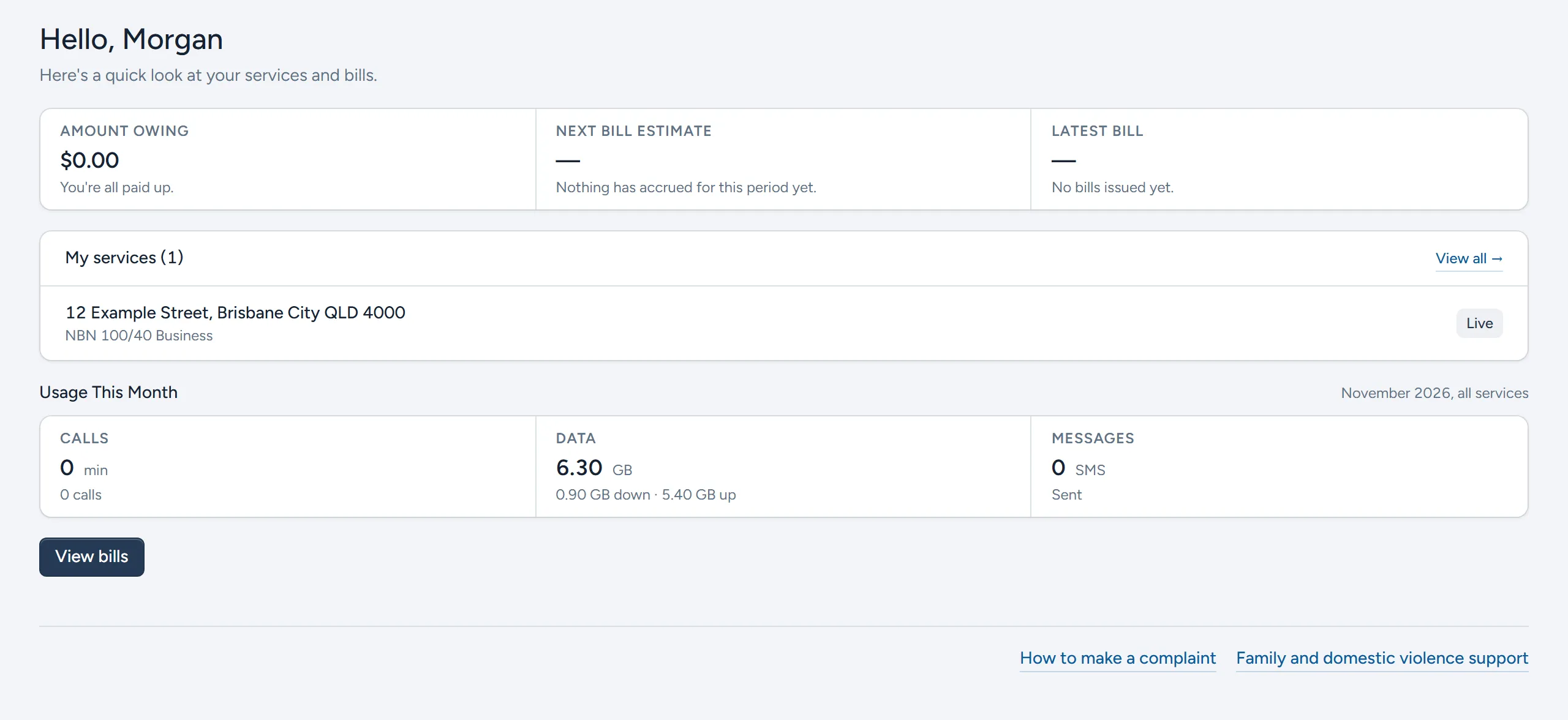
Dashboard: their services at a glance, Usage This Month and their recent calls, with a banner when an outage affects them. Usage This Month is call minutes and calls, data down and up, and SMS sent, across all their services. It is not shown to a Billing user. “This month” is the month their bill covers, from midnight on the 1st in the zone they are billed on.
An end user's dashboard -
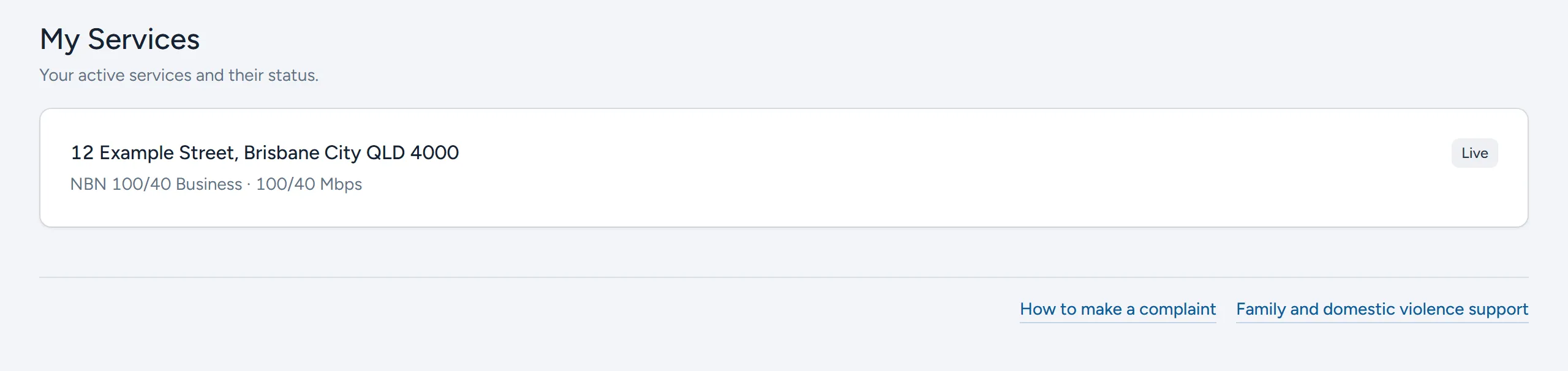
My Services, under Services: each service and its details. If you bill them, and their login sees billing, Service Details also shows its price including GST, or GST-free. It shows what the service includes, which is data or the calls it covers, what happens beyond that, and the date of the Next Bill. That date is next month’s 1st, or for a product billed annually the service’s next anniversary, when its year is charged. When one of your promotions covers that next charge, the price is the discounted one the bill charges, and a Promotion row names it, its discount and the day it ends. A service you mark not billed shows no price.
A data service shows what it has used this month, its Data Allowance and its Daily Data Usage. It has Test My Line, where Run Test runs a quick check and shows the result. A phone service lists its Recent Calls, with Export CSV. “Having Trouble?” lists the first things to try for that kind of service, with your support phone, email or ticket button. For a data service that is the modem, and for a phone line the handset and its power.
A new NBN or Opticomm connection you have ordered for them shows at the top of My Services as New Connection until its service is built. A service you are relocating shows Your Move on its own page. Each shows the step the order is at, one plain line, and the installation appointment’s day and times on the premises’ clock once one is booked. The steps are Ordered, Accepted, Appointment Booked and Connected. It never shows the carrier’s name, its order or appointment references, or why an order is waiting. An order held for anything reads “Your order is waiting on its next step. Your provider is looking after it.” A draft is not shown until you send it, except an API order waiting for its appointment, and a draft you discard is never shown. A layer 2 handoff is not shown.
A new connection or move that is rejected or cancelled stays on My Services under Past Orders, after the open ones, newest first. Past Orders holds the latest 10. Each shows Rejected or Cancelled and one plain line, “This order has stopped. Your provider will be in touch about what happens next.” or “This order was cancelled.” It never shows the reason, a reference, the carrier, a price or an address. A connection that completed is not listed there: its service is.
If you turn on Order Emails to End Users under Order emails, they are also emailed, in your name, when the order is accepted, when its installation appointment is booked or changes, when it is connected, and once if it stops or is cancelled. Each email says what this tracker says. It is off until you turn it on.
An end user's My Services page 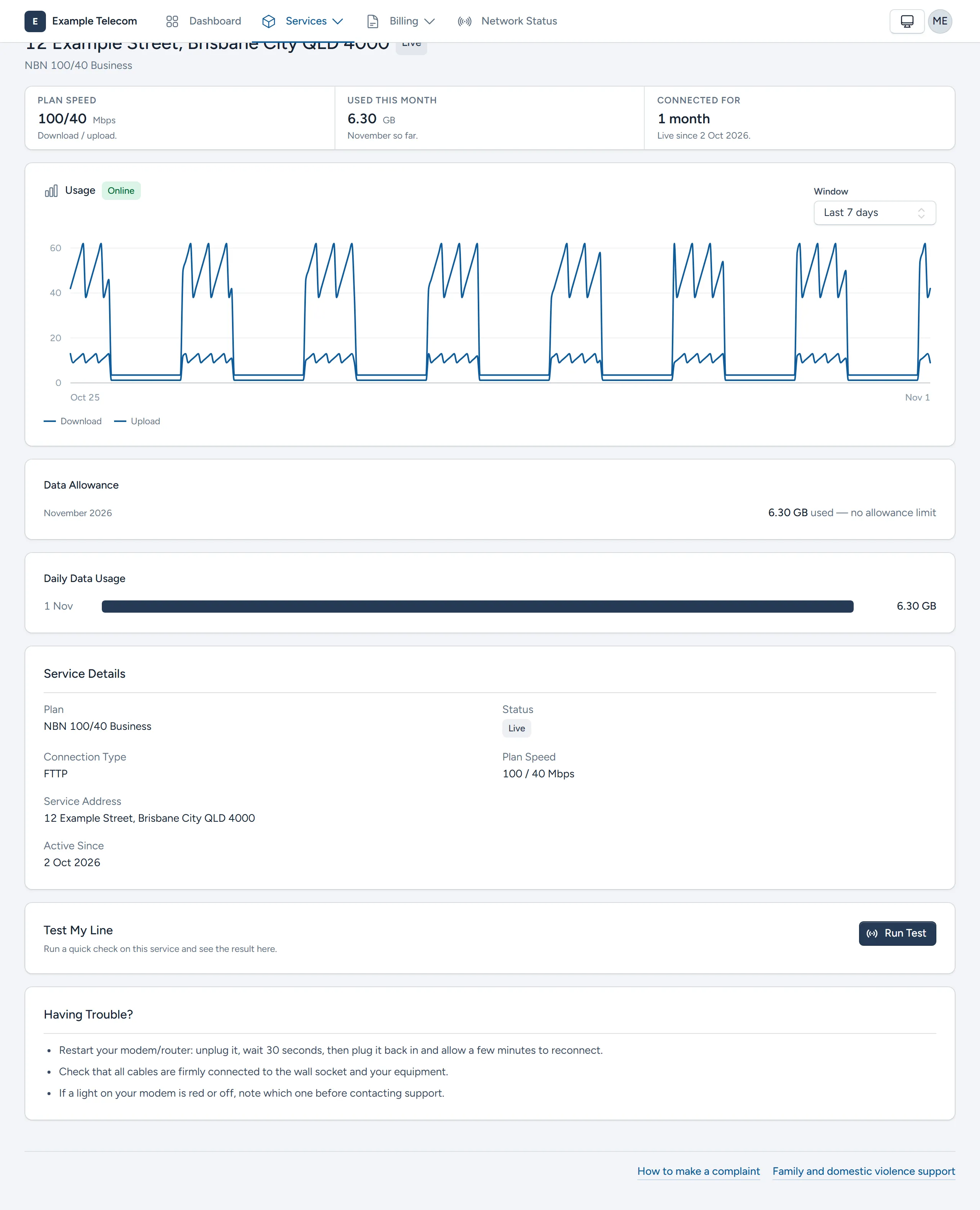
A data service in the end-user portal -
My Numbers, under Services: their phone numbers, and any ports in progress.
-
My VPN, under Services: the VPN users you ordered for them. They can download a user’s profile, and reset it if it may have leaked.
-
SMS: SMS Messages, Send an SMS, SMS Delivery and SMS Senders. SMS Delivery sets where inbound texts are delivered.
-
Fax: Faxes, Fax Delivery and Fax Senders. Their numbers fax only while on a fax plan you ordered for them. See Fax in the end-user portal.
-
Network Status: outages that affect their services, in the top menu and the phone menu alike. If you turned on Outage Emails to End Users, they also get an email about each one, which they can turn off under Network Outage Emails in their notification settings.
-
Profile, in the menu under their initials: Your Details, their Time Zone, their Address, Change Password, Two-Factor Authentication, their notification settings, and Inbound Call Screening for their numbers.
Every time in their portal is shown in one zone and names it, as in “5:00 pm AWST”. That covers a call, a ticket reply and an outage. The zone is the end user’s own time zone, which is yours until it is set for them. Time Zone lets each login pick another for themselves. Default goes back to the end user’s.
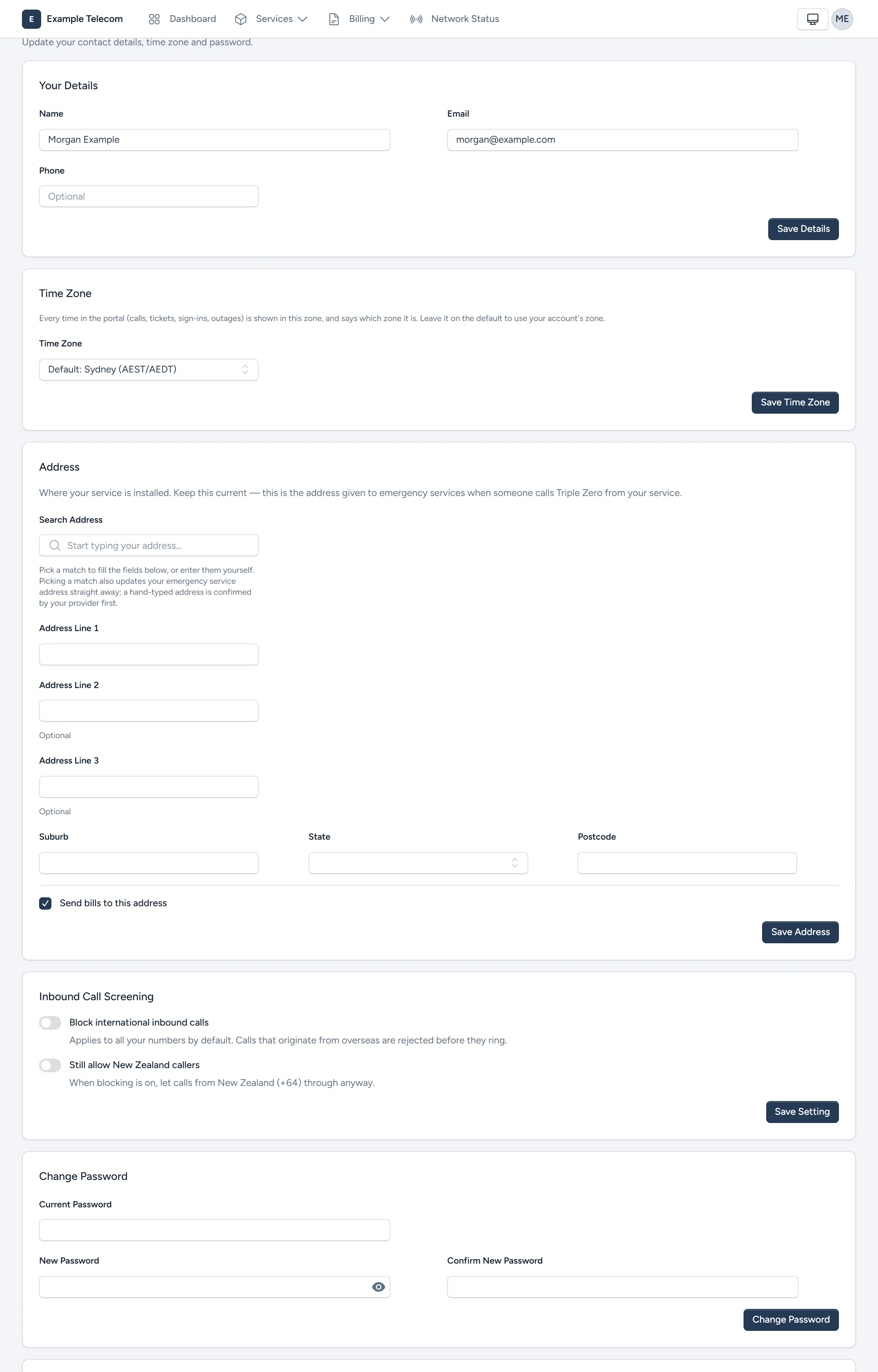
An end user's profile -
Account Activity, beside Profile: a record of what was changed in their portal, and by whom.
If you bill your end users through us, they also see, under Billing:
-
Bills: their bills, each with its Due date, its New Charges and its Amount Owing, and How to Pay. New Charges is this period’s charges. A credit reads “in credit”. On a phone each bill is a card with the amount owing and its Pay button in view. Dates are in the time zone each bill was cut in, their own, and the list and each bill name it, as the PDF does.
Each bill opens to its charges and its PDF. Beside the total it says in a few words what changed since their last bill: a new service and whether it was for part of the month, a service or credit that ended, a price change, usage up or down, no usage this month where the last bill had some, or a one-off charge. A bill whose due date you extended is marked Extended and says its new date. Add Credit pays ahead, when you offer card payment. Request Assistance opens their hardship request.
Until the end of the 60th calendar day after a bill is issued they can Dispute a charge on it, or the whole bill, saying why. You decide it. See Decide a dispute.
-
Payments: what they have paid, when and how, each with a Receipt to download. Download Statement covers the dates they choose, up to 12 months apart: every bill, payment and credit between them, with the balance brought and carried forward. It reads the same ledger as the statement on your end-user page, under your name and ABN as set in your retail branding. When they have bills past their due date, a banner at the top says how much is overdue and names each bill with its due date, as your reminders count them: an amount under an open dispute is left out.
-
Disputes: the disputes they have raised, each with its status, your decision note and the credit note if you credited it. While a dispute is open, that amount is not taken by automatic payment or chased by reminders.
-
Payment Methods: store a card or bank account through your payment gateway, choose the default, and turn on Automatic Payments so bills are paid on their due date. Pay By BPAY shows the details when you offer it.
-
Request Hardship Assistance: they pick the kind of help they want from the Financial Hardship Options you offer, say a little about their situation, and choose Submit Request. It arrives on their page for you to assess. Your Requests shows each request’s status and what happens next. While you assess it, their account is not suspended. Once you agree an arrangement, Bills and the dashboard show it, with its review date, and I Can’t Meet This asks you to review it.
The dashboard then shows what they owe, their latest bill and an estimate of the next one, to logins that see billing, so not Technical only. When they owe something and you take payments online, Pay Now pays the bill due first through your payment page, as on Bills. With no card or direct debit stored, it also offers to Set up automatic payments. With the portal on and billing off, the portal has none of these: no bills, payment methods or hardship requests, and no bill to pick when raising a ticket.
The portal also carries your Family and domestic violence statement and Complaints process, which anyone can read without signing in. Both are linked from the sign-in page and from the foot of every page once signed in, beside your support contact, opening hours and after-hours fault number.
Support tickets
Turn on Support Tickets under Retail Settings, then Branding & Domain, to let end users raise tickets with you from their portal, about one of their services if they choose. Each ticket is logged on your account and shows in your Support list. Without it, the portal has no support pages and shows the support phone and email you set in your branding.