 Help
Your profile holds your own details: the ones you sign in with. Choose Profile under Account in the sidebar, or open the profile menu at the top right and choose Profile.
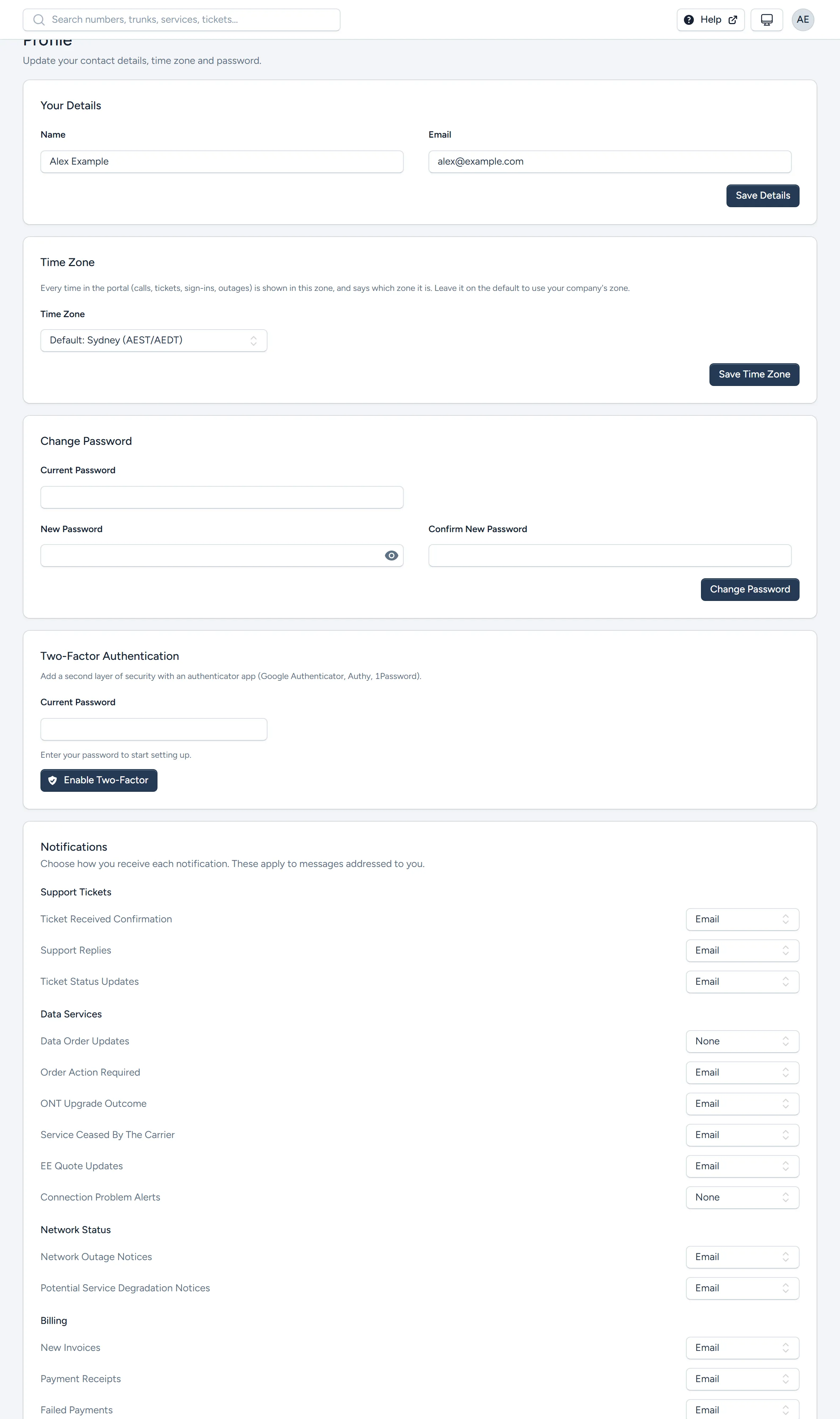
Your details
Change your Name or Email and choose Save Details.
Changing your email needs your Current Password. We email a link to the new address, and the change takes effect when you open it. The link lasts 60 minutes. Until you open it, you still sign in with the old address.
Time zone
Every time in the portal is shown in one time zone, and says which one after the time: “22 Nov 2026, 7:00 pm AEST”. That covers a call, a ticket and its replies, a sign-in, an outage and when a key expires. Where it helps, how long ago follows in brackets, “(3 hours ago)”.
That zone is your company’s until you pick your own. Choose one under Time Zone and select Save Time Zone. It changes only what you see, not what anyone else on your account sees. Pick Default to go back to your company’s zone. If your company’s zone itself is wrong, log a ticket and we will change it.
Invoice and credit note dates are not moved: they are the dates printed on the document.
Change your password
Enter your Current Password, then the New Password twice, and choose Change Password. Any other device that stayed signed in has to sign in again.
Two-factor and recovery codes
The Two-Factor Authentication card turns two-factor on and off and holds your recovery codes. See Two-factor authentication.
Notifications
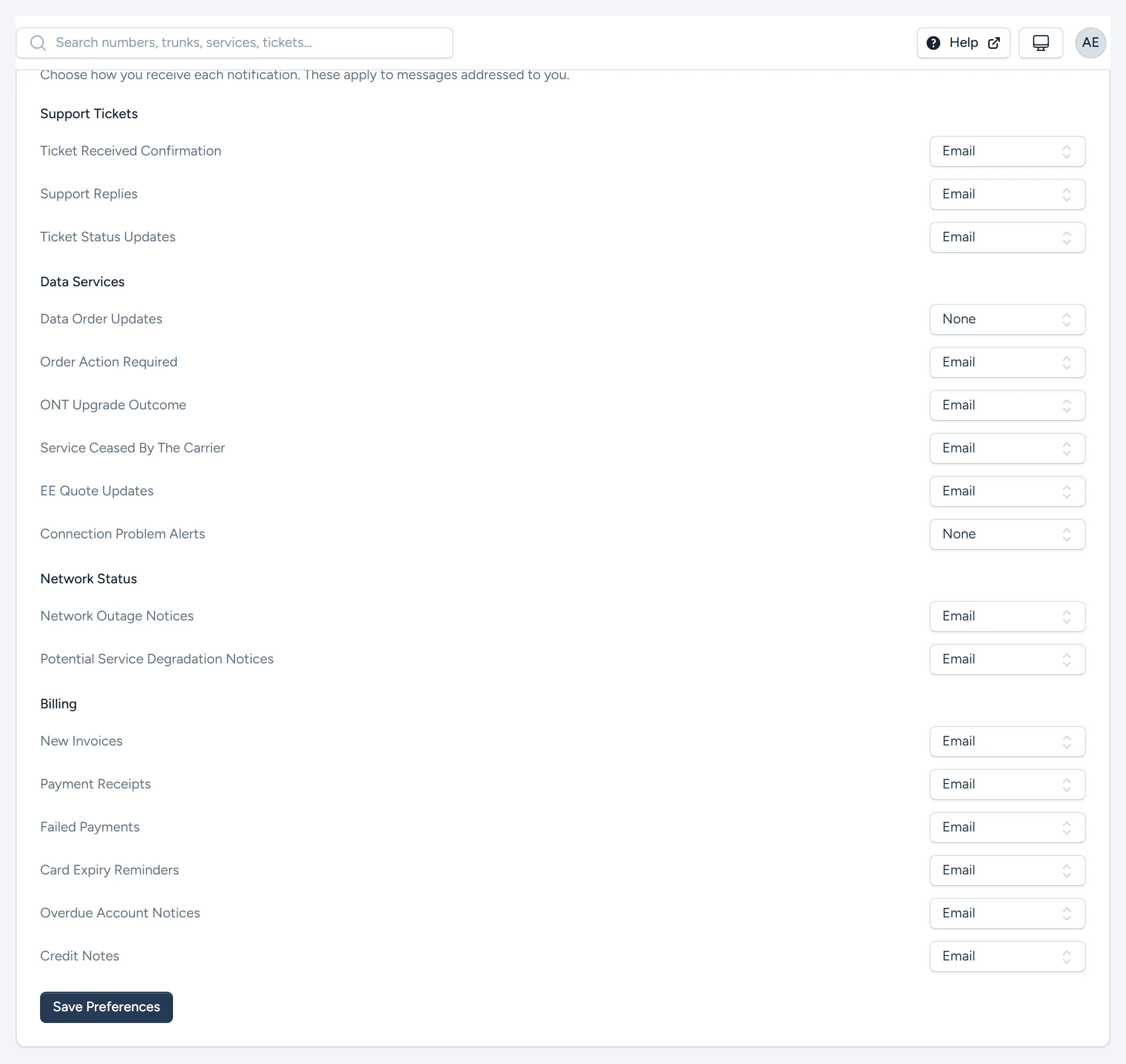
Notifications, at the bottom of the page, sets how each message addressed to you arrives: Email, or None to stop it. They are grouped as Support Tickets, Data Services, Network Status and Billing. Choose Save Preferences when you are done.
Turning some off has a consequence, and the page says so as you pick None. For example, turning off Overdue Account Notices also turns off automatic suspension for non-payment: there is no reminder, no warning and no suspension notice either.
A few are off until you turn them on, such as Data Order Updates and Connection Problem Alerts. See Connection problem alerts.
These are your own settings. The company-wide notification address and the credit and usage alerts are under Notifications.
What isn’t here
Your role, and which company account you belong to, are set by an Owner or Admin under Users and roles. Company-wide details such as the billing address are under Company settings.